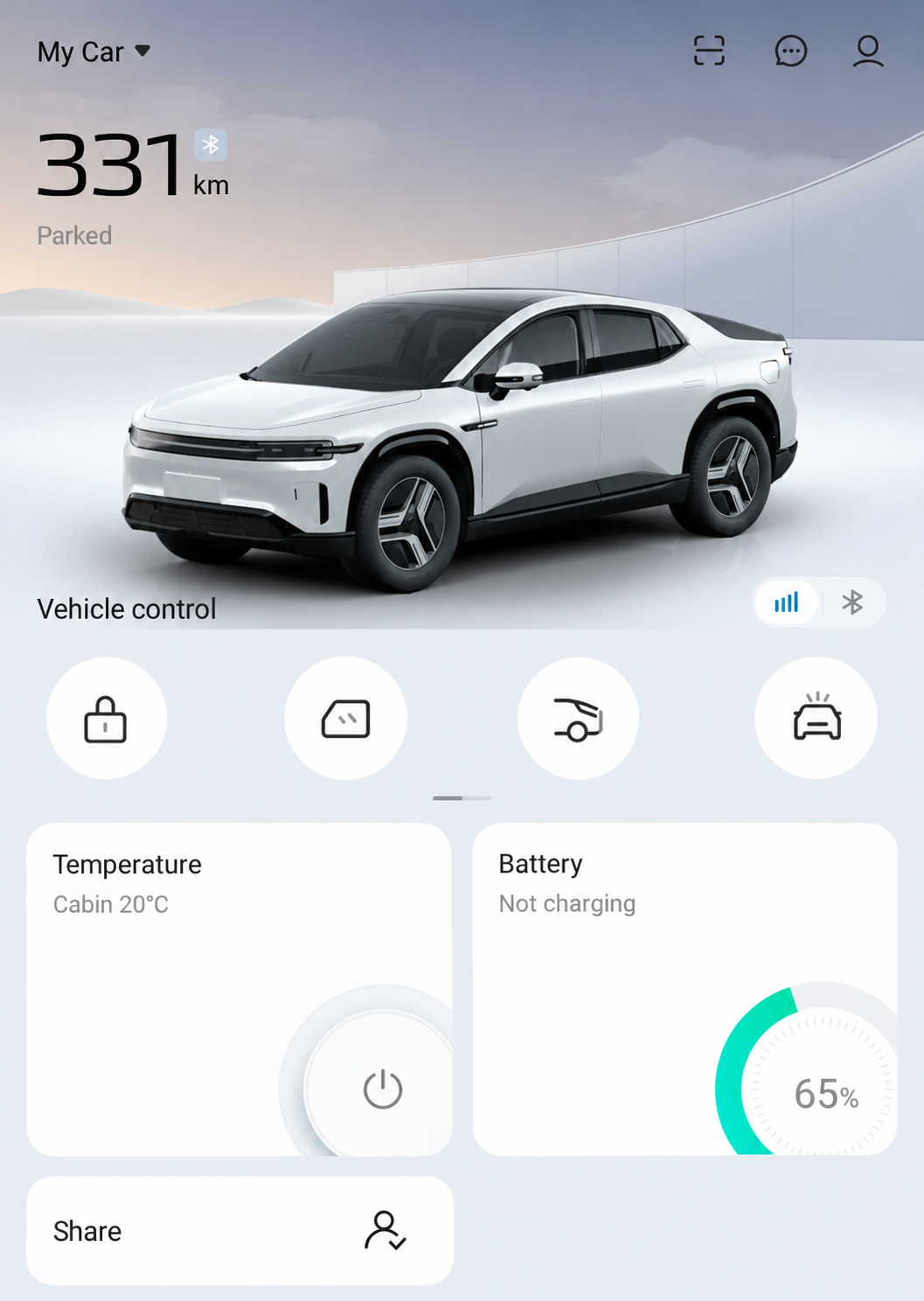
Your Home Screen
Use the numbered key to find each area.
- My Car
Choose the vehicle. - QR Scanner
Scan the car’s login code. - Message Center
Read app messages. - Personal Center
Open account and settings menus. - Vehicle Controls
Find the control symbols. - Temperature
Open AC and the Seats tab. - Battery
Read charge and range; find charging settings. - Share
Review the shared-access details.
The pictures combine supplied Australian E07 app images with recreated S07 examples. Personal details have been removed or replaced. The E07 experience should be similar, but screens and available features may differ.
Choose the Purchase Region
Choose the Purchase Region
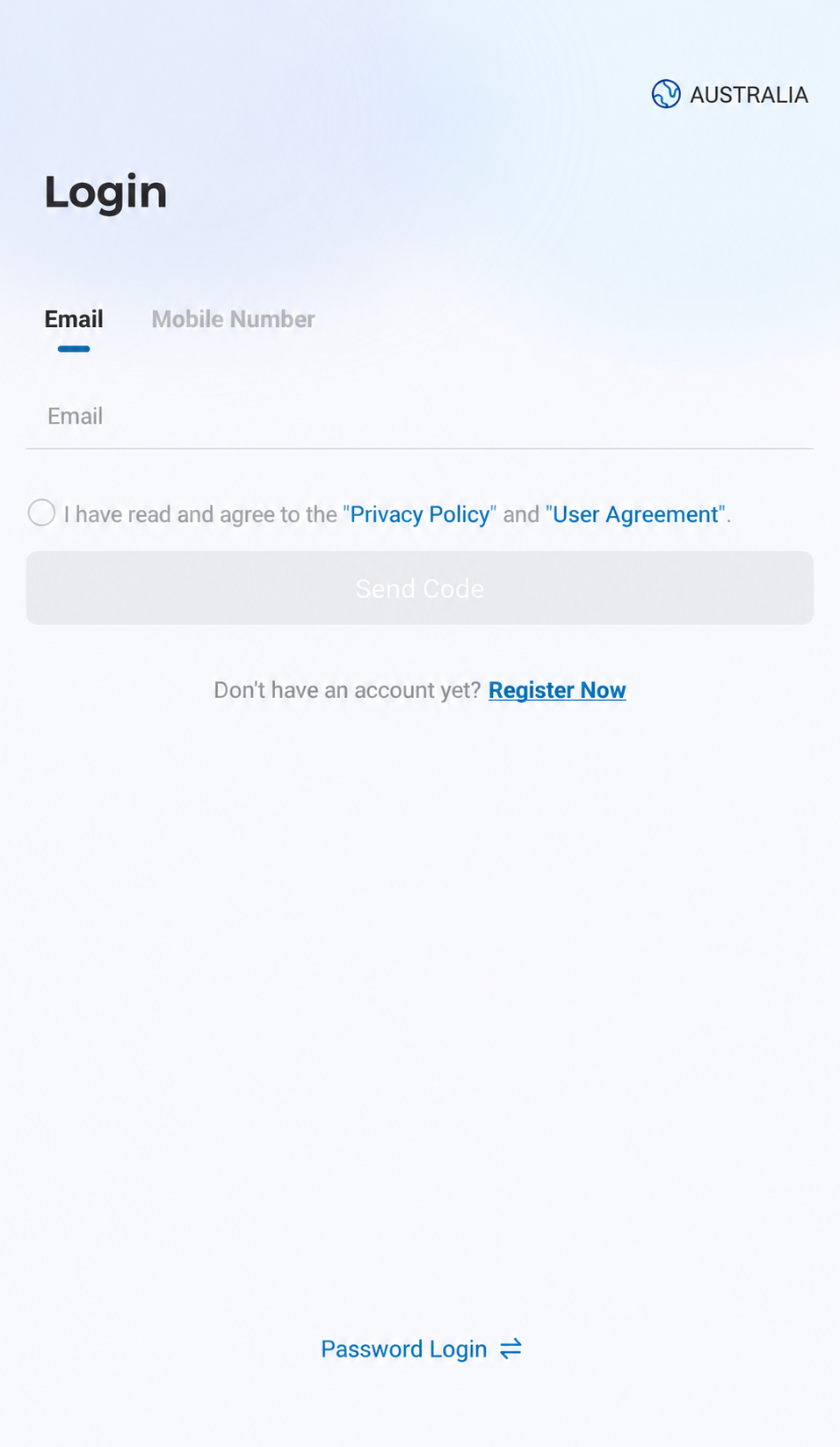
Open the Region Selector
After installing DEEPAL, tap the country/region at the top-right of Login.
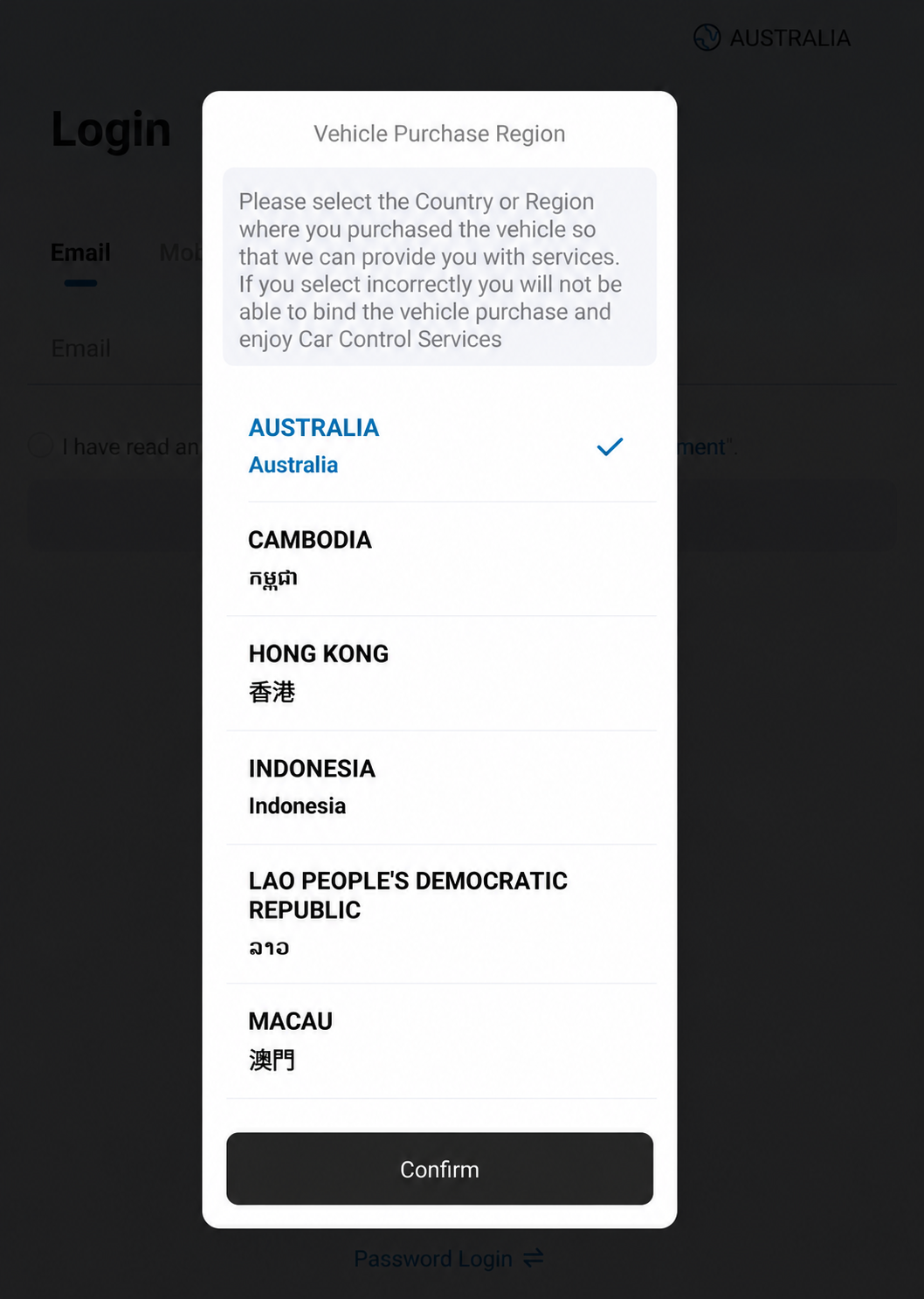
Select Australia and Confirm
- Choose Australia for an Australian vehicle purchase.
- Tap Confirm to return to Login.
Register and Sign in
Sign in with an Email Code
For a new owner account, tap Register Now below Send Code and register with your email in lowercase, matching the dealer’s record. Follow the current registration prompts. Password Login is at the bottom of Login. Follow the current recovery prompts for your account.
Email, Consent and Send Code
- Enter your account email.
- Read the agreement choices and select consent if you agree.
- Use Send Code when enabled. This empty example shows it disabled.
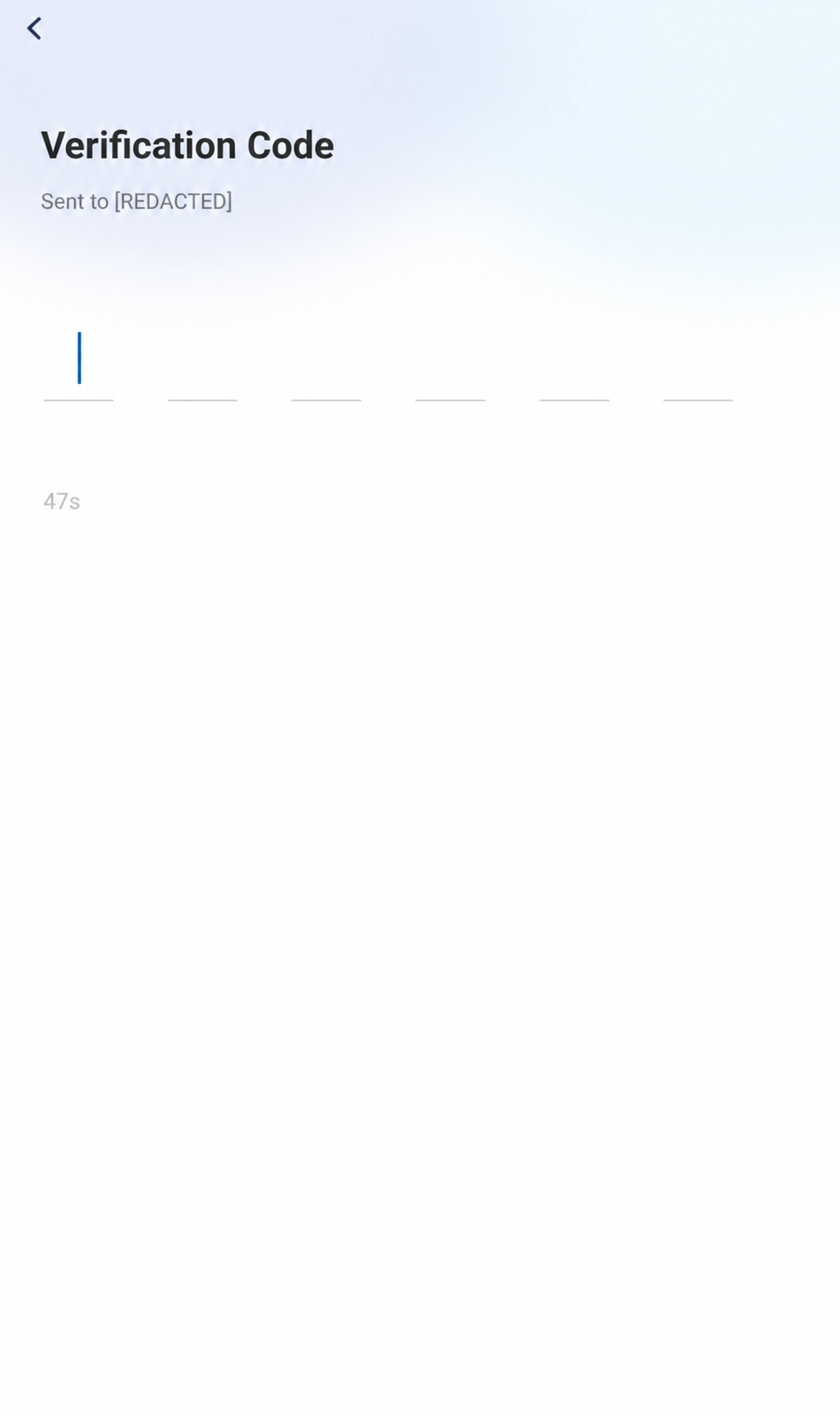
Find the Code Entry Boxes
If this verification screen appears, enter the code sent to your own email. The reference has empty boxes and a redacted recipient; it does not show a completed sign-in.
Bind Your Vehicle as the Owner
Bind Your Vehicle
S07 app images are used as examples. The E07 experience should be similar, but screens and available features may differ.
The dealer needs to send an email for account binding. Allow up to two business days for dealer processing. This is separate from the email verification code used to sign into the app.
Binding links your app account to the vehicle. Bluetooth pairing and phone-key setup are separate steps.
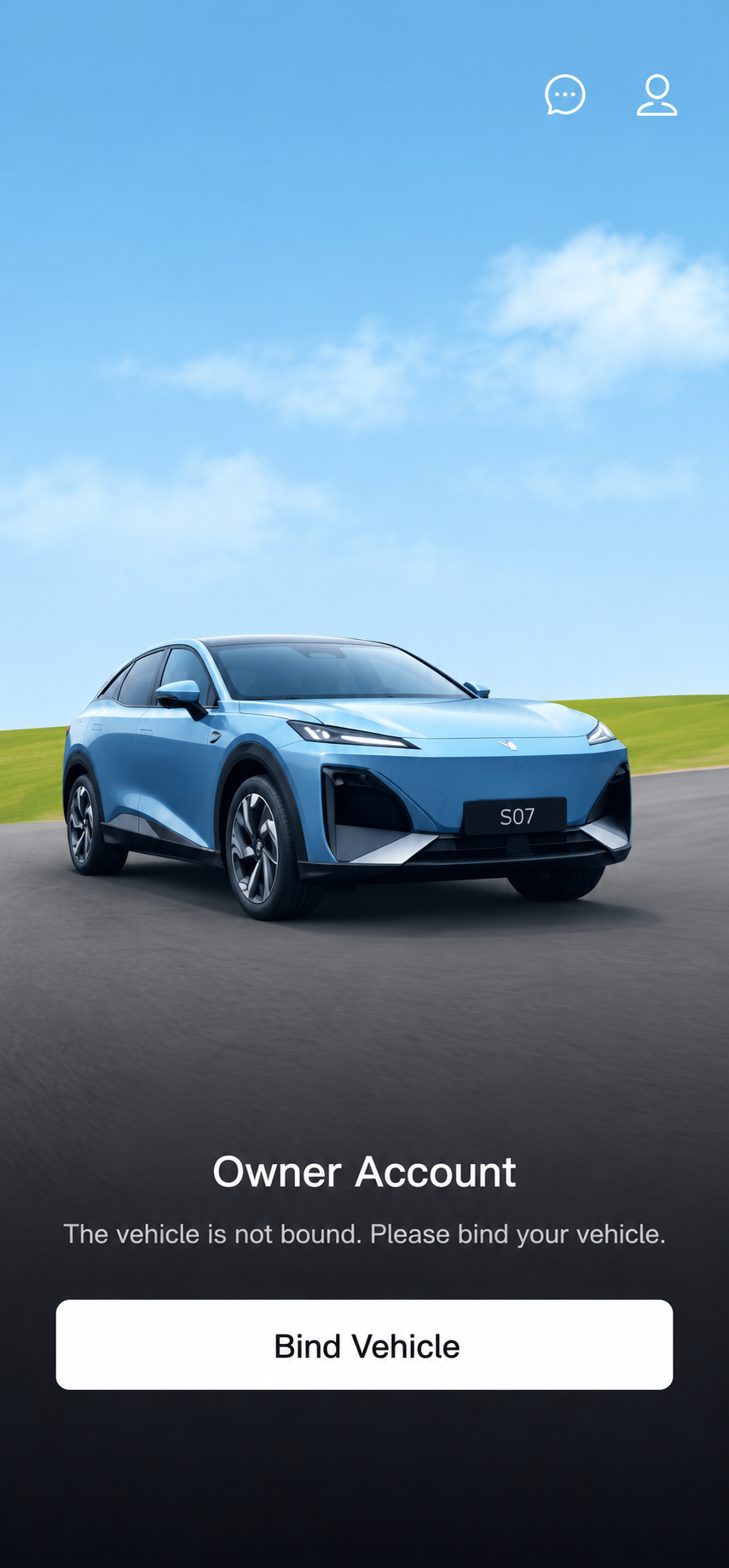
Tap Bind Vehicle
Sign in with the owner account whose email matches the dealer’s record, then tap Bind Vehicle.
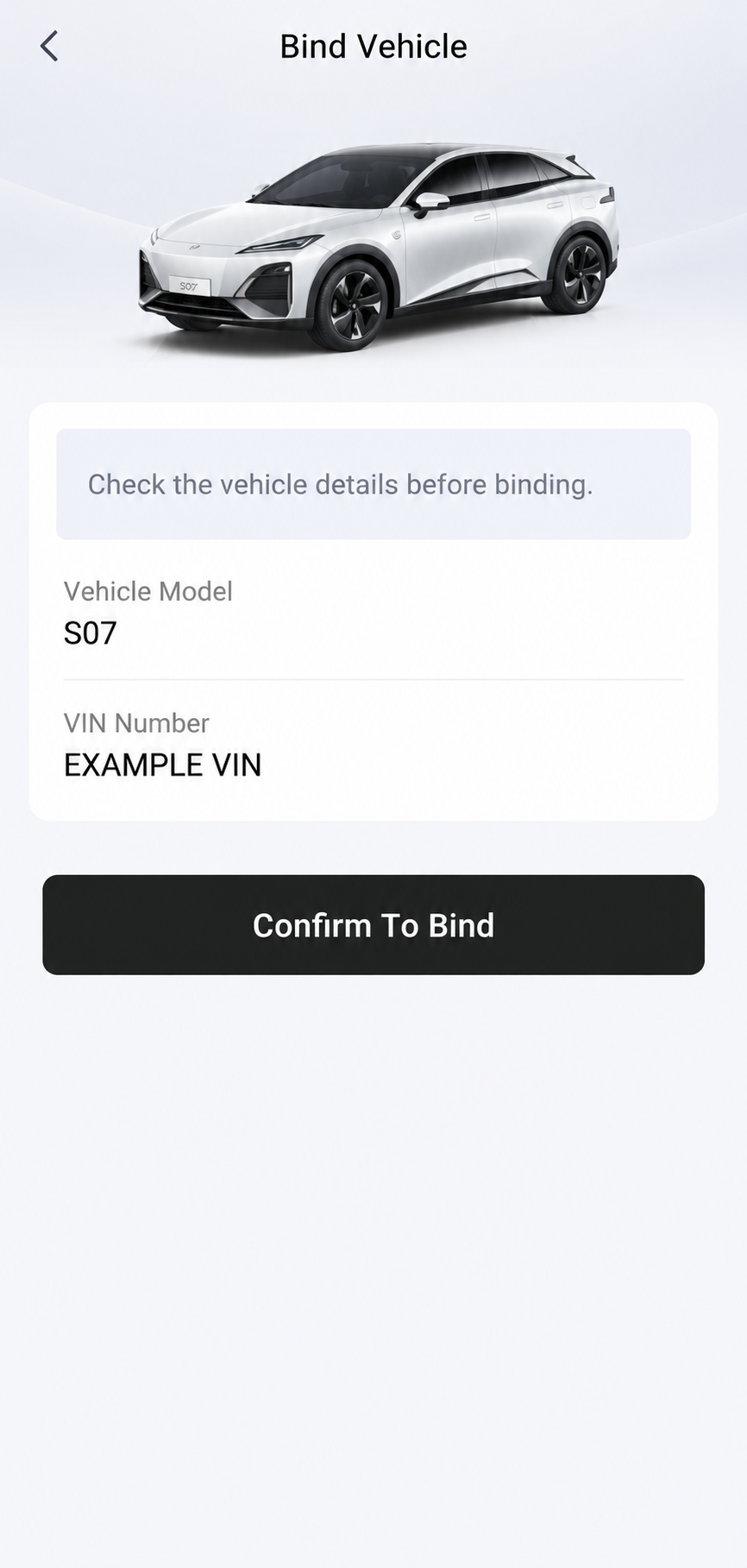
Confirm the Vehicle Details
- Check that the model and VIN match your own vehicle. S07 and EXAMPLE VIN are placeholders in this picture.
- Tap Confirm To Bind. After binding succeeds, check that your vehicle appears on home.
If your vehicle is missing or binding still does not work after two business days, contact your dealer to check the account email and VIN. See Account Setup and Binding for the full process. Shared recipients should open the vehicle granted by its owner instead of binding it.
My Vehicle
Choose the E07 You Want to Use
Open My Vehicle
Tap My Car and its dropdown arrow at the top-left.
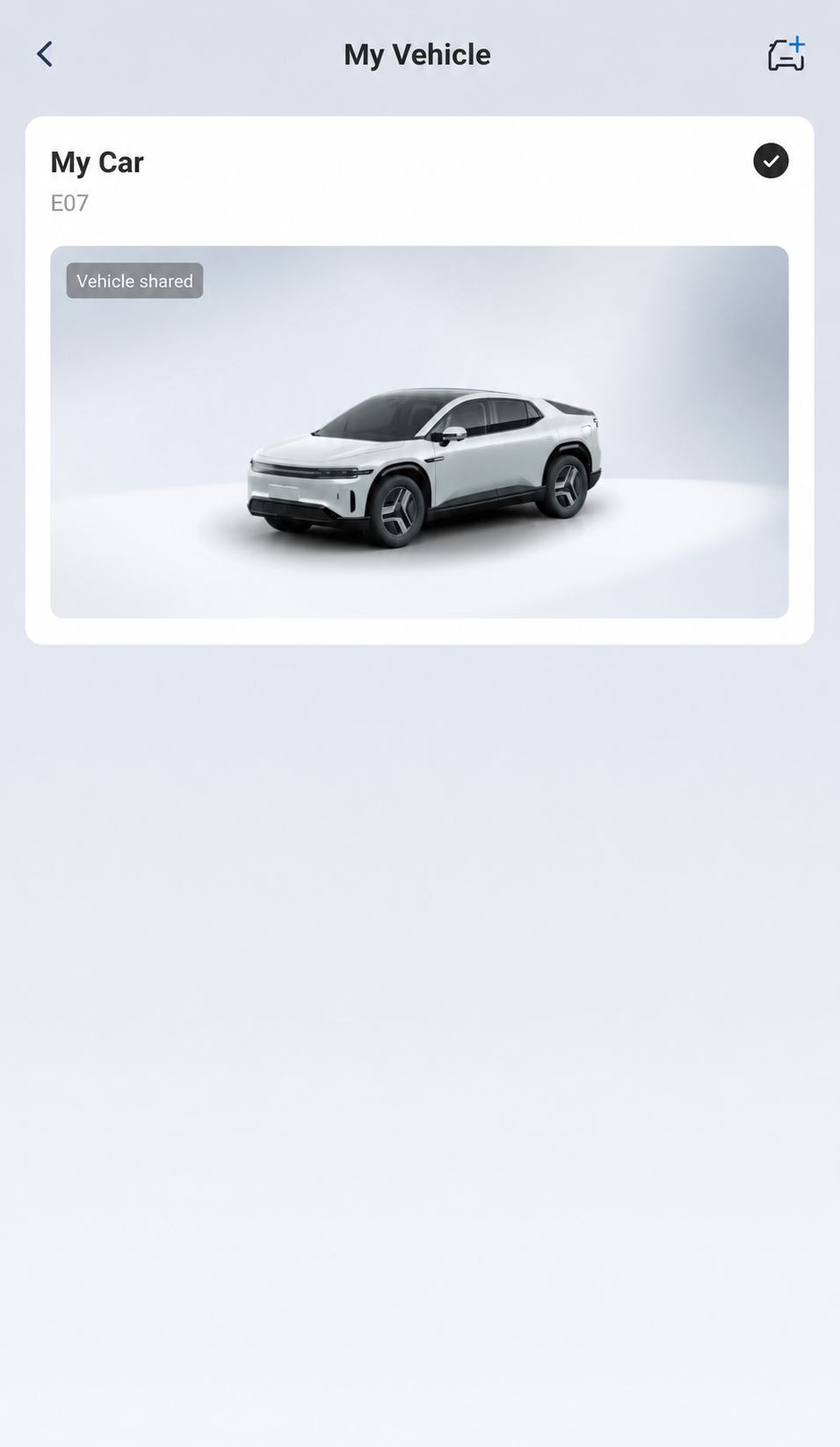
Check the Selected Vehicle
Select the intended E07 card and check the selection mark. Vehicle Shared identifies the recipient view shown here.
Vehicle Home
Find Both Rows of Vehicle Controls
Locate the symbol before operating it. A tap on a vehicle control may send a command immediately.
Start with the First Row
The first row contains
- Lock,
- Window,
- Back Door and
- Lights / Horn. Swipe this circular control row to reveal more.
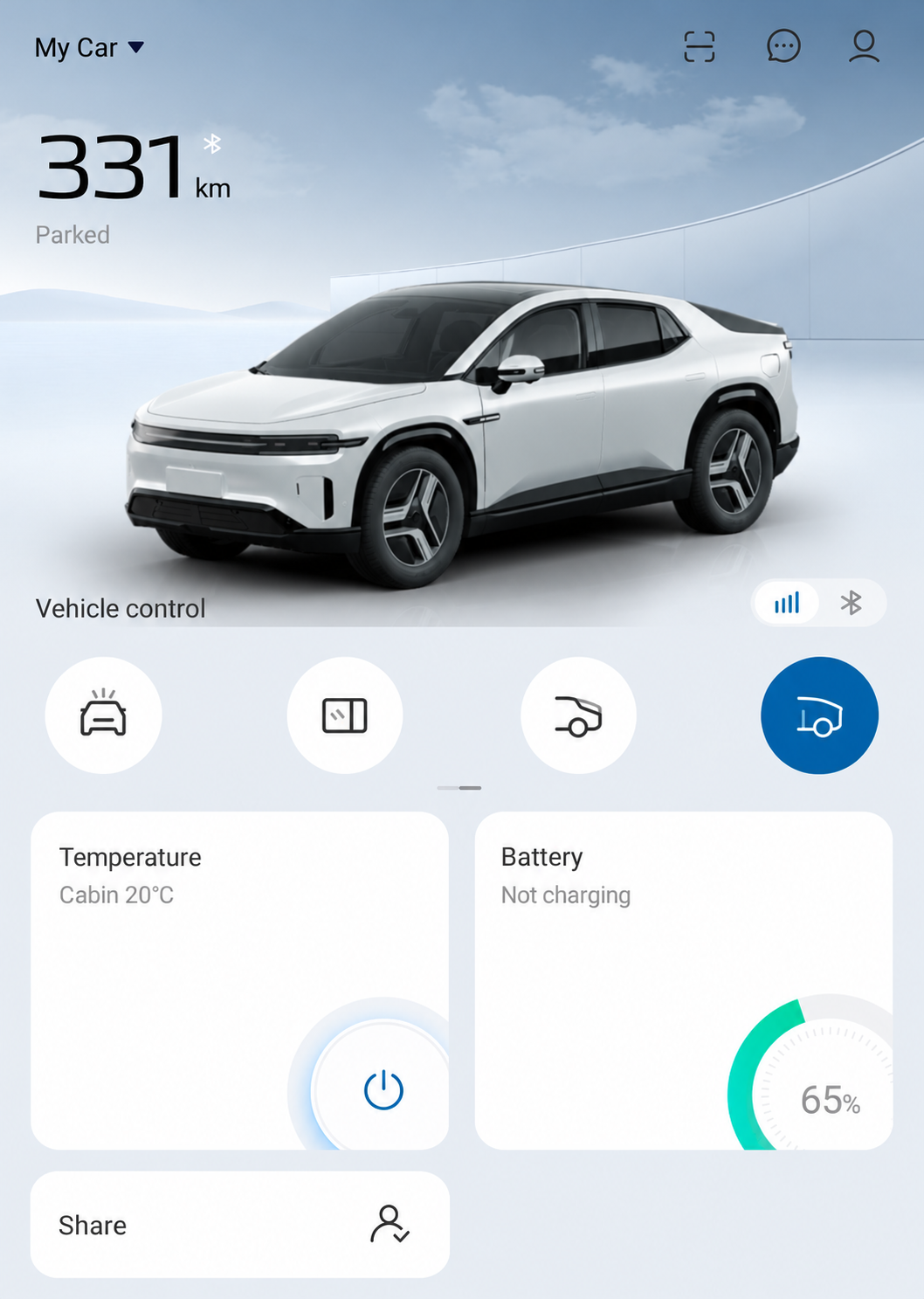
Swipe for More Controls
The next row repeats Lights / Horn, then shows
- Rear Dome / Sunroof,
- Boot and
- Partition Glass. These circles have no text captions in the reviewed app.
Vehicle Status
Find Vehicle Status and Total Mileage
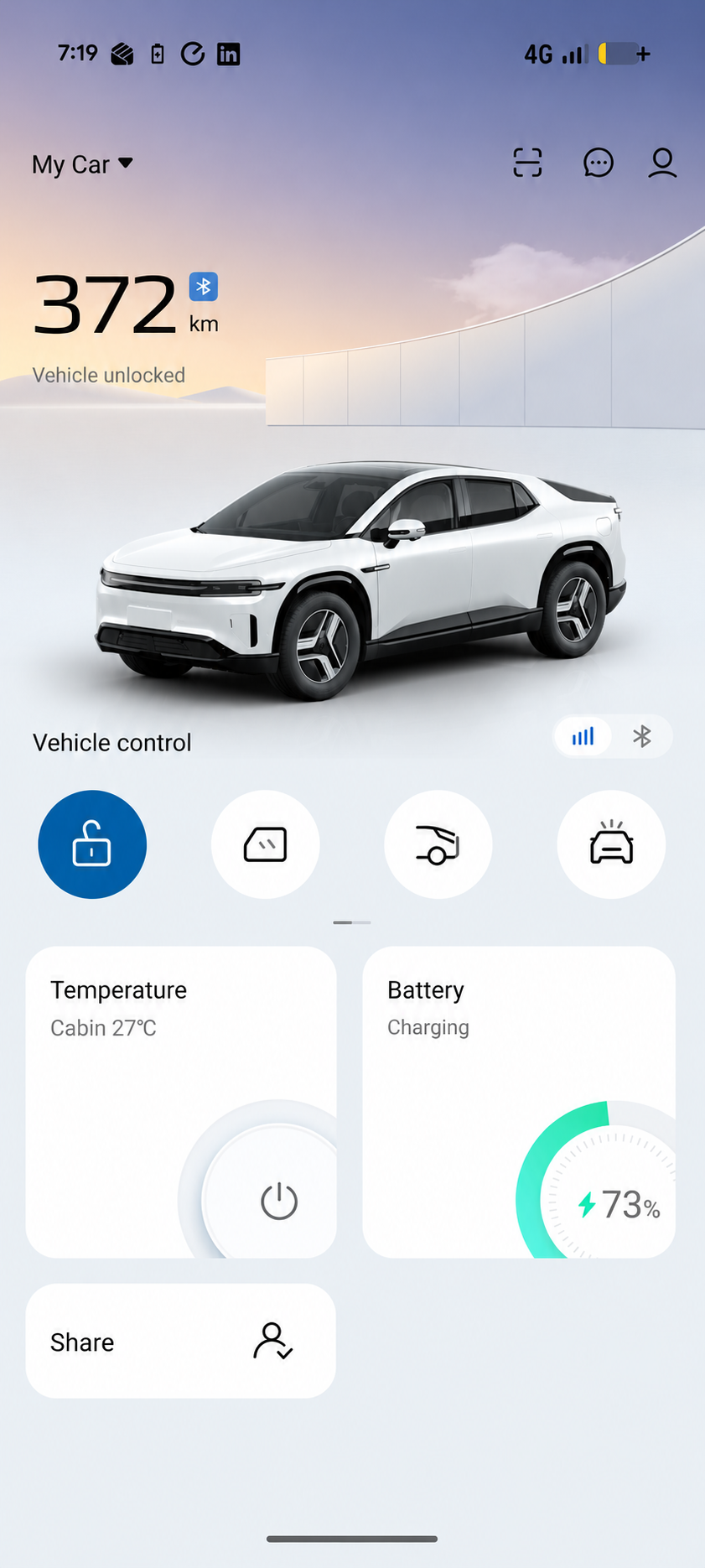
Tap the Car Illustration
On My Car, tap the car illustration. The home range figure estimates remaining distance.
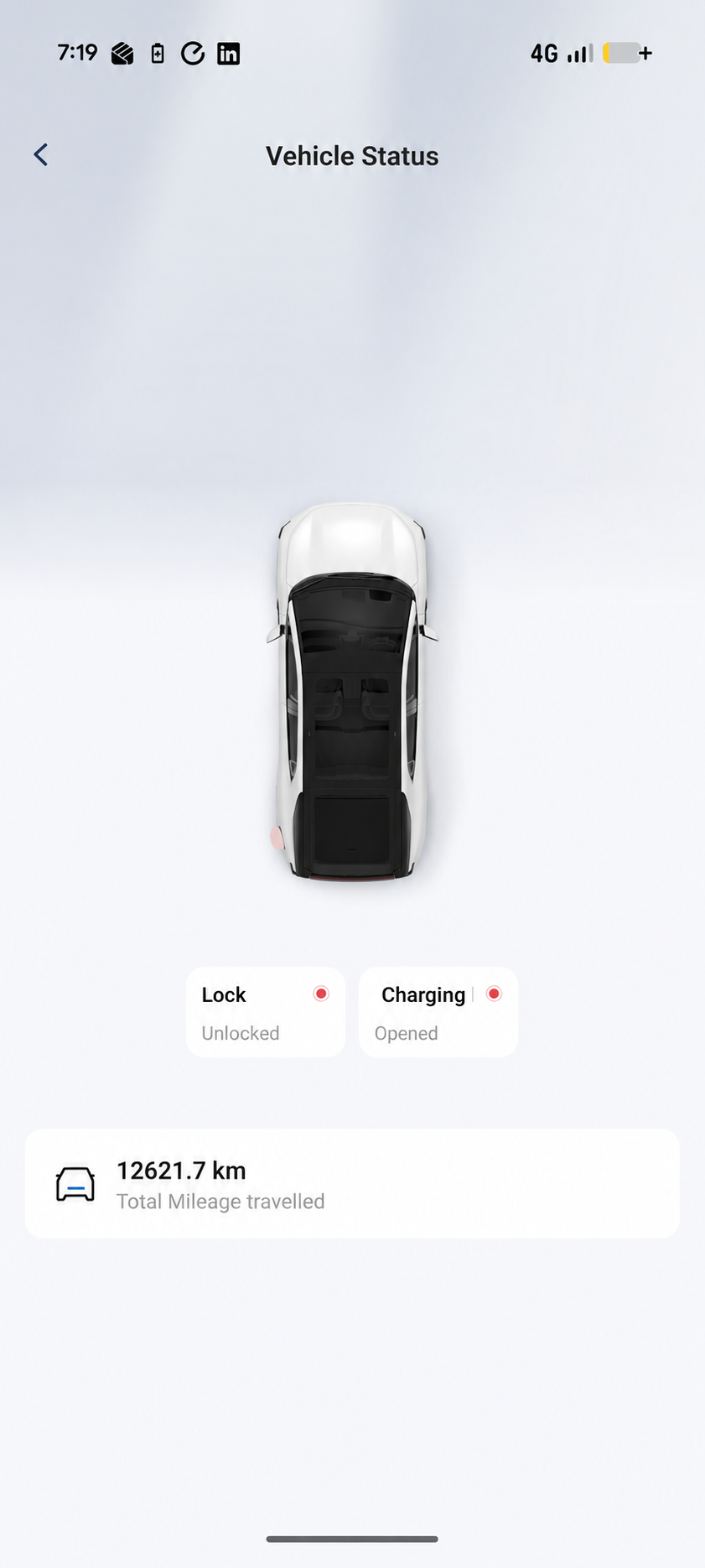
Read Total Mileage Travelled
Find Total Mileage Travelled on Vehicle Status. This is the total-distance field in the supplied owner example.
Internet and Bluetooth Connections
Find the Connection Selector
Internet unlocking cannot start the car. Starting with a phone key requires its own authorisation, permissions and a nearby Bluetooth connection.
Internet or Bluetooth
- Signal bars identify internet remote control.
- The Bluetooth symbol is beside it. For an authorised phone key, use Bluetooth car-control mode beside the vehicle and establish the key connection. The highlighted appearance alone does not prove a connection or starting access.
Vehicle Control Passcode
Find the Vehicle Control Passcode Settings
S07 app images are used as examples. The E07 experience should be similar, but screens and available features may differ.
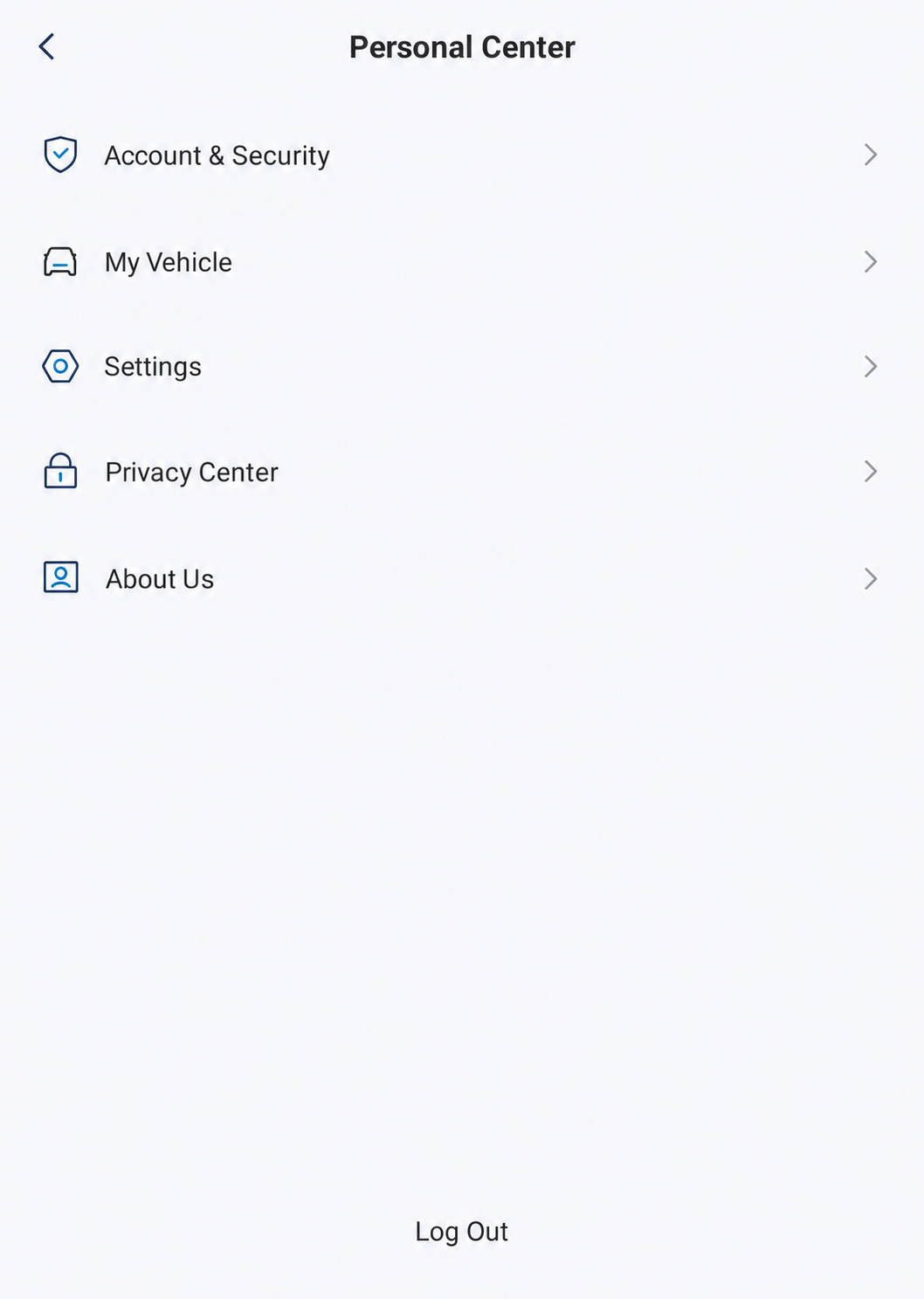
Open My Vehicle
Open Personal Center using the person icon, then tap My Vehicle.
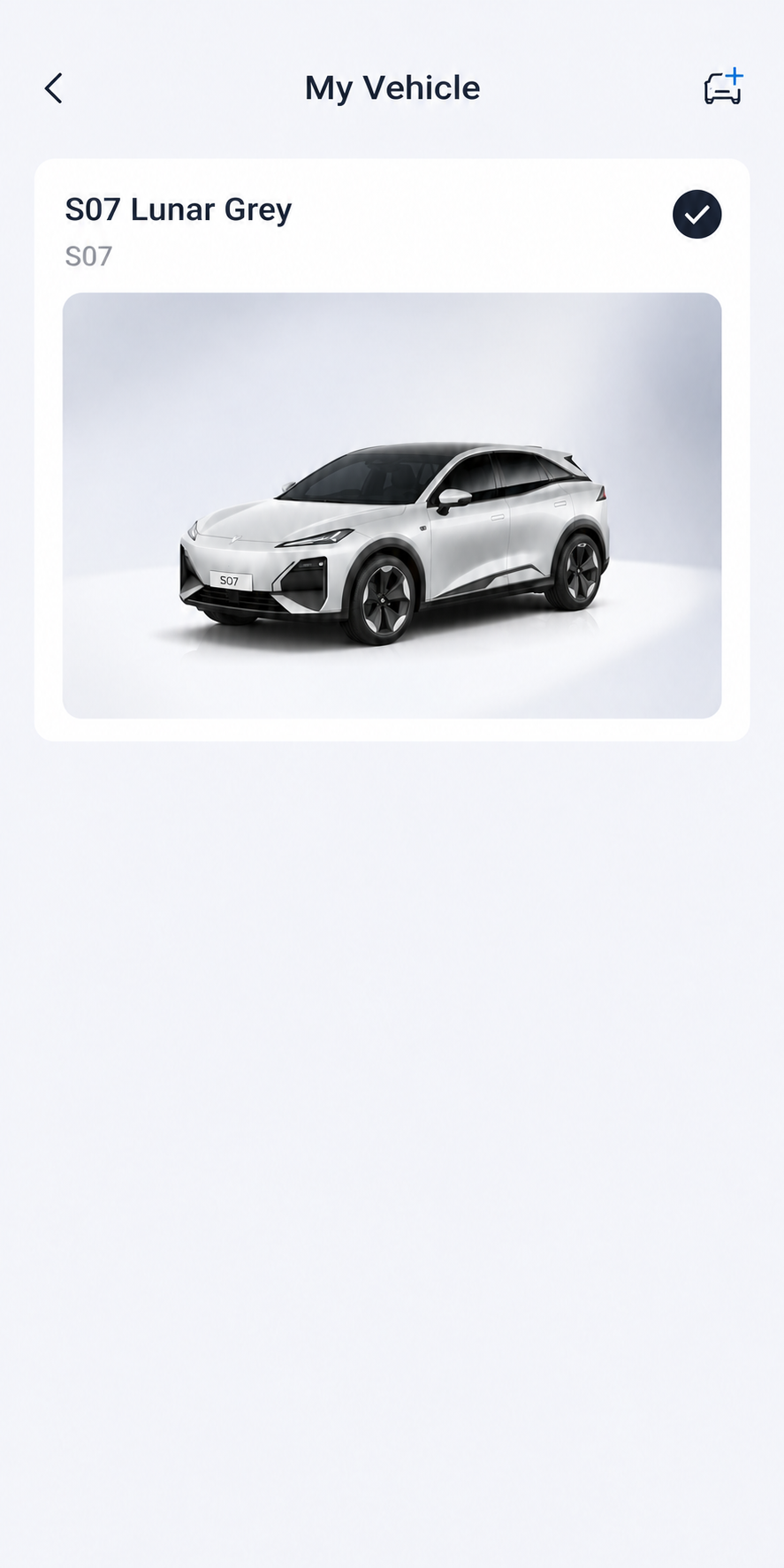
Open the Vehicle Details
Select your own vehicle card. The example shows the owner’s S07.
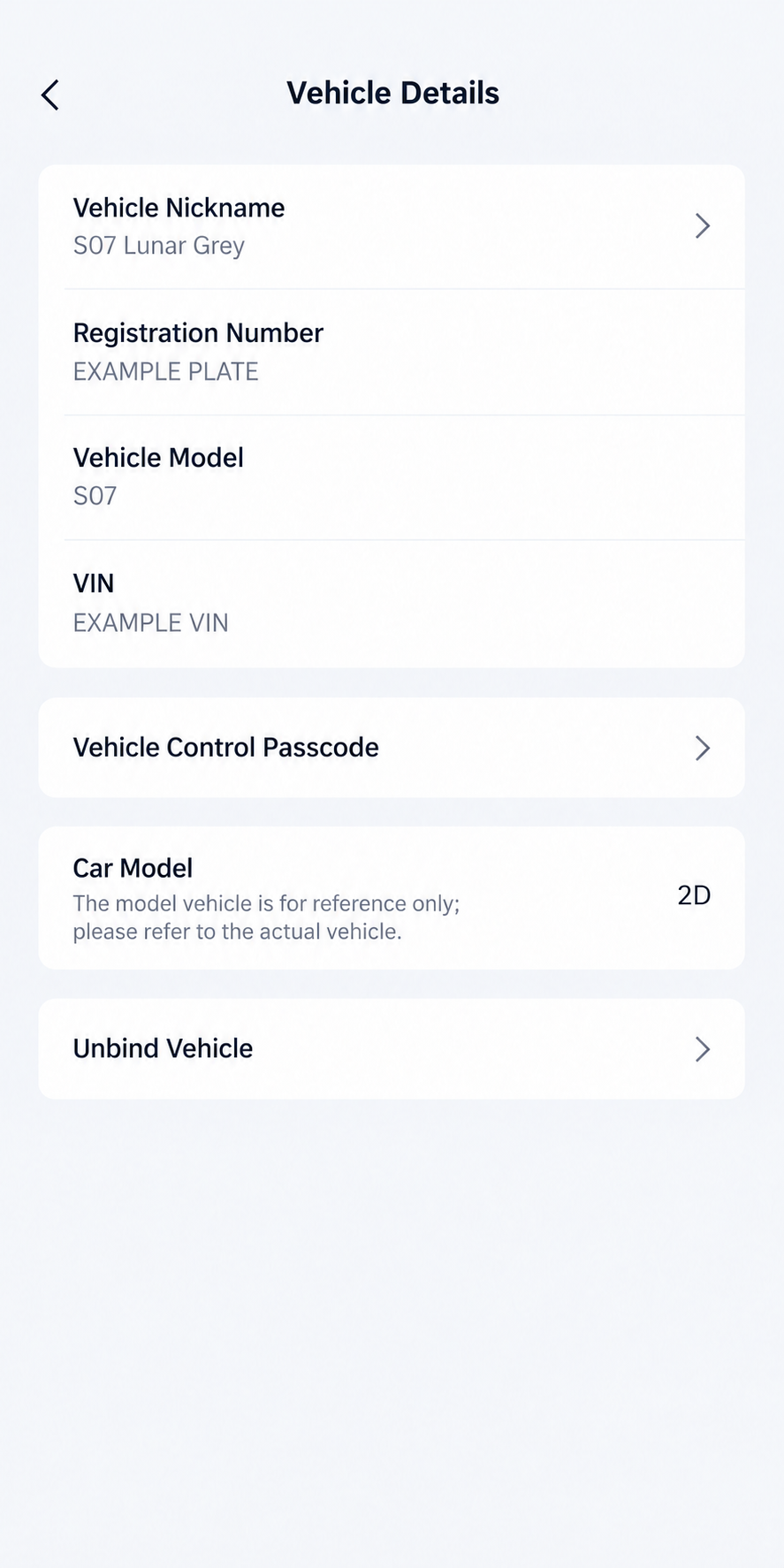
Vehicle Control Passcode
Tap Vehicle Control Passcode below the vehicle information.
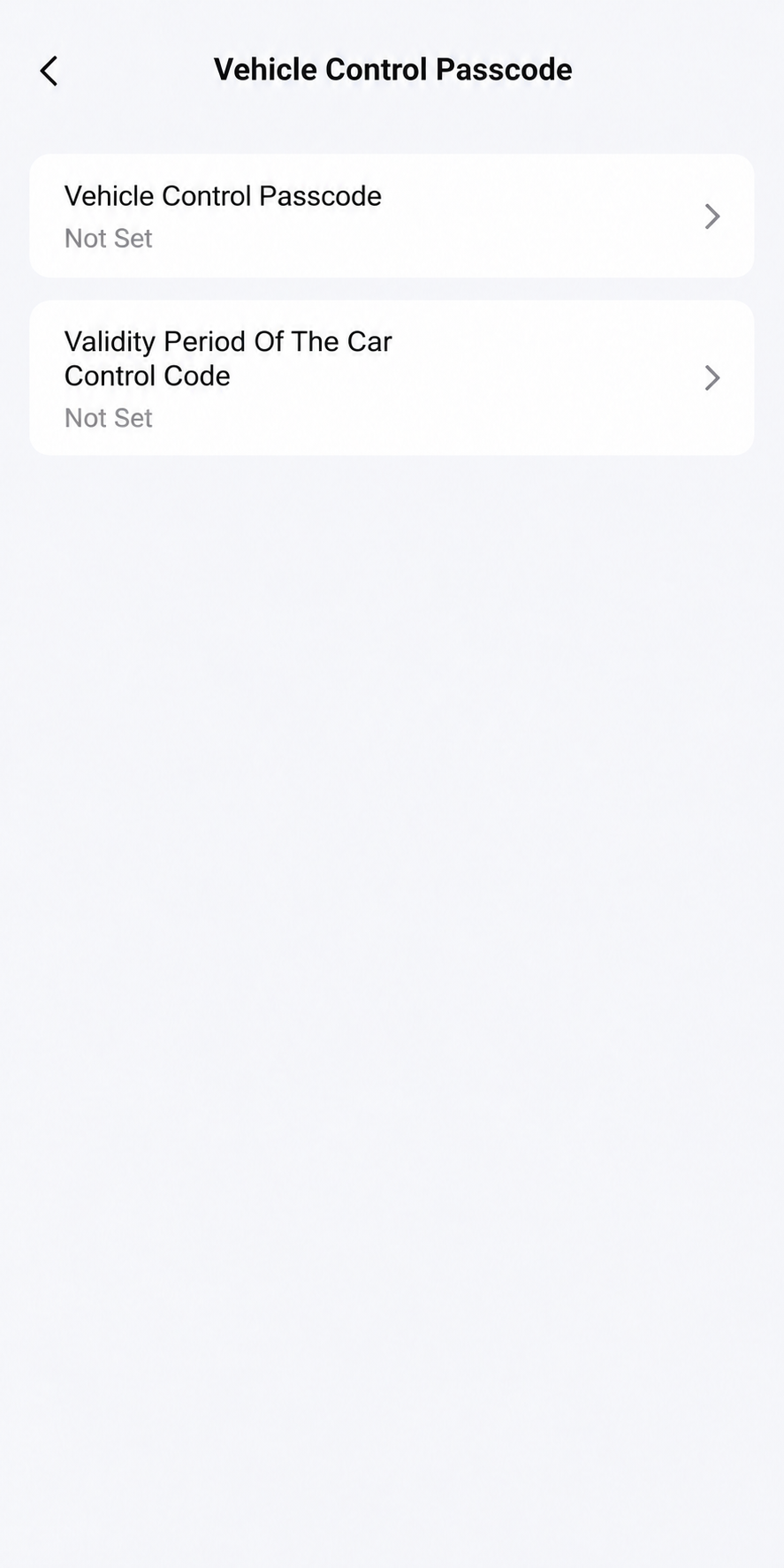
Choose the Passcode Setting
- Tap Vehicle Control Passcode and follow the setup or verification prompts your app provides.
- The validity-period setting is a separate row. Both settings show Not Set in this example.
A vehicle-control passcode is separate from your login password and email sign-in code. Keep your codes private.
Vehicle Control Icons
Use this overview to identify the control, then open its individual section below. The names describe E07 manual functions, with artwork aligned to the observed app circles and bundled resources. These reference illustrations do not verify a successful vehicle command. Follow the confirmation prompts your app presents and check the result at the car.
| Control | Documented Function |
|---|---|
| Changes the door-lock state. Internet remote unlocking alone cannot start the vehicle. | |
| Changes windows between ventilation and closure. | |
| Opens or closes the back door. This is a separate documented control from Boot; do not substitute one for the other. | |
| Flashes the vehicle lights and sounds its horn to help locate it. | |
| Controls the roof/dome opening shown by your app. The E07 manual uses Rear Dome in internet mode and Sunroof in Bluetooth mode; the reviewed icon has no text caption. Confirm the intended mechanism before operating it. | |
| Offers fully open, fully closed or extended modes according to the manual. Read your app’s current options and confirmation labels before choosing a mode. | |
| Opens or closes the partition glass where available. A blue icon background does not establish its physical state. |


Door Locks
Locate the Lock Control
A control tap may send a vehicle command. Read any confirmation and keep the area around moving parts clear; verify the result at the car.
Lock
Locate the padlock in the first control row. Check the requested lock/unlock action, then verify the actual door-lock state.
Windows
Locate the Window Control
A control tap may send a vehicle command. Read any confirmation and keep the area around moving parts clear; verify the result at the car.
Window
Locate the window symbol in the first control row. Read the action offered for ventilation or closure, then check the actual windows.
Back Door
Locate the Back Door Control
A control tap may send a vehicle command. Read any confirmation and keep the area around moving parts clear; verify the result at the car.
Back Door
Locate this separate back-door symbol. Check the intended movement before operating it; it is distinct from Boot.
Boot
Speaking to DEEPAL from outside is a separate feature. An owner reports limited response at a distance; see Outside Voice Control: Limited.
Locate the Boot Control
A control tap may send a vehicle command. Read any confirmation and keep the area around moving parts clear; verify the result at the car.
Boot
Swipe to the additional controls and locate Boot. Use a fully open, fully closed or extended option only when your app actually offers it.
Lights and Horn
Locate the Lights / Horn Control
A control tap may send a vehicle command. Read any confirmation and keep the area around moving parts clear; verify the result at the car.
Lights / Horn
Locate the car-with-rays symbol. Use it to find the vehicle, then check that the intended horn/light action occurred.
Rear Dome and Roof Controls
Locate the Rear Dome / Sunroof Control
A control tap may send a vehicle command. Read any confirmation and keep the area around moving parts clear; verify the result at the car.
Rear Dome / Sunroof
Swipe to the additional controls and locate the roof symbol. Confirm the moving rear mechanism and its path before operating it; the cabin panoramic roof is fixed.
Partition Glass
Locate the Partition Glass Control
A control tap may send a vehicle command. Read any confirmation and keep the area around moving parts clear; verify the result at the car.
Partition Glass
Swipe to the additional controls and locate the partition-glass symbol. Check the intended movement and actual glass position.
Air Conditioning
Open the Air-Conditioning Screen
Open the page first to inspect the current cabin information. Read the current action before changing the temperature or using the AC button, then check the vehicle’s response.
Tap Temperature
Tap the Temperature heading/card navigation area. The separate power symbol near the bottom of that card may operate climate directly.
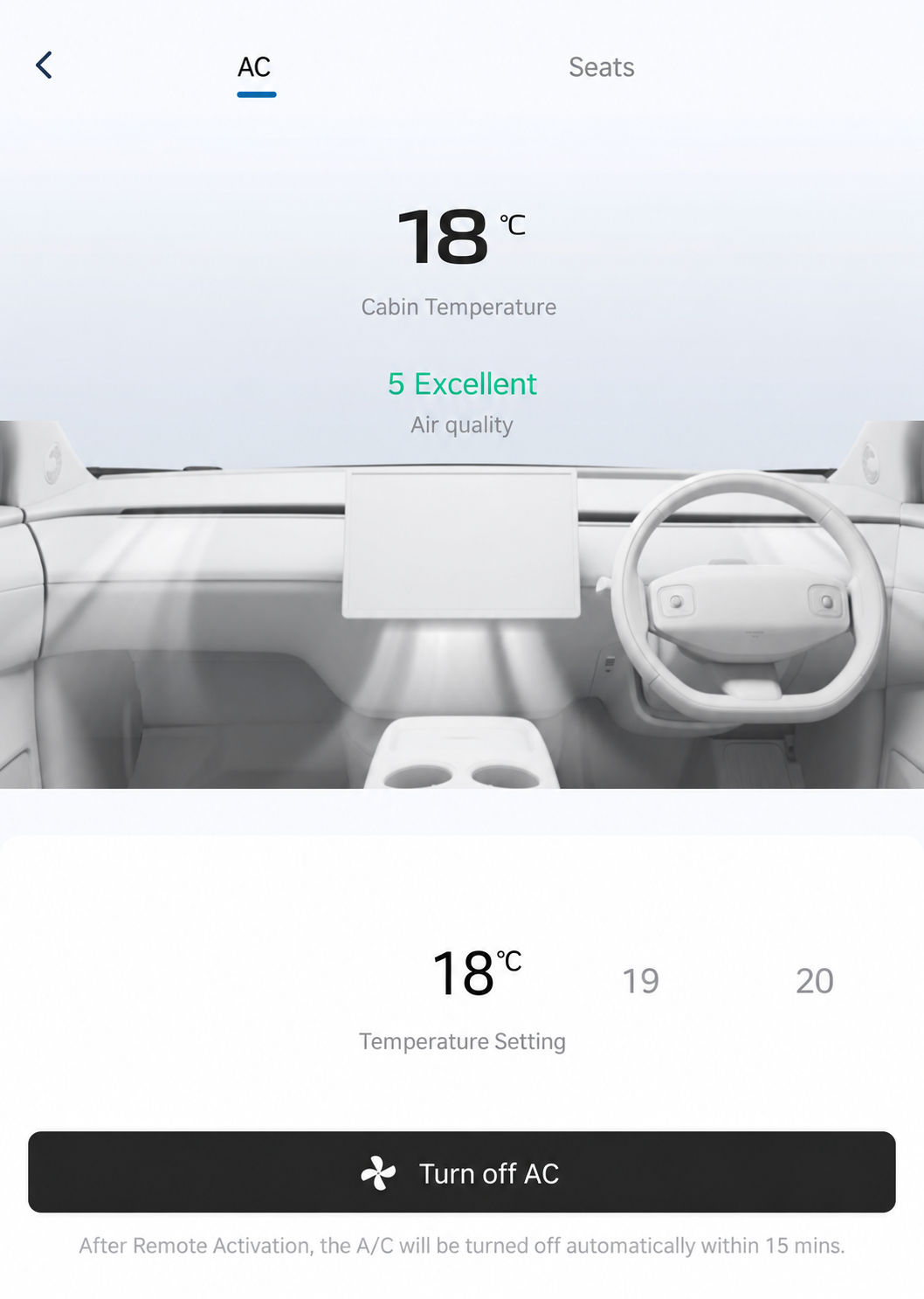
Find the Temperature and AC Controls
- The temperature wheel is below the cabin picture.
- The bottom button reads Turn Off AC in this on-state example. Read the current action before using either control.
Seat Heating and Ventilation
Find the Seat Comfort Controls
S07 app images are used as examples. The E07 experience should be similar, but screens and available features may differ.
Open Temperature
Tap the Temperature heading on vehicle home.
Choose Seats
Tap Seats at the top of the climate page.
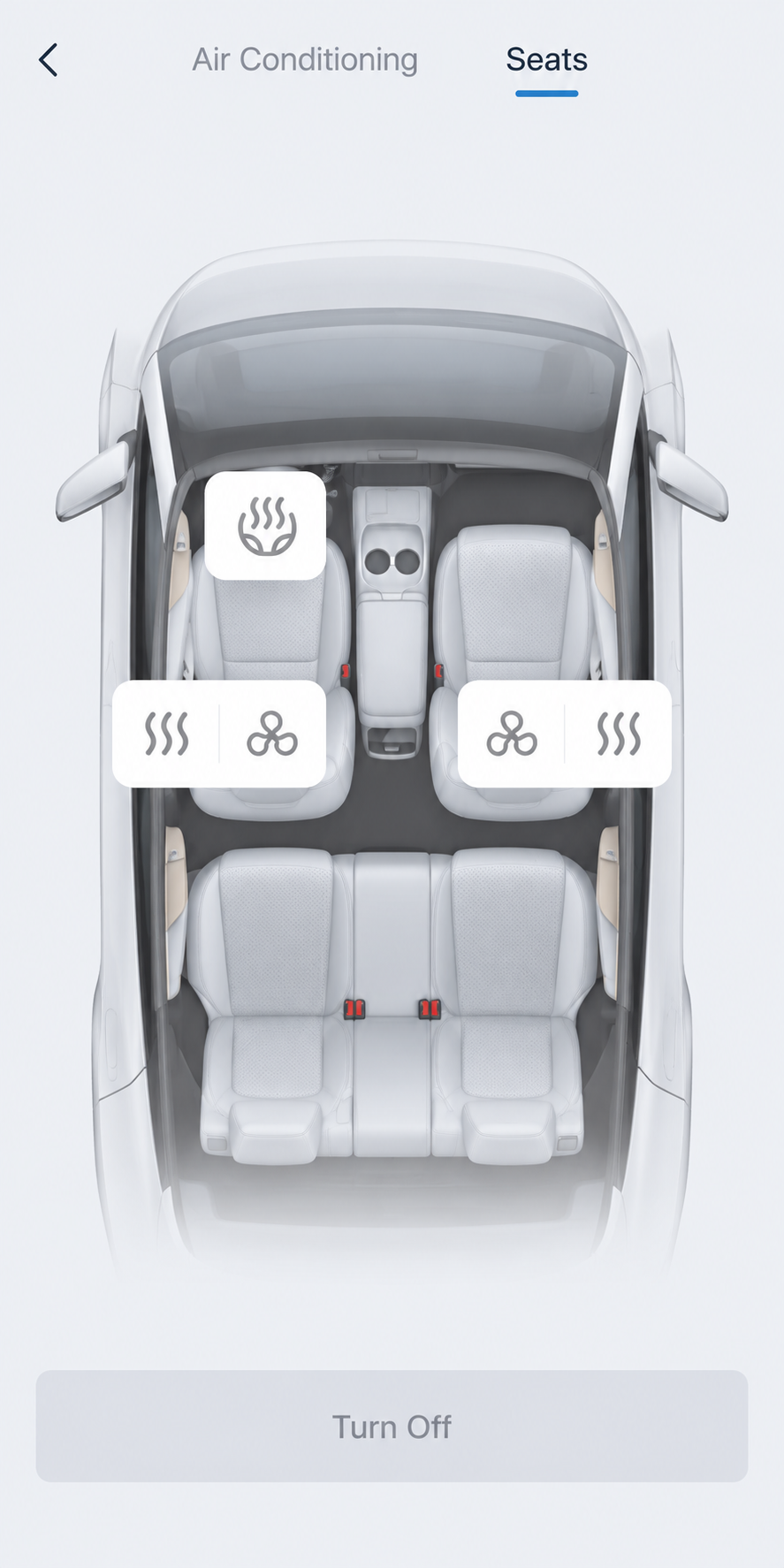
Heating and Ventilation
- The heat-wave symbols select seat heating; the fan symbols select ventilation.
- Choose the control for the intended seat and check the setting shown by your app.
- Turn Off stops all active functions on this page.
Steering-Wheel Heating
Find the Steering-Wheel Heating Control
S07 app images are used as examples. The E07 experience should be similar, but screens and available features may differ. Steering-wheel heating availability for the Australian E07 is unconfirmed.
Open Temperature
Tap the Temperature heading on vehicle home.
Choose Seats
Tap Seats at the top of the climate page.
Steering-Wheel Heating
- If available, tap the steering-wheel symbol with rising heat waves. The S07 example shows it grey when off; it turns red when on.
- Turn Off stops all active functions on the Seats page.
Battery and EV Range
Open Battery and Read the Display
Tap Battery
Tap the Battery card on the right below the circular controls.
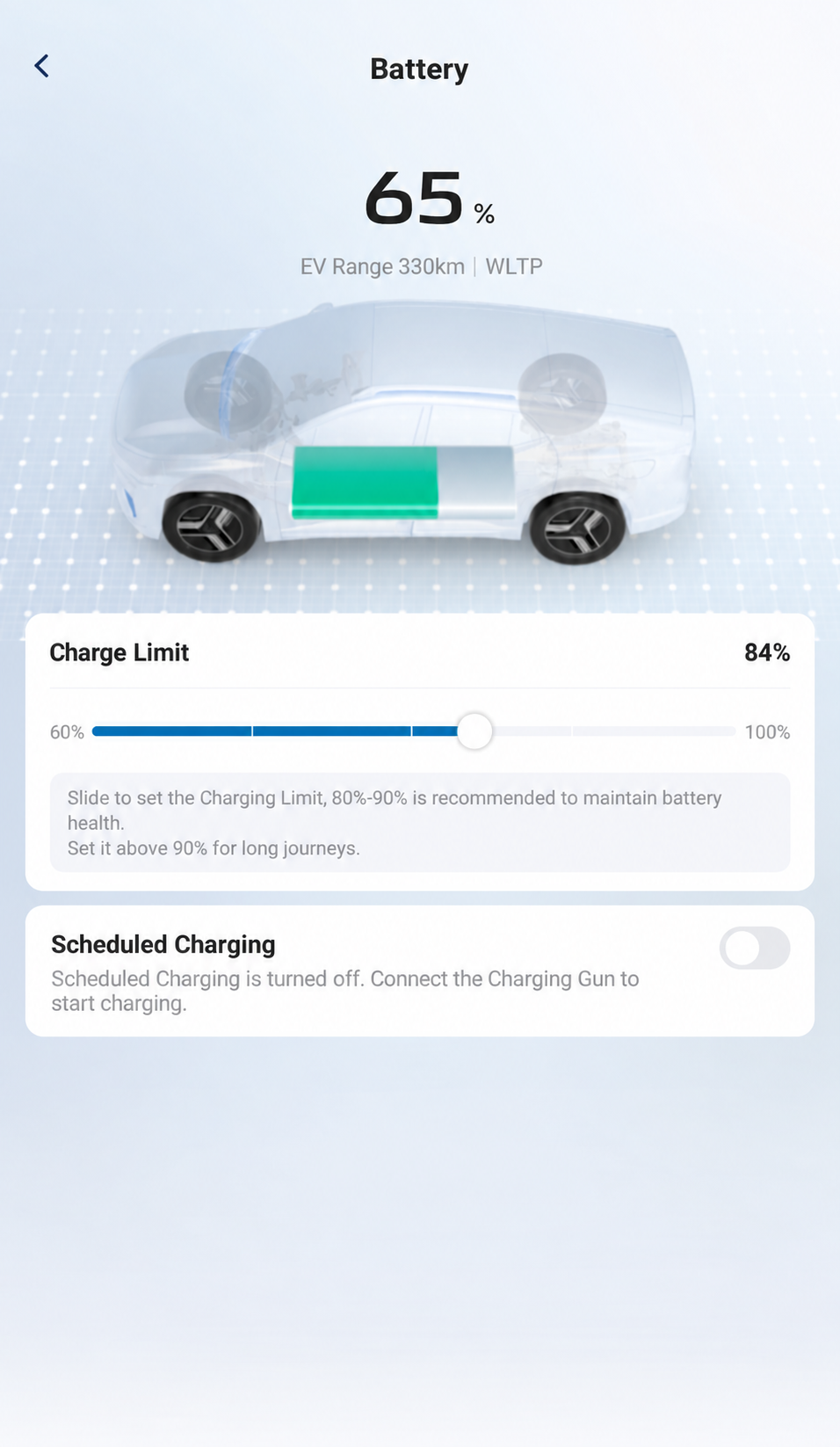
Read Percentage and EV Range
Read the battery percentage and EV Range at the top. This example shows 65% and 330 km / WLTP; your readings will differ.
Charge Limit
Find the Charge-Limit Slider
Check your authority before changing a target. Follow any confirmation your app presents; after a change, reopen Battery and verify the target and charging outcome separately.
Open Battery
Tap Battery on vehicle home.
Locate the Slider and Target
- The slider sits below Charge Limit; its thumb sets the requested percentage.
- Read the displayed target at the right. The 84% in this picture is an example, not a recommended target.
Scheduled Charging
Find Scheduled Charging
Follow the schedule fields and confirmation prompts offered by your app. Check the vehicle and wallbox schedules together before relying on a charging window.
Open Battery
Tap Battery on vehicle home.
Locate the Schedule Switch
Scheduled Charging is below Charge Limit. This switch is off in the example. Changing it may affect charging; review the fields and apply step your app actually presents.
Trip and Departure Scheduling
Set a Repeating Journey
S07 app images are used as examples. The E07 experience should be similar, but screens and available features may differ. Departure battery warm-up availability and timing for the Australian E07 are unconfirmed.
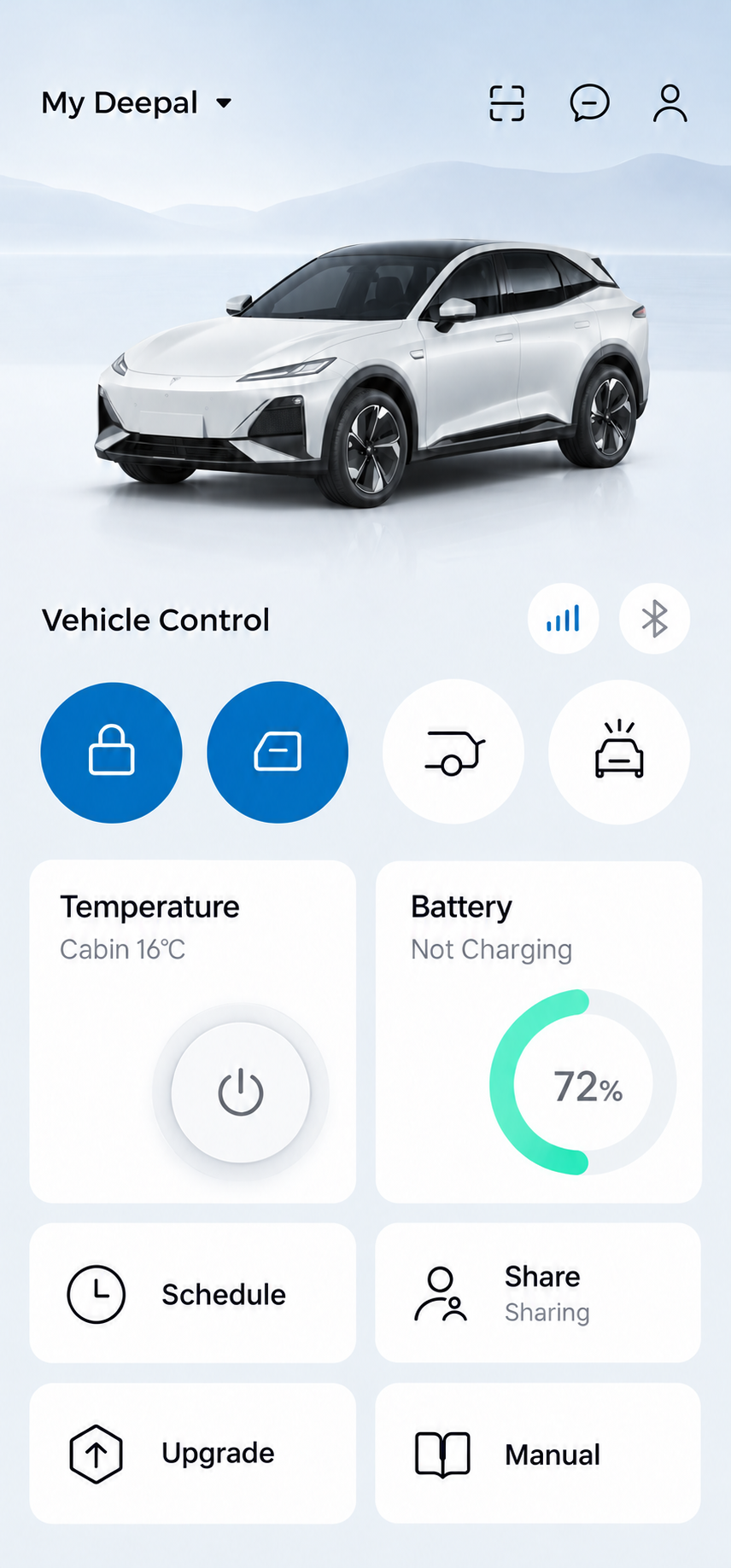
Open Schedule
If your app offers it, tap Schedule below Temperature.
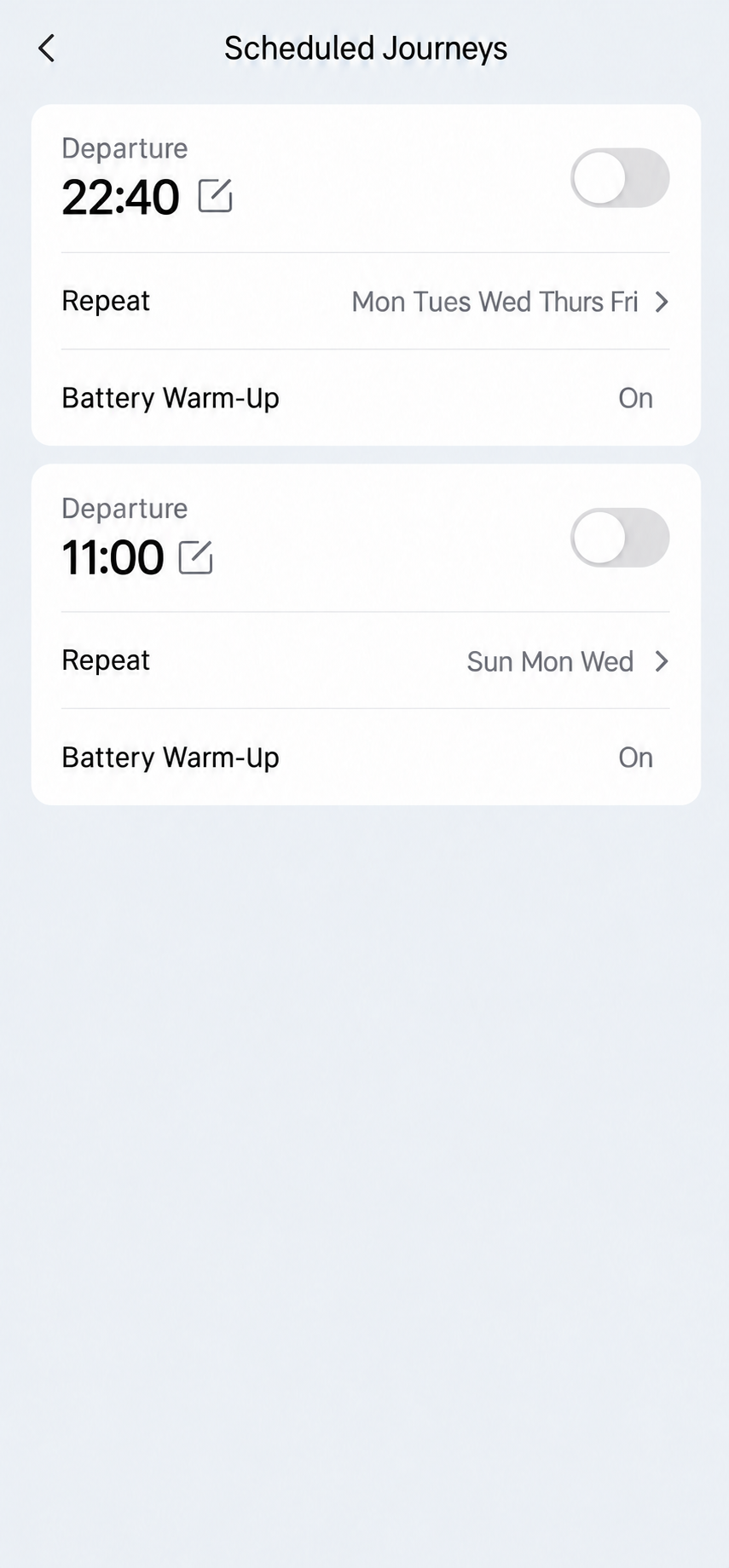
Departure and Repeat
- Use the edit symbol beside Departure to review the time.
- Tap Repeat to choose the days.
- The two schedule switches are off in this example. Battery Warm-Up On describes the selected option, not an active schedule.
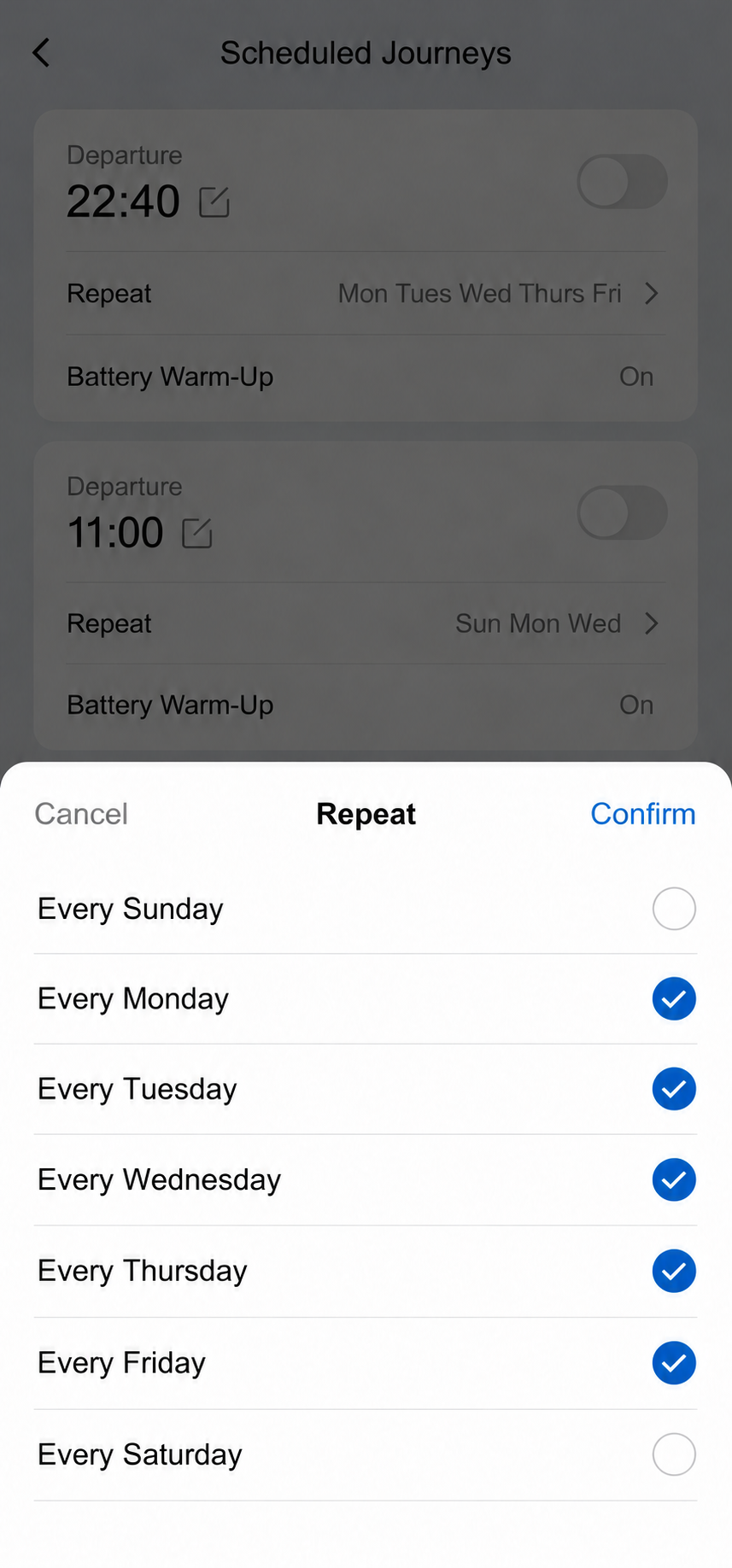
Confirm Repeat Days
- Tap the days you want. Blue ticks mark the selected days.
- Tap Confirm, then review the departure time and schedule switch before enabling the schedule.
Journey preparation and Scheduled Charging are separate settings.
Share Vehicle Access
Open Your Shared-Vehicle Details
Tap Share
Tap the Share card below Temperature.
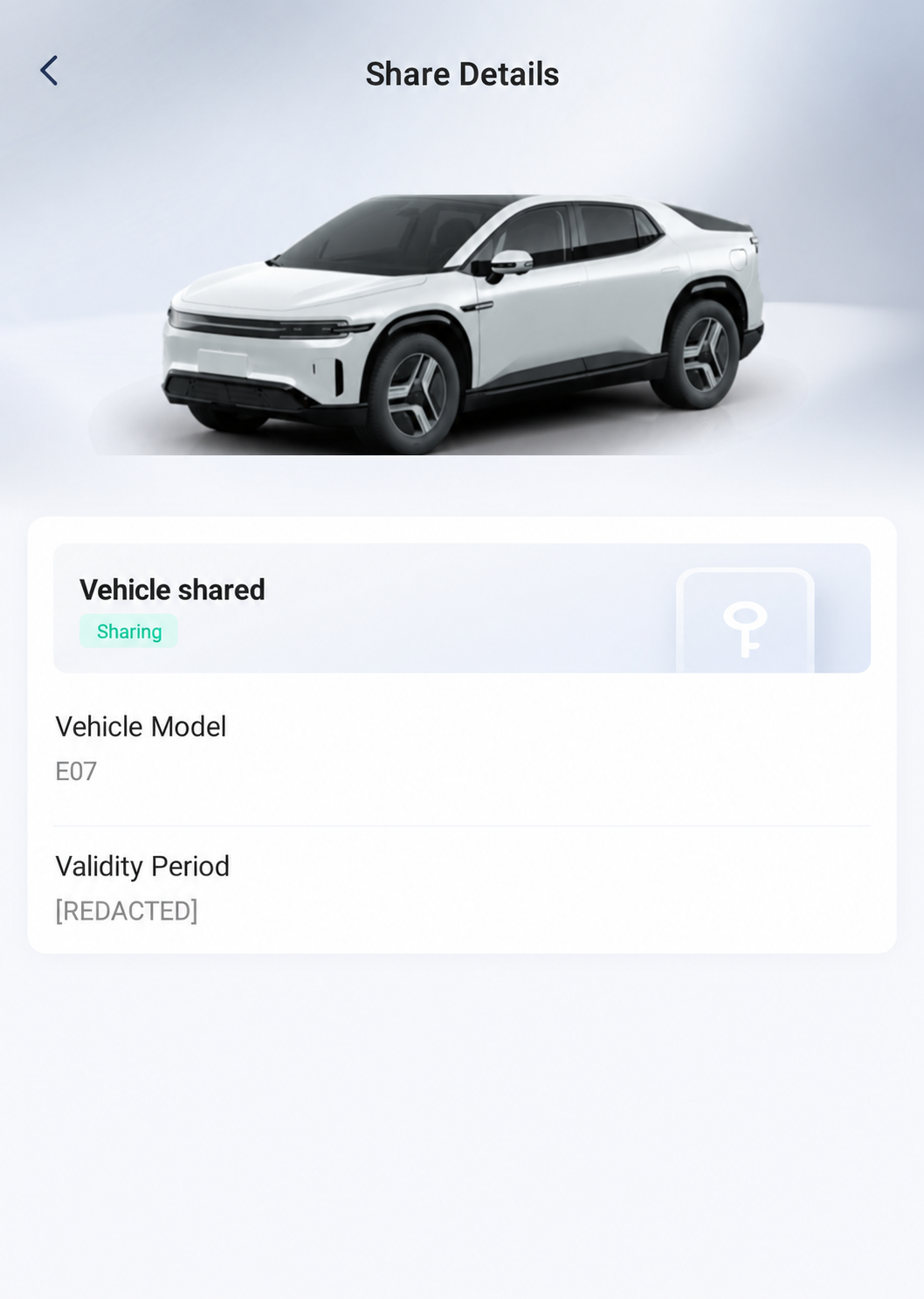
Read the Access Details
Review Sharing status, Vehicle Model and Validity Period. Identifying information is removed. This recipient view does not show the owner’s invitation controls.
Vehicle Software Updates
Vehicle OTA updates are separate from phone-app updates. Read the vehicle’s release information and installation conditions before starting an update.
The manual describes app upgrade and appointment options; availability and labels can differ by app version and account role. See Install a Software Update for the documented in-car procedure.
Owner Manual in the App
If Manual or User Manual appears in your app, check the document’s model and edition before following a procedure. Availability can differ by app version and account role.
Our Guide Library includes illustrated walkthroughs and page references to the E07 owner’s manual.
QR Scanner and Car Login
Find the Phone Scanner
Tap the Four-Corner Frame
Tap the scanner symbol near the top-right of home. It opens Scan. Keep account QR codes private.
For car login, the car displays its login QR code and the phone scans it. Review the authorisation prompt and confirm your right to sign into the car. Check that the centre screen shows the intended account after login. See Sign into the Car Account for the documented process.
Message Center
Open Message Center
Tap the Speech Bubble
Tap the speech-bubble symbol between the scanner and person icons.
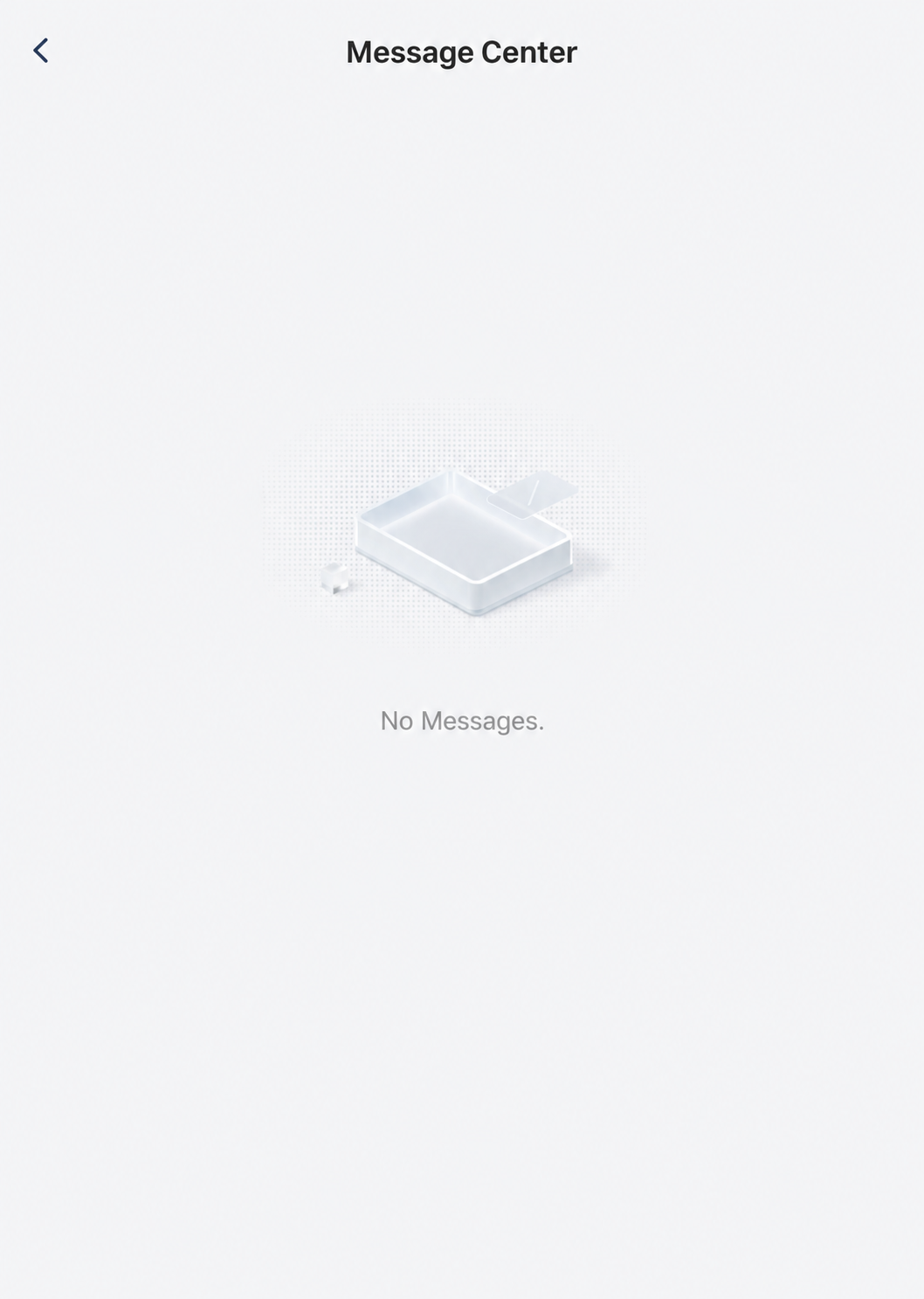
Read Your Message List
The example Message Center says No Messages. Read the details and purpose of any message your app actually shows.
Personal Center
Open the Account Menu
Tap the Person Icon
Tap the person outline at the top-right.
Choose a Menu Row
Personal Center opens with Account & Security, My Vehicle, Settings, Privacy Center, about Us and Log out. Choose the section for your task.
Account and Security
Open Account and Security
Tap Account and Security
From Personal Center, tap the first row, Account & Security.
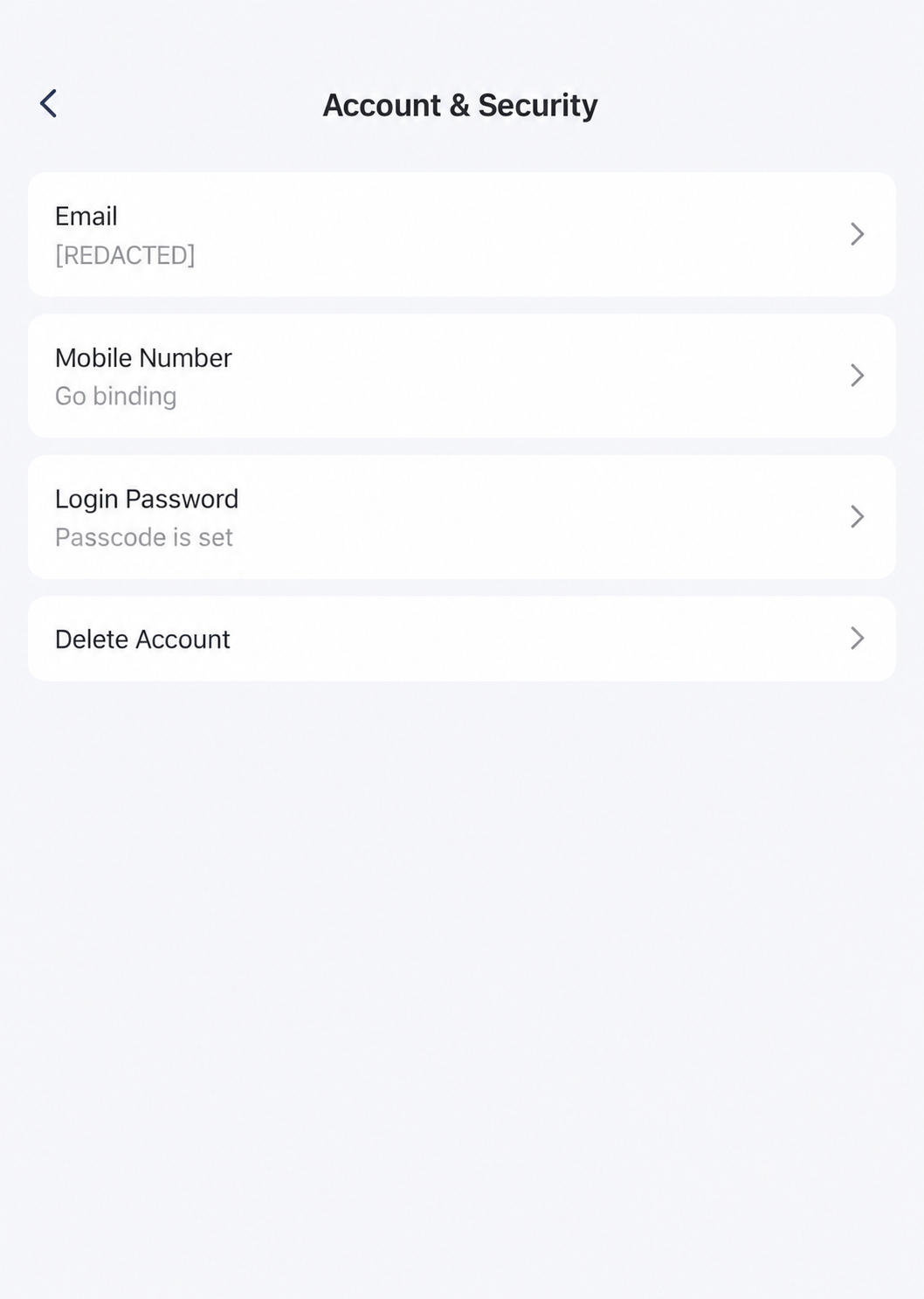
Review the Account Entries
Read Email, Mobile Number and Login Password status. Keep identifying account details private, and read the consequences before changing or deleting an account.
Language and Mileage Units
Find Language and Mileage Unit
Tap Settings
From Personal Center, tap Settings.
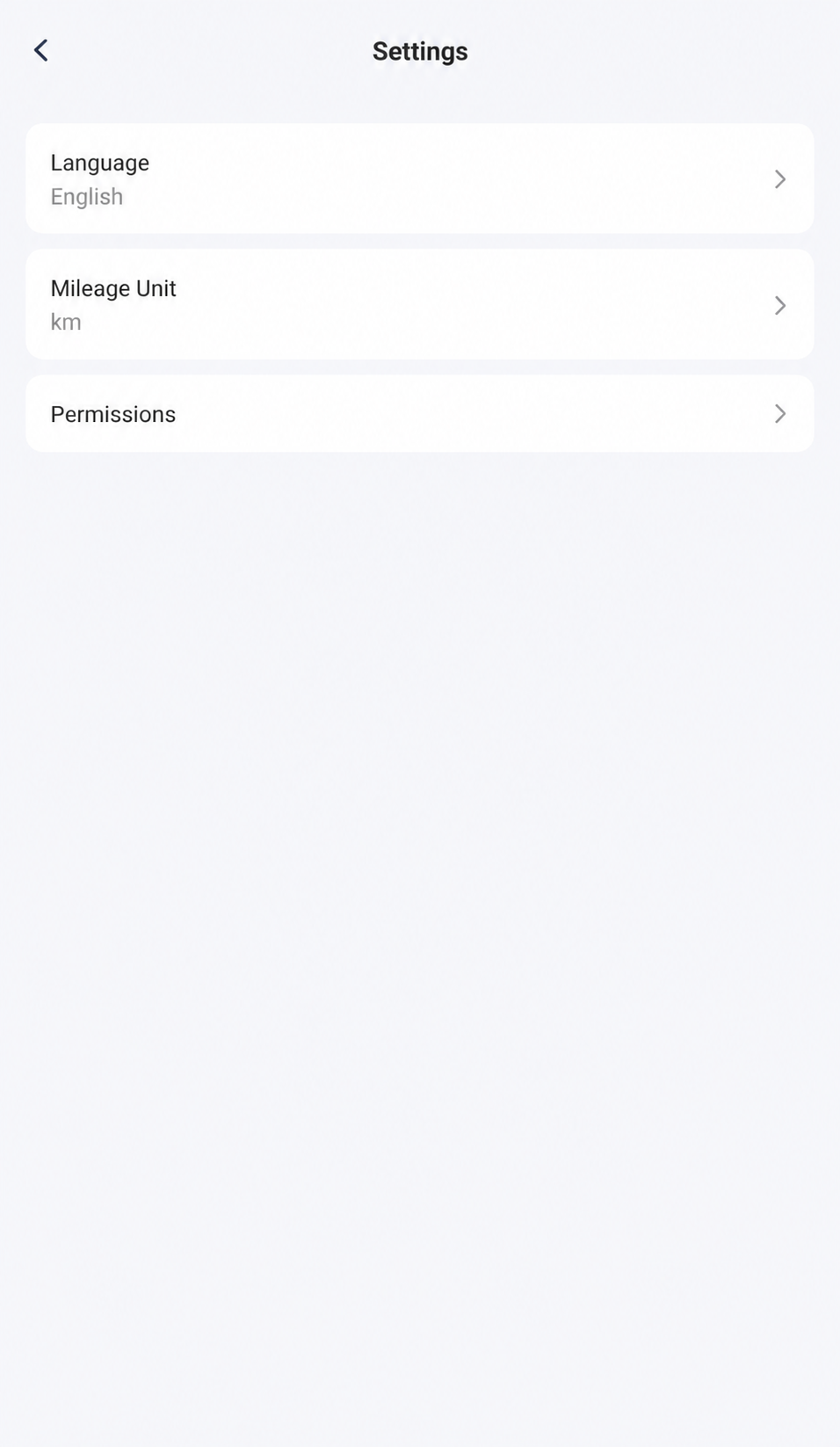
Choose the Preference Row
- Language displays English.
- Mileage Unit displays km. Tap the relevant row and read your app’s current choices before changing a setting.
Phone Permissions
Follow the Path to Phone Permissions
Open Settings
Tap Settings in Personal Center. Use the person icon on home to get to this menu.
Tap Permissions
Tap the third row, Permissions.
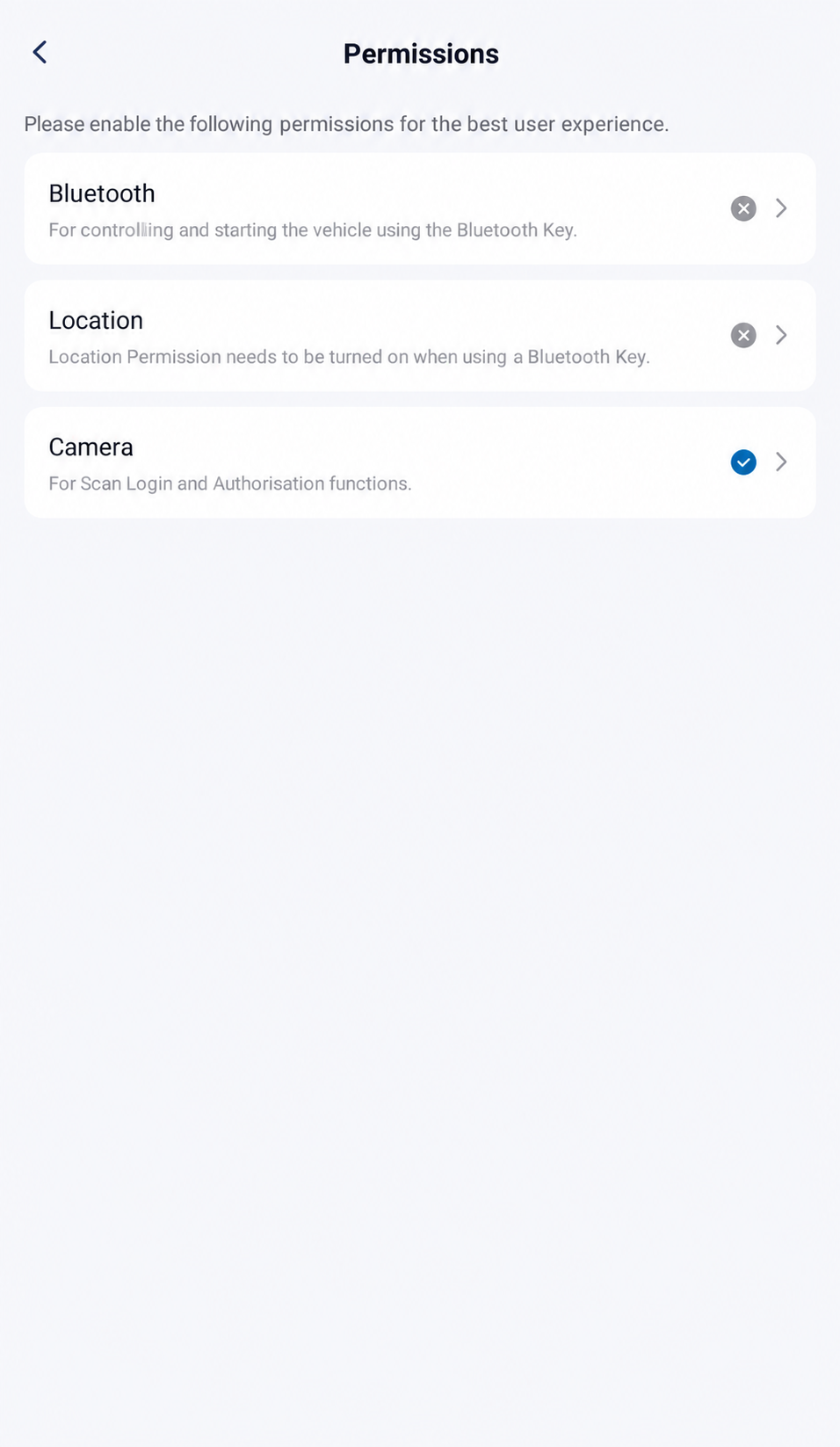
Check Each Permission
Review Bluetooth, Location and Camera. This example shows Bluetooth and Location ungranted, and Camera granted. Read any phone permission prompt before granting access.
Read Permission Purposes and Your Smart Key for the Bluetooth-key requirements, separate camera-scanning purpose and access with your physical smart key.
Privacy Center and Connected Services
Open Privacy Center
Tap Privacy Center
From Personal Center, tap Privacy Center.
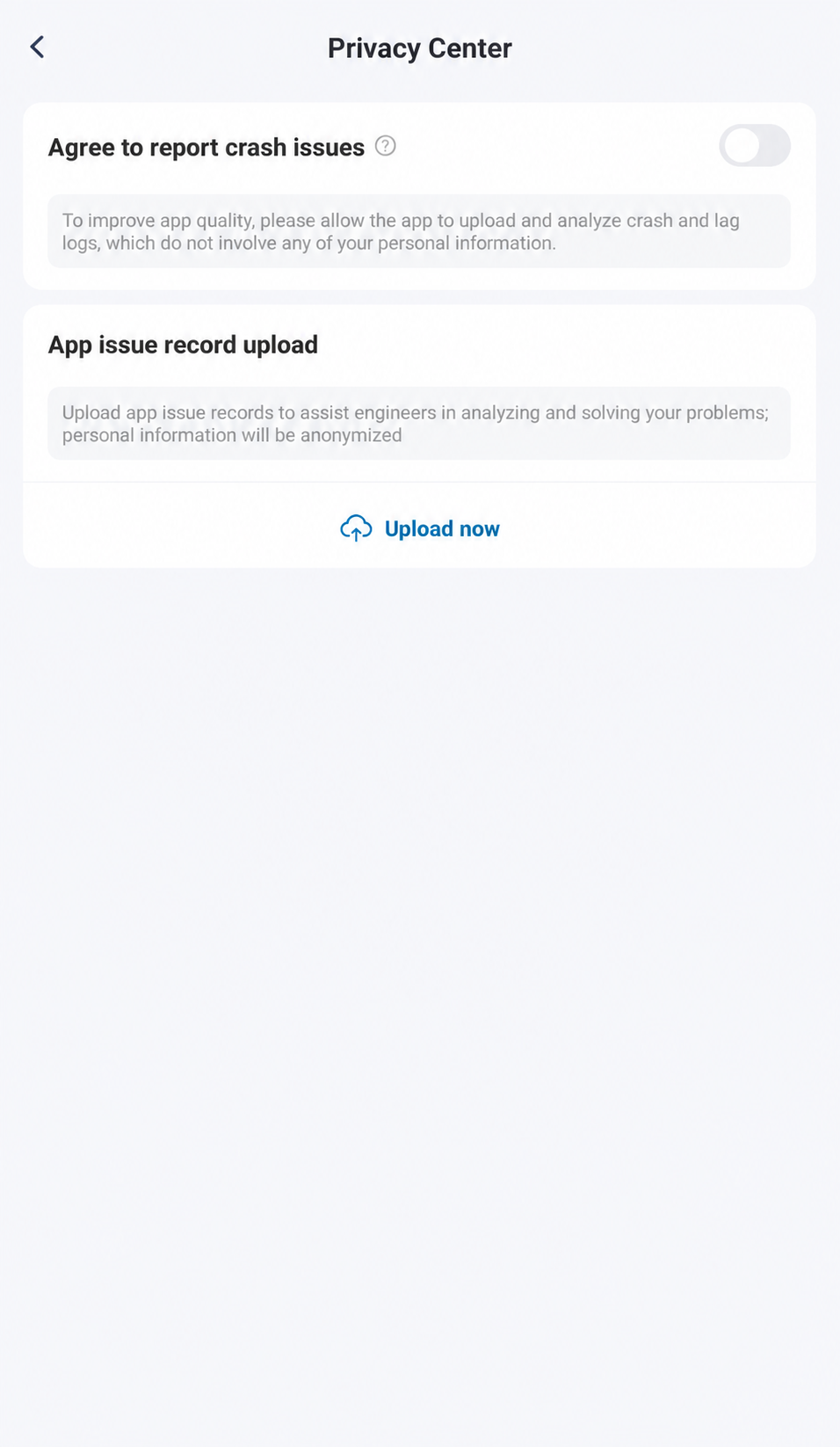
Review Reporting Choices
Read the crash-reporting choice and App Issue Record Upload information before changing consent or using Upload Now. Check what information will be shared before confirming.
The reviewed Privacy Center screen shows crash reporting and App Issue Record Upload choices. These are separate from Phone Permissions and the vehicle’s connected-service consent prompts. Read the specific app and car prompts for the feature you choose to use. Do not infer the effect of a vehicle-service consent choice from a phone permission indicator.
About Us and App Version
Find the Phone App Version
Tap about Us
From Personal Center, tap about Us.
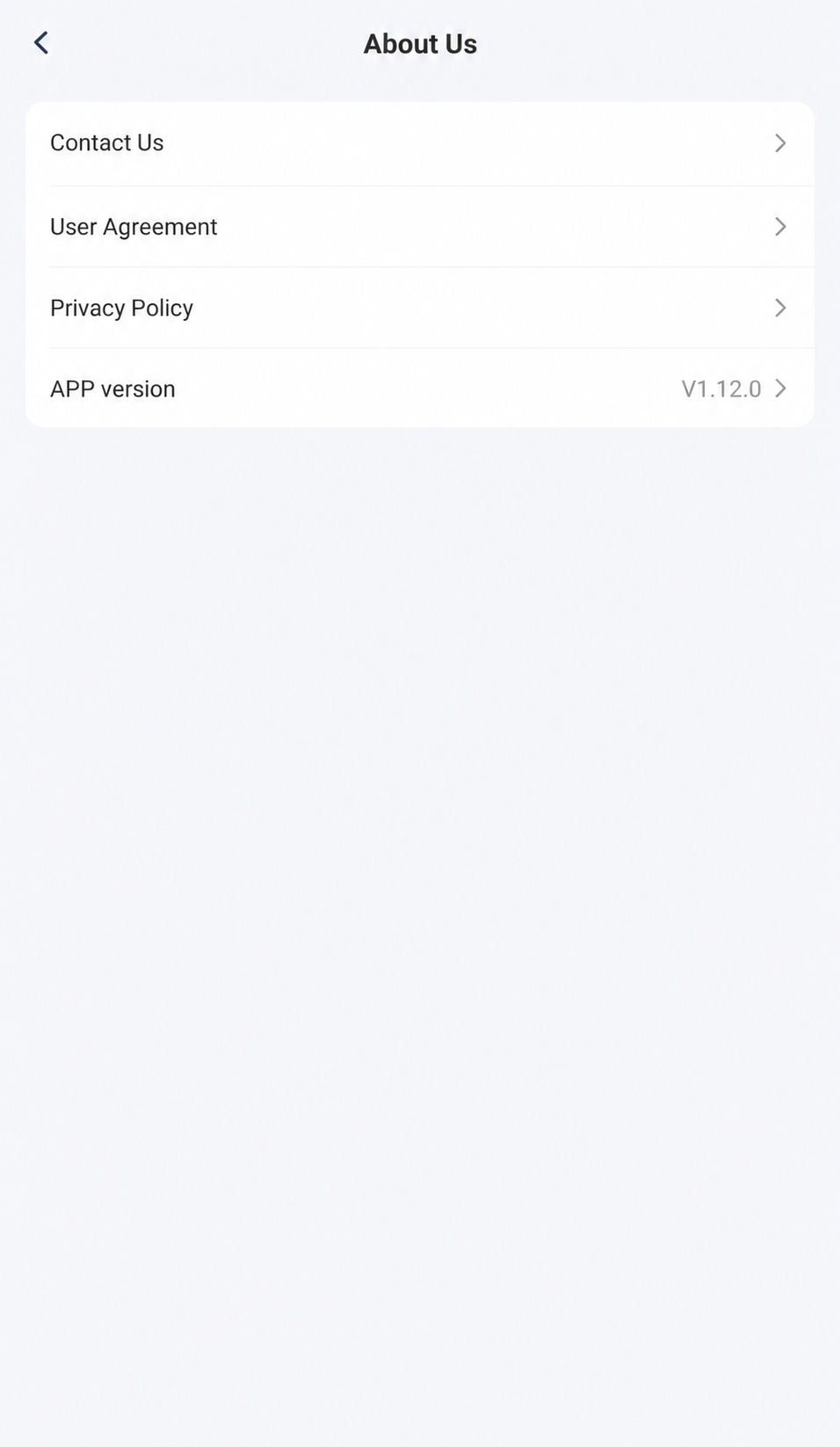
Read APP Version
Read the version value beside APP Version. This reference shows V1.12.0. It is the phone app version, not the car’s OTA version.
Log out
Locate Log out
Log out Is at the Bottom
In Personal Center, scroll to the bottom if needed and find Log Out. Use it only when you intend to end this phone session, and read any confirmation before proceeding.
Unbinding and Ownership Transfer
Unbinding ends the vehicle’s app association and, according to the E07 manual, stops its Internet of Vehicles service. It is separate from ending shared access or transferring ownership; confirm a sale or account transfer with an authorised service centre.
The manual places Unbind Vehicle under the selected vehicle in Personal Centre and My Vehicle. Read all confirmation and verification prompts before proceeding; labels and available actions can differ by app version and account role.
E07 Owner’s Manual — pp. 68–69 (PDF pp. 79–80).
Check Results and Troubleshoot
Read the app’s result and check what the vehicle did. Avoid repeated taps while waiting; a sent command or changed display alone does not confirm that an action completed.
If range is missing, status is stale or a control fails, check the selected vehicle, account role and connection. See App and Account Troubleshooting for supported checks.
Public Charging Apps
A public charging operator’s app manages its session and payment. Follow the charger’s instructions to start and end charging; use the DEEPAL app for vehicle information and PlugShare for site research and owner check-ins.