App examples: international Android V1.12.0 with Australia selected and a shared E07 recipient account, checked 10 October 2026. Owner controls, phone permissions and available actions can differ.
For an owner, complete App Binding before signing into the car’s account separately. For a recipient, check active shared access and confirm with the owner or support that the recipient account is entitled to this car QR login. Shared access alone does not confirm QR-login eligibility. Do not bind or unbind the owner’s vehicle to attempt recipient login. Stay parked and keep your normal key available.
Sign into the Centre Screen
Open Account in the Car
Use the intended owner account, or a recipient account whose QR-login entitlement has been confirmed. While parked with a normal key available, open Account from the car’s app list, then choose Log In to display the QR code. The manual describes this path; shared status alone does not establish recipient eligibility.
Open the App Scanner
On vehicle home in the intended phone account, tap the four-corner scanner frame at the top to open Scan. Camera permission supports Scan Login and Authorisation. If access is needed, open Personal Center, choose Settings, then check Permissions. Opening the scanner does not complete car login.
Scan the Car’s Code
Point your phone at the code displayed by that car. Review any resulting account/vehicle details before confirming a prompt. Follow the labels on your current screen rather than assuming a particular confirmation button.
Check the Car Is Signed in
According to the manual, successful login takes the car out of Guest mode and allows driving preferences to be saved. Check that the centre screen shows the intended account rather than Guest. Opening Scan, granting Camera or completing phone email verification is not proof of car login. This QR flow does not itself configure a Bluetooth phone key or grant starting authority.
Check Camera Permission If Needed
Open Personal Center, choose Settings, then open Permissions. The app describes Camera as supporting Scan Login And Authorisation. Check your phone’s current Camera permission. If it asks for access, read the prompt before continuing. Camera access alone does not confirm account authorisation or successful car login.
QR account login does not itself establish a Bluetooth phone key or starting authorisation; use the separate Connectivity Guide for that distinction.
Find the Scanner and Camera Permission
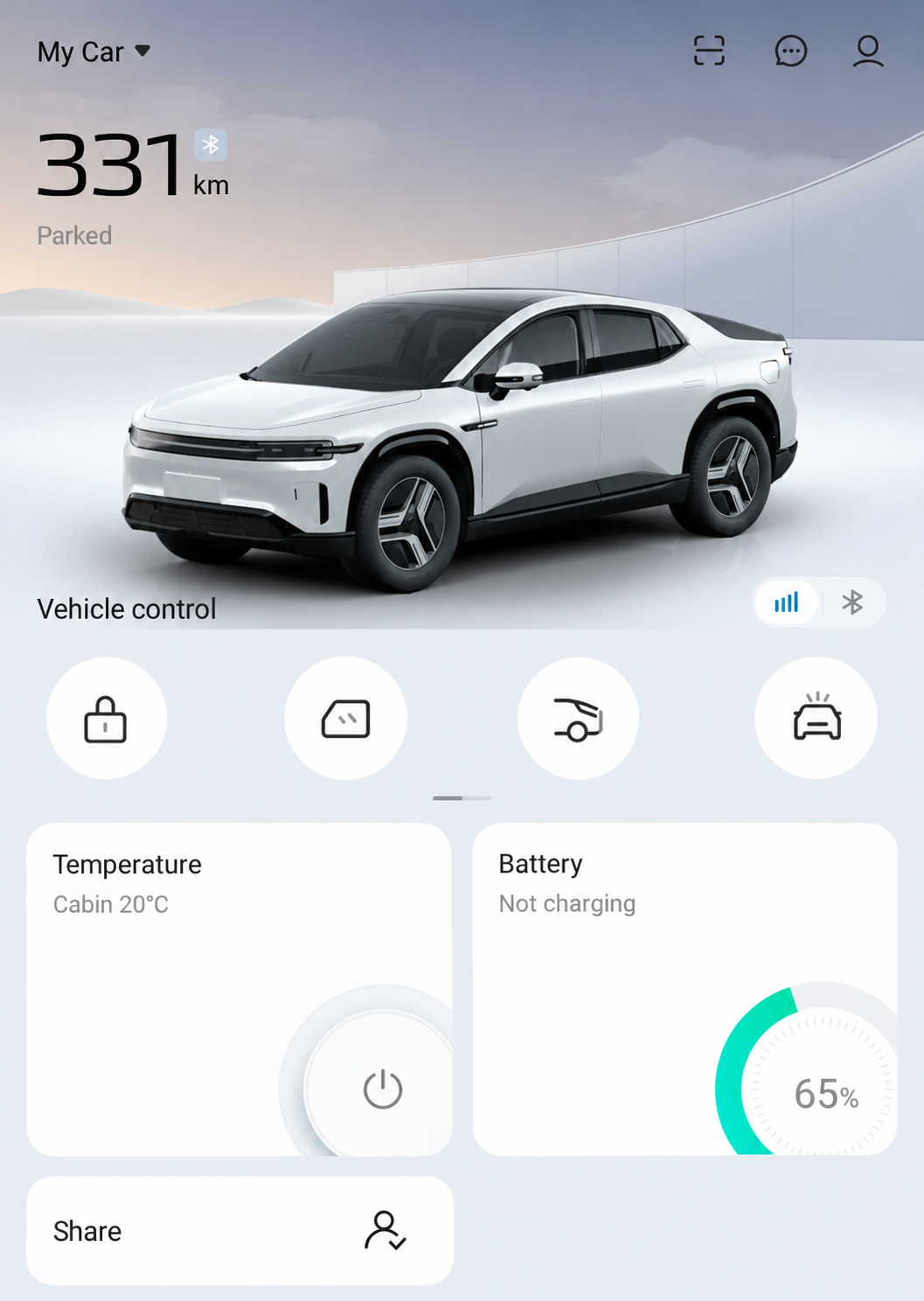
The four-corner frame at the top opens Scan. The speech bubble opens Message Center and the person opens Personal Center. Keep account QR codes private.
AI-Edited Reference · Android V1.12.0 · Australia · Shared E07 Recipient · Reviewed 10 October 2026. Screens and available controls may differ by account and app version.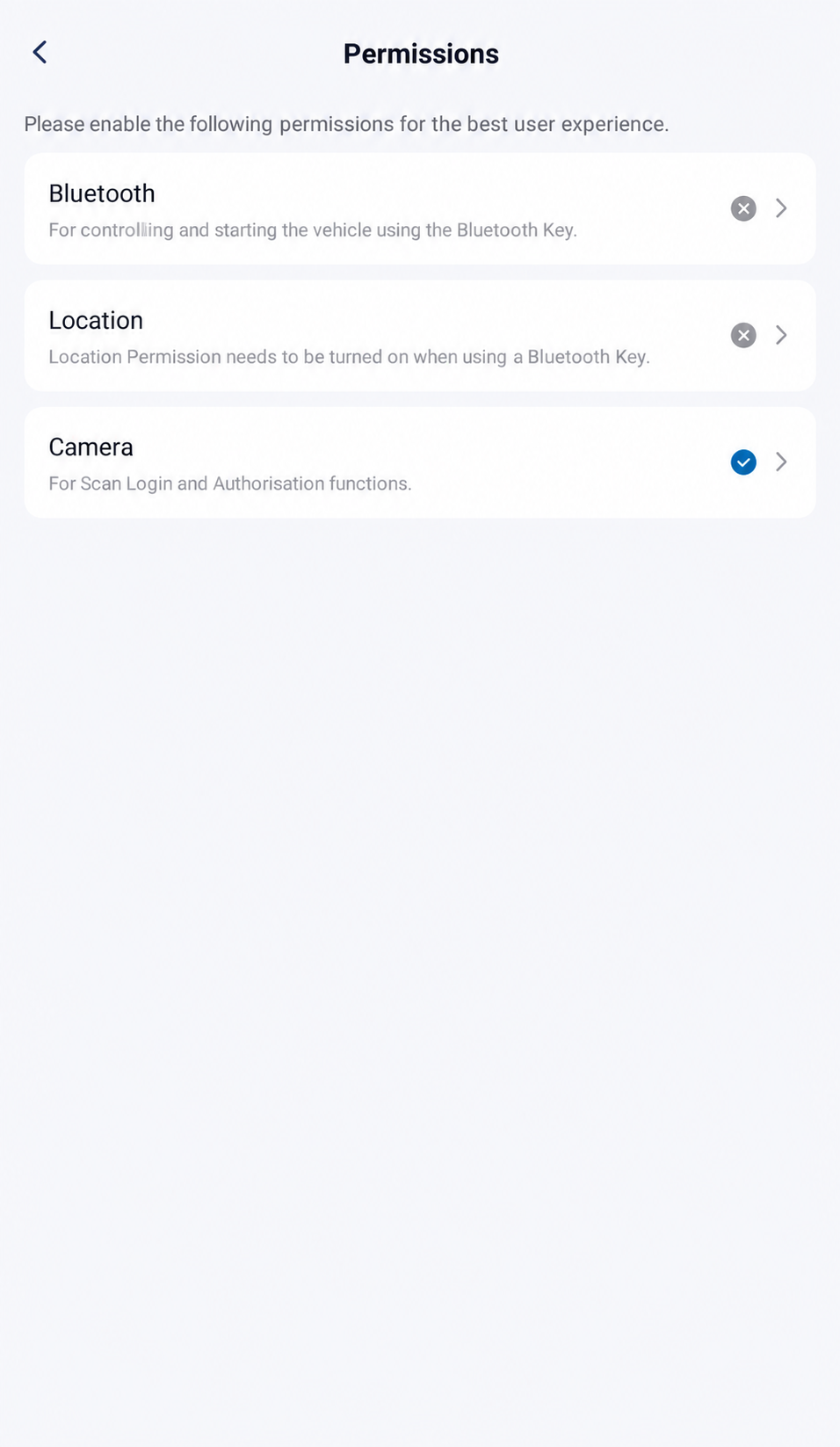
Open Personal Center, choose Settings, then open Permissions to read Camera’s purpose. The example shows Camera granted; check the actual state on your phone before scanning.
AI-Edited Reference · Android V1.12.0 · Australia · Shared E07 Recipient · Reviewed 10 October 2026. Screens and available controls may differ by account and app version.E07 Owner’s Manual — p. 68 (PDF p. 79).
Australian Android V1.12.0 scanner and Camera permission reference, checked 10 October 2026. These illustrations do not verify successful QR login or shared-recipient eligibility.