App examples: international Android V1.12.0 with Australia selected and a shared E07 recipient account, checked 10 October 2026. Owner controls, phone permissions and available actions can differ.
Check Your Account Role First
Sharing gives another account vehicle access; it is separate from transferring ownership or sharing a password. The owner’s management page and the recipient’s status page can offer different controls. Keep account details, verification codes and QR login private.
Check a Vehicle Shared with You
- Select the Right Car. On My Car, tap My Vehicle, select the E07 marked Vehicle Shared and check the selection mark.
- Open Share. On vehicle home, tap Share to open Share Details.
- Read Your Access Details. Check the Sharing badge, Vehicle Model and Validity Period privately. The illustration shows an E07 with sharing active; check the validity period for your own access.
- Keep Owner Management Separate. The illustrated recipient page has no add/end controls. Seeing Share does not establish invitation or revocation rights. Do not bind or unbind the owner’s vehicle to repair recipient access.
- Confirm Car QR-Login Entitlement Separately. If the centre screen shows Guest, ask the owner or support whether this recipient account may use the car’s QR login. Shared access alone does not confirm QR-login eligibility. Only if entitled, follow Car QR Login and verify the centre screen shows the intended account rather than Guest; active shared status alone does not establish this entitlement.
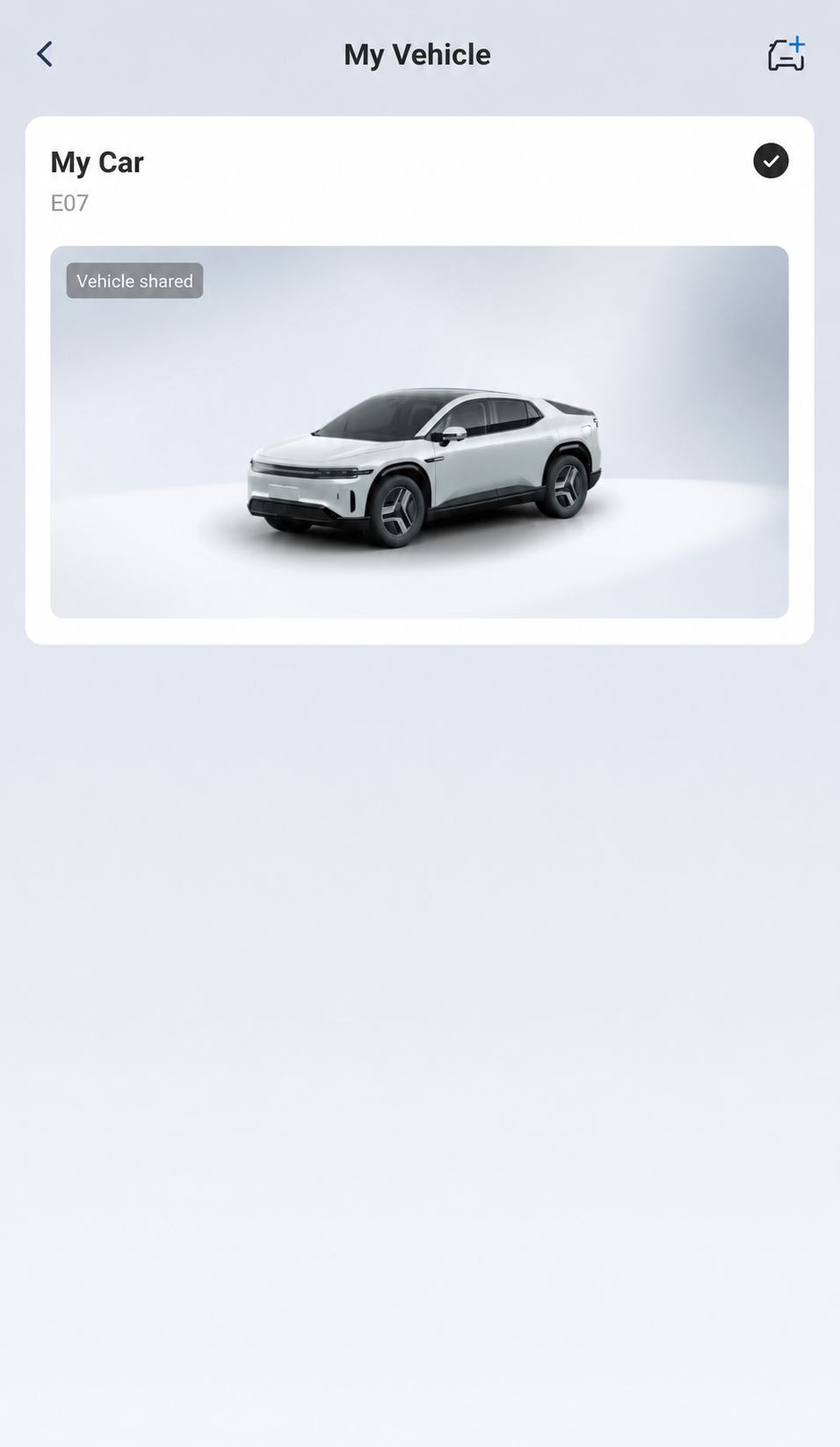
My Vehicle marks the selected E07 as Vehicle Shared.
AI-Edited Reference · Android V1.12.0 · Australia · Shared E07 Recipient · Reviewed 10 October 2026. Screens and available controls may differ by account and app version.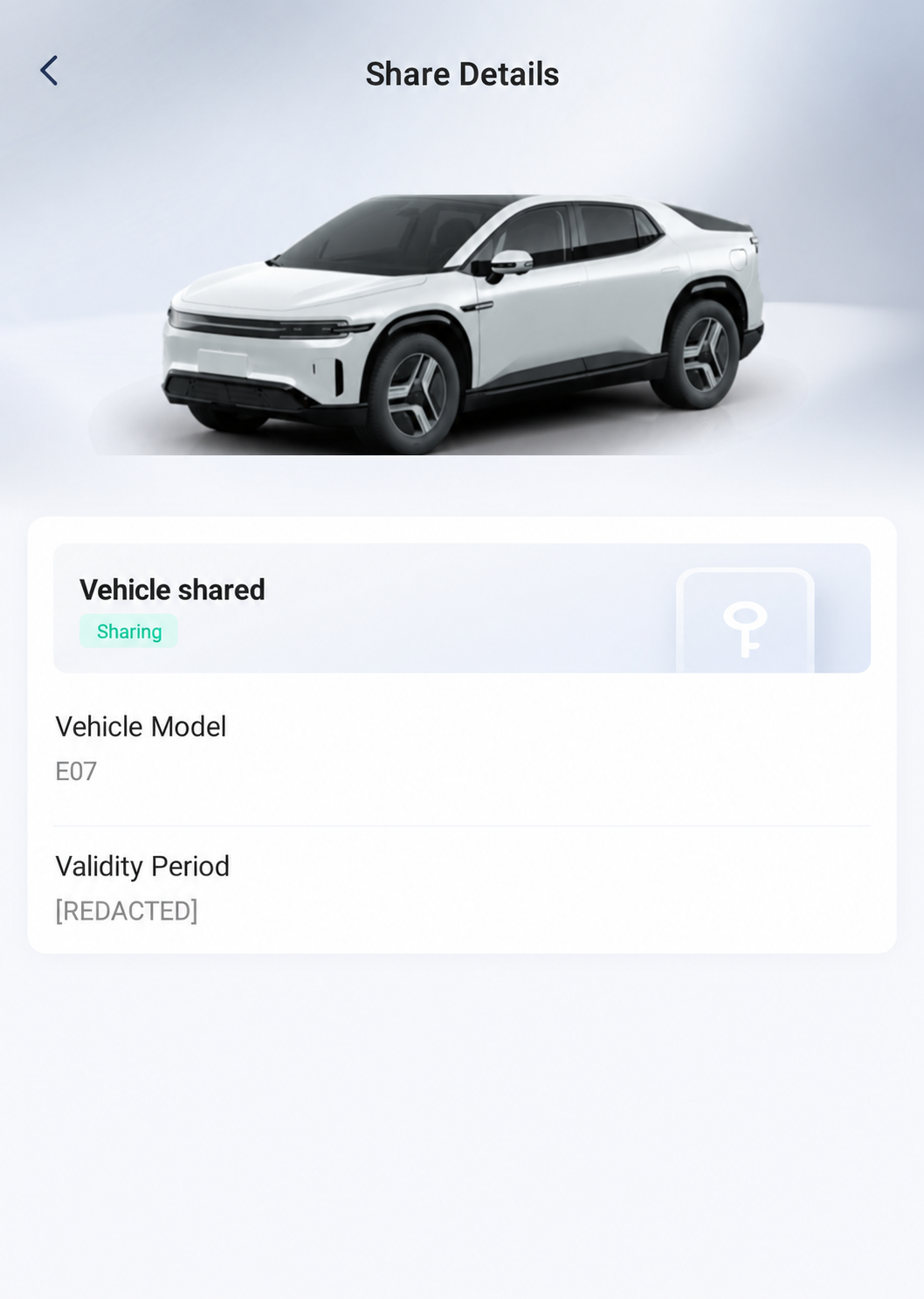
Sharing status, model and validity field. Identifying validity information is removed; this is not the owner’s add/end form.
AI-Edited Reference · Android V1.12.0 · Australia · Shared E07 Recipient · Reviewed 10 October 2026. Screens and available controls may differ by account and app version.Add a Driver as the Owner
The E07 manual describes opening Car Control and choosing Share for owner sharing, with a recipient mobile number and sharing period. It also describes adding and ending shares. Owner forms and acceptance screens can differ by app version and account role; follow the form offered by your app.
- Confirm Ownership and Vehicle. Use the bound owner account and select the intended car before opening Share.
- Review the Offered Add Flow. Use the displayed owner option to add a share. Confirm the requested recipient identifier with that person, rather than assuming every Australian account must use a mobile-number login.
- Review the Period and Conditions. Check the current form’s validity and any permissions before confirming. No universal permission-toggle list is established.
- Check the Recipient’s App. Have the other person sign into their own intended account using the method offered for their region and complete the prompts actually shown. Verify the correct vehicle appears and the recipient’s Sharing status and Validity Period. Vehicle visibility alone does not establish QR-login or starting authority.
The Australian login example shows Email selected and Mobile Number unselected; it does not show mobile-number sign-in. The manual’s mobile-number sharing description does not establish that this exact field sequence is used by every current Australian app. If the owner add-share flow is unavailable, ask the dealer to demonstrate it instead of unbinding the vehicle.
Check Starting Access Separately
Active Sharing status, a vehicle in My Car, completed car QR login or remote door unlocking does not by itself establish a configured phone key or driving authorisation. Internet unlocking alone cannot start the car. An authorised Bluetooth phone key needs the required permissions, phone Bluetooth and a nearby vehicle connection. Keep a physical key available and verify the intended capability with the owner present. See Internet Control and Bluetooth Key.
Review or End a Share as the Owner
Open the intended vehicle’s Share page in the owner account, review its sharing record and use the ending option actually offered. Follow your app’s current confirmation prompts, then verify the resulting record and recipient access. If access appears to persist, contact support. Ending a share is not an ownership transfer; a vehicle sale needs the authorised service-centre process.
E07 Owner’s Manual — pp. 69–70 (PDF pp. 80–81). Recipient Share Details reference: Australian Android V1.12.0, checked 10 October 2026. Recipient screens do not verify owner add/end flows or vehicle-command rights.