Six Steps for Your E07
Getting Started
The basics, in a practical order: use your keys, connect your account, share access, learn the app and complete your first home charge.

The Everyday Basics
From Your Keys to Your First Charge
Work through these six steps while parked, with your physical key available. You can use and charge your physical smart key before app setup. Before setting up a phone key, follow Register and Sign in, then the Owner Binding Guide or Shared Vehicle Access for your account. Binding your account and signing into the car are separate steps; neither alone authorises a phone key. Share access only after the owner’s setup is working.
Know Your Keys
Charge the smart key and understand authorised Bluetooth phone-key access.
Bind Your Account
Connect the owner’s account to the E07 and know when the dealer needs to help.
Sign into the Car
Scan the QR code on the centre screen with the app to leave guest mode.
Share Vehicle Access
Check owner and recipient roles, the sharing period and the controls offered by your account.
DEEPAL App Guide
Find downloads, sign-in and pictures for app controls, charging and account settings.
Complete Your First Home Charge
Open the port, plug in, confirm charging, disconnect and close the port.
App Screens to Know
These privacy-clean references show a shared E07 recipient’s app. Use the full guides to check account authority, connectivity and the current controls before making a change.
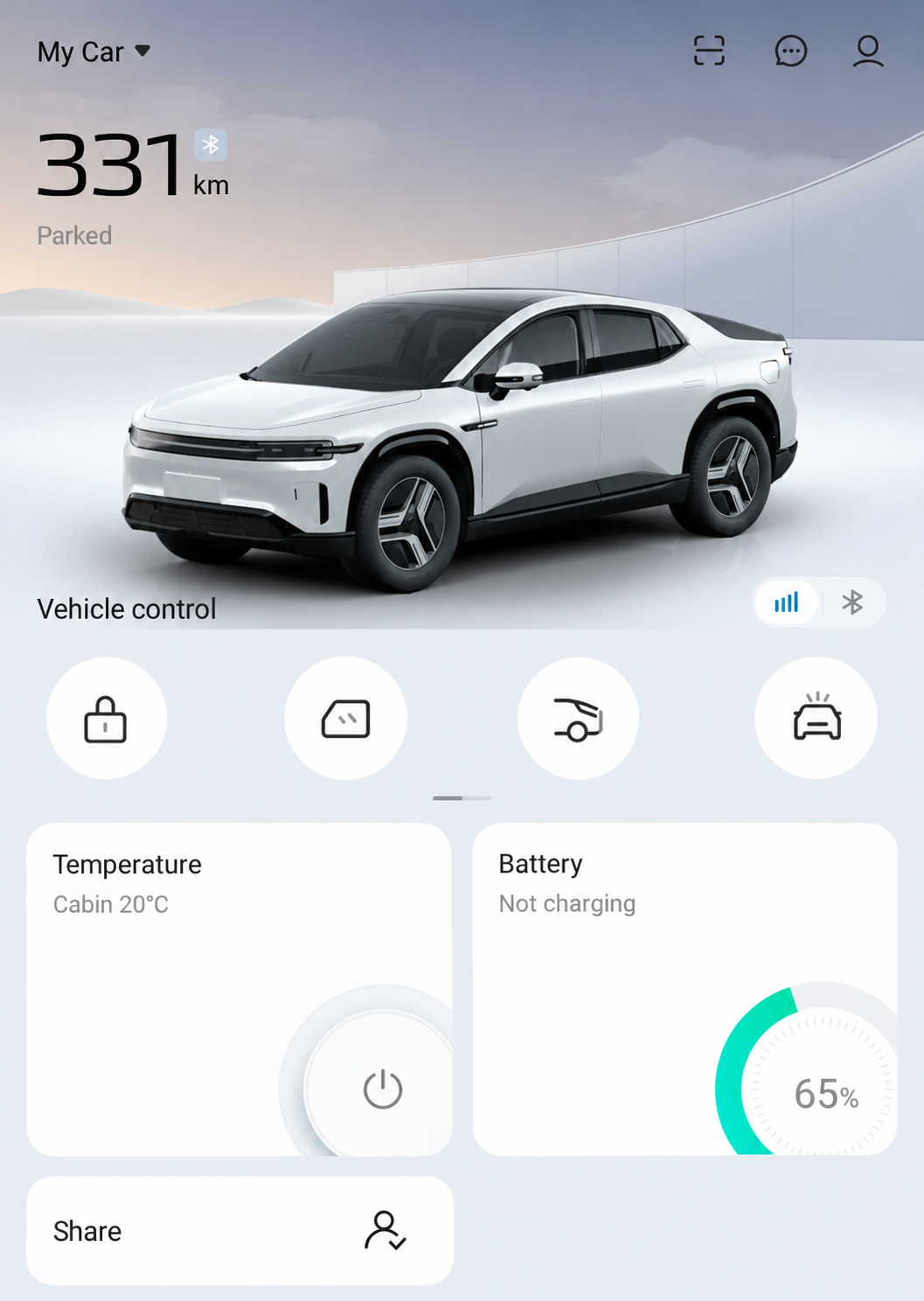
Find Battery and Vehicle Control, plus the scanner, Message Center and Personal Center. Open the DEEPAL App Guide
AI-Edited App Reference · Android V1.12.0 · Australia · Shared E07 Recipient. Labels and displayed state checked against the captured app; layout may differ. Reviewed 10 October 2026.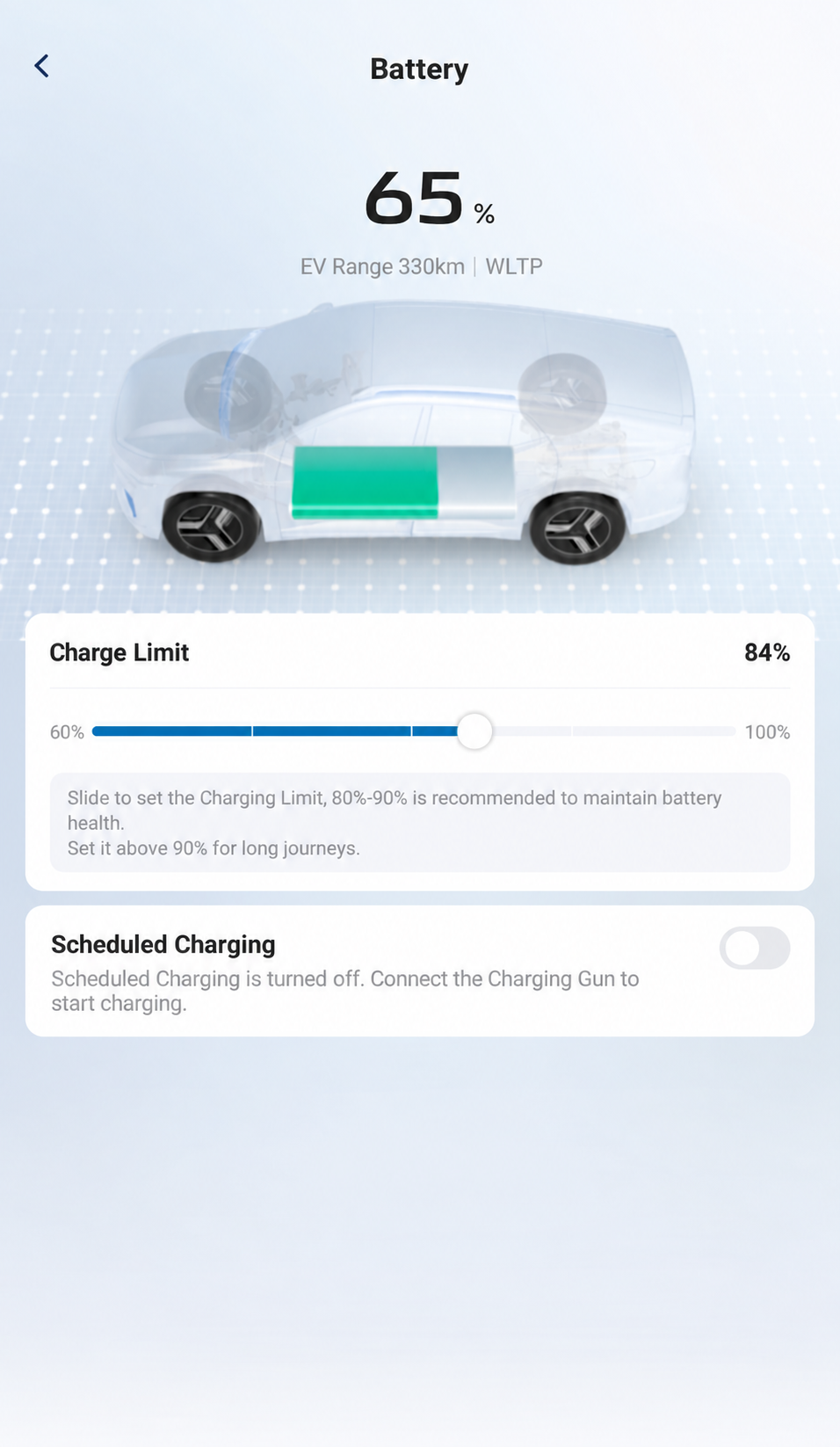
The Battery page shows Charge Limit and Scheduled Charging. The displayed 84% target is an observed setting; the schedule editor was not opened. Read The App Charging Guide
AI-Edited App Reference · Android V1.12.0 · Australia · Shared E07 Recipient. Labels and displayed state checked against the captured app; layout may differ. Reviewed 10 October 2026.