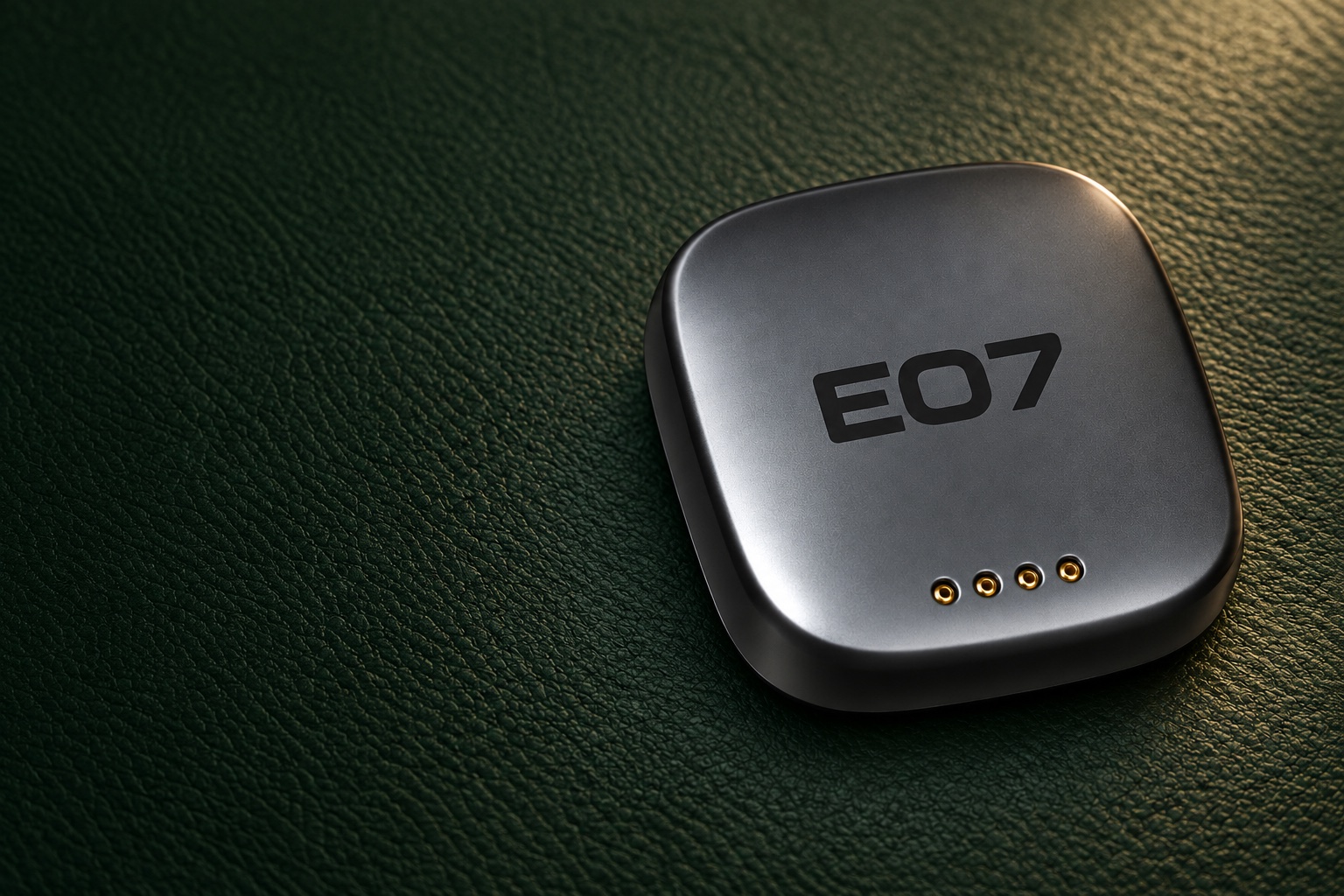
Your Smart Key
Small, simple and easy to misplace. Give your key a regular home so you always know where to find it. The supplied physical smart key is a separate access/start route; using it does not require the phone’s Bluetooth or Location permissions.
There’s no key ring attachment. A fitted key holder is an optional accessory; once you’ve set up and tested the app key, you may prefer to leave the smart key safely stored for backup.
Keep Your Key Charged
The smart key is rechargeable. Charge it when you first receive it and before putting it away for a long period.
Choose a Wireless Charger
The manual says to use the vehicle’s wireless charging area or another compatible wireless charger.
Charge in the Car
If the screen is off, put your foot on the brake with the smart key in the car and the vehicle in P. Open Body, choose Wireless Charging Settings, then enable wireless charging. Place the key on the charging area and check that its charging light comes on. Charge the key on its own, with coins, cards and other loose objects removed.
Check the Light
The manual describes a steady light during charging and the light turning off when charging finishes. If the key does not respond to the charger, ask your dealer to confirm the correct placement and charger for your key.
Storing It as a Spare? The manual recommends charging every six months during long storage.
Your DEEPAL App Key
A configured, authorised Bluetooth phone key can replace the physical smart key after it connects to the vehicle nearby. Internet remote unlocking only unlocks the doors; it cannot start the car. The smart key remains another way to access and start your E07.
Before You Set up a Phone Key: If you are new to the DEEPAL app, follow Register and Sign in first. Owners then follow the Owner Binding Guide; recipients use Shared Vehicle Access. Registration, vehicle binding and phone-key authorisation are separate steps. Keep your smart key available while checking access.
Check Your Account and Key Authority
Select the intended E07 in My Car. Owners use the App Binding Guide; recipients check Shared Vehicle Access. Follow your current app’s key setup/authorisation procedure for that vehicle; ask your dealer for help if the available steps are unclear. Seeing a shared vehicle, a range value, a successful QR account login or an unlock button does not establish starting rights.
Check Bluetooth and Permissions
Turn phone Bluetooth on. Open Personal Center, choose Settings, then open Permissions. Allow the Bluetooth and Location permissions required for your chosen phone-key feature. The app describes Bluetooth as supporting control and starting with the Bluetooth Key, and Location as required for that key. Permission indicators alone do not prove key authorisation or a vehicle connection.
Connect beside the Vehicle
Use Bluetooth car-control mode and establish the nearby key connection as directed by your app. Follow its connection and authorisation prompts; a Bluetooth icon alone does not prove starting access. See Bluetooth Phone-Key Requirements for the full distinction from internet controls.
Check Unlocking and Starting
After the authorised phone key is connected, take it into the cabin and press the brake to start, as the manual describes. Keep the vehicle in P during the check, the phone charged and your smart key accessible. Phone Bluetooth and permissions must be available, and the authorised key must have an actual nearby vehicle connection; internet remote unlocking alone cannot start it. Confirm phone-key access works independently before relying on it; ask the dealer to demonstrate the supported check if you are unsure.
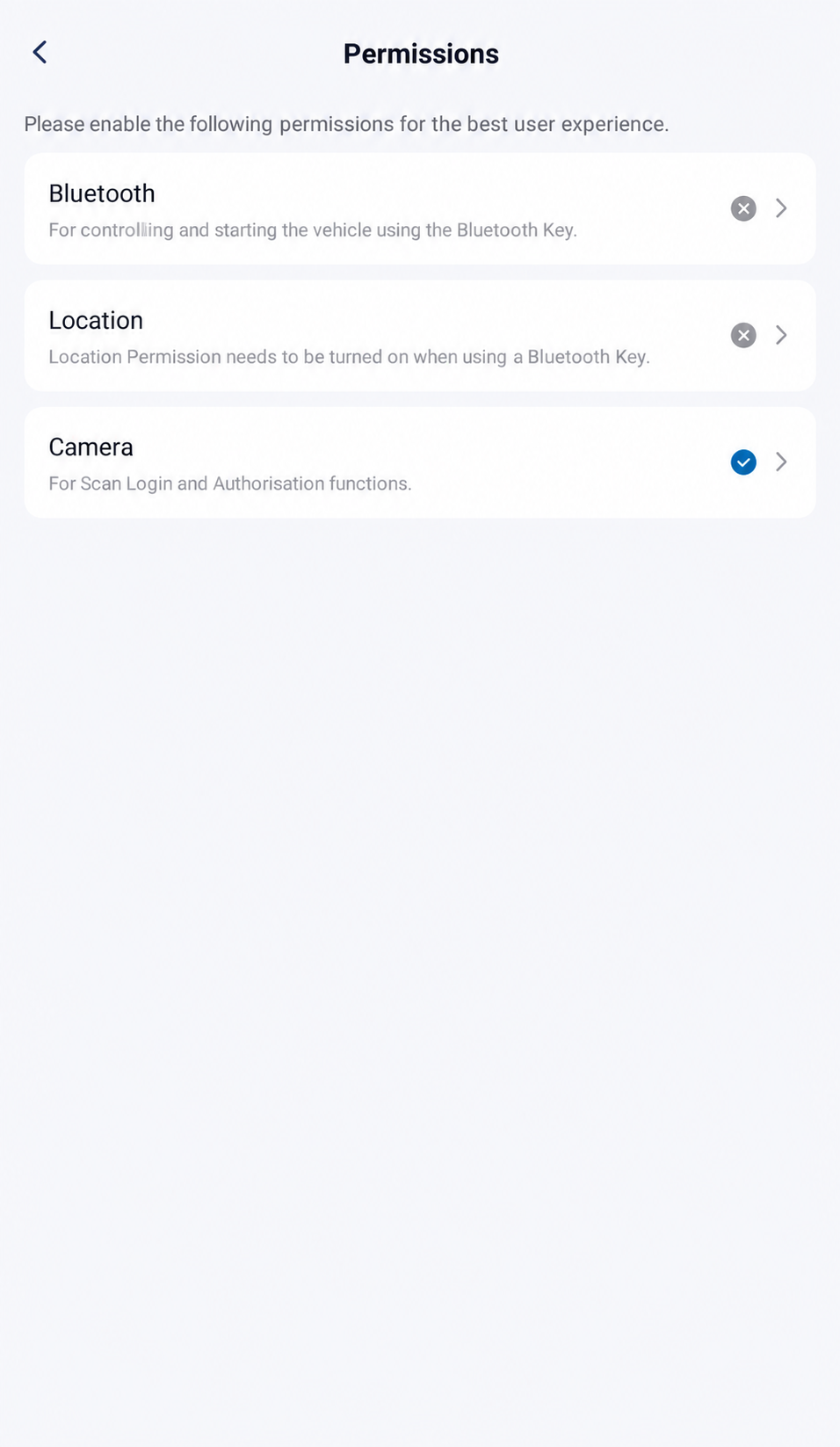
The illustration shows Bluetooth and Location ungranted, with Camera granted for Scan Login and Authorisation. Check your phone’s current permissions; a granted permission does not establish phone-key authorisation or a vehicle connection.
AI-Edited App Reference · Android V1.12.0 · Australia · Shared E07 Recipient. Screens and available controls may differ by account and app version. Reviewed 10 October 2026.Not Connecting? Check the selected account/vehicle, key authority, phone Bluetooth, permissions and nearby connection. If the car shows Guest, use the separate Car Account Login Guide; signing in alone does not prove a working phone key. Use your smart key if needed and follow App Troubleshooting.
Keep Your Phone Charged. A flat phone cannot act as your app key. Keep your backup key somewhere secure and accessible. For other controls and app navigation, read Use the DEEPAL App.
Australian E07: no physical NFC key is included.
E07 Owner’s Manual — pp. 6–7 (PDF pp. 17–18); p. 66 (PDF p. 77); pp. 69–70 (PDF pp. 80–81).
App references: Android V1.12.0, Australia, shared E07 recipient account, 10 October 2026. Controls can differ by account and software. These reference screens do not verify permission changes, phone-key setup or authority, mode-switch behaviour or vehicle starting.
Internet Control and Bluetooth Phone Key