App controls can differ by version, region, account role and phone permissions. Check the options shown for your E07.
Start with the Symptom
App binding connects your account to the vehicle. Signing into the centre screen activates your in-car account. Bluetooth pairing and phone-key setup are separate steps. Completing one does not prove the others are complete. Follow the route below while parked, with your normal vehicle key available.
- The Vehicle Has Never Appeared in the App: start with account and dealer binding checks.
- The App Used to Work, but the Car Now Shows Guest: check the in-car login.
- km / Range Is Missing: check account, selected vehicle, shared access and connectivity; missing range is a symptom, not a unique diagnosis.
- The Vehicle Appears, but Battery or Charging Information Is Old: compare the app with the car and check connectivity.
- Status Refreshes, but a Remote Command Fails: check the particular service and its conditions.
- The App Shows Somebody Else’s Vehicle or Account: stop and contact the dealer through an official channel.
Vehicle Missing or Binding Incomplete
- Check the Account and Purchase Region. For a new owner account, register with a lowercase email and give the dealer that same address. For an existing account, use its recorded email. Confirm Australia for an Australian purchase.
- Allow for Dealer Processing. The dealer needs to send an email for account binding. Allow up to two business days for dealer processing. This is separate from the email verification code used to sign into the app.
- Contact the Dealer after Two Business Days. If the vehicle is missing or binding still does not work after two business days, contact your dealer to check the account email, VIN and vehicle record. Compare the email’s spelling and letter case privately; ask the dealer or DEEPAL support how to correct any mismatch before creating another account.
- Continue with the Right Walkthrough. Owners can follow Bind the E07 In the App. After binding, use Sign into the Car with Its QR Code. Recipients should check Shared Vehicle Access instead of trying owner binding. For a used car, ask the dealer about transferring ownership and removing former access.
Car Has Returned to Guest Mode
- Check the in-Car Profile. Open Account on the centre screen and confirm whether your normal profile is active.
- Use the QR Login Walkthrough. If the car shows Guest, follow Sign into the Car with Its QR Code. The car displays the code and the phone app scans it; email verification is a separate sign-in flow.
- Verify the Result. Confirm the profile changed, then compare the app with the parked vehicle. Record the time if status remains stale.
One owner reported that signing back into the car restored the app connection after their in-car login expired. This is a useful check, not proof that every app failure is caused by guest mode. If login repeatedly expires or the QR flow fails, record the message and ask support to investigate.
km or Vehicle Range Is Missing
Missing km/range is a reason to check account selection, vehicle access and connectivity. It does not uniquely diagnose a network fault, an empty battery or a vehicle modem failure. A displayed range can be stored data. If the screen does not provide a reliable update time, compare it with the parked vehicle before relying on it.
- Check the Account. Open Personal Center, choose Account & Security and verify the intended Email privately.
- Select the Intended Car. On My Car, tap My Vehicle and check the E07 selection mark. Note whether it is marked Vehicle Shared.
- Check Access. For a recipient, tap Share to open Share Details, then inspect the Sharing status and Validity Period privately. Do not unbind/rebind the owner’s vehicle as a routine fix.
- Check Connectivity and Status. Check phone internet and any vehicle connection, loading or error message actually displayed. Reopen the status page once and compare range and battery state with the parked car. Check any update time shown.
- Check Units If the Number Remains. If only the expected unit label differs, open Personal Center, choose Settings, then inspect Mileage Unit. The example uses km.
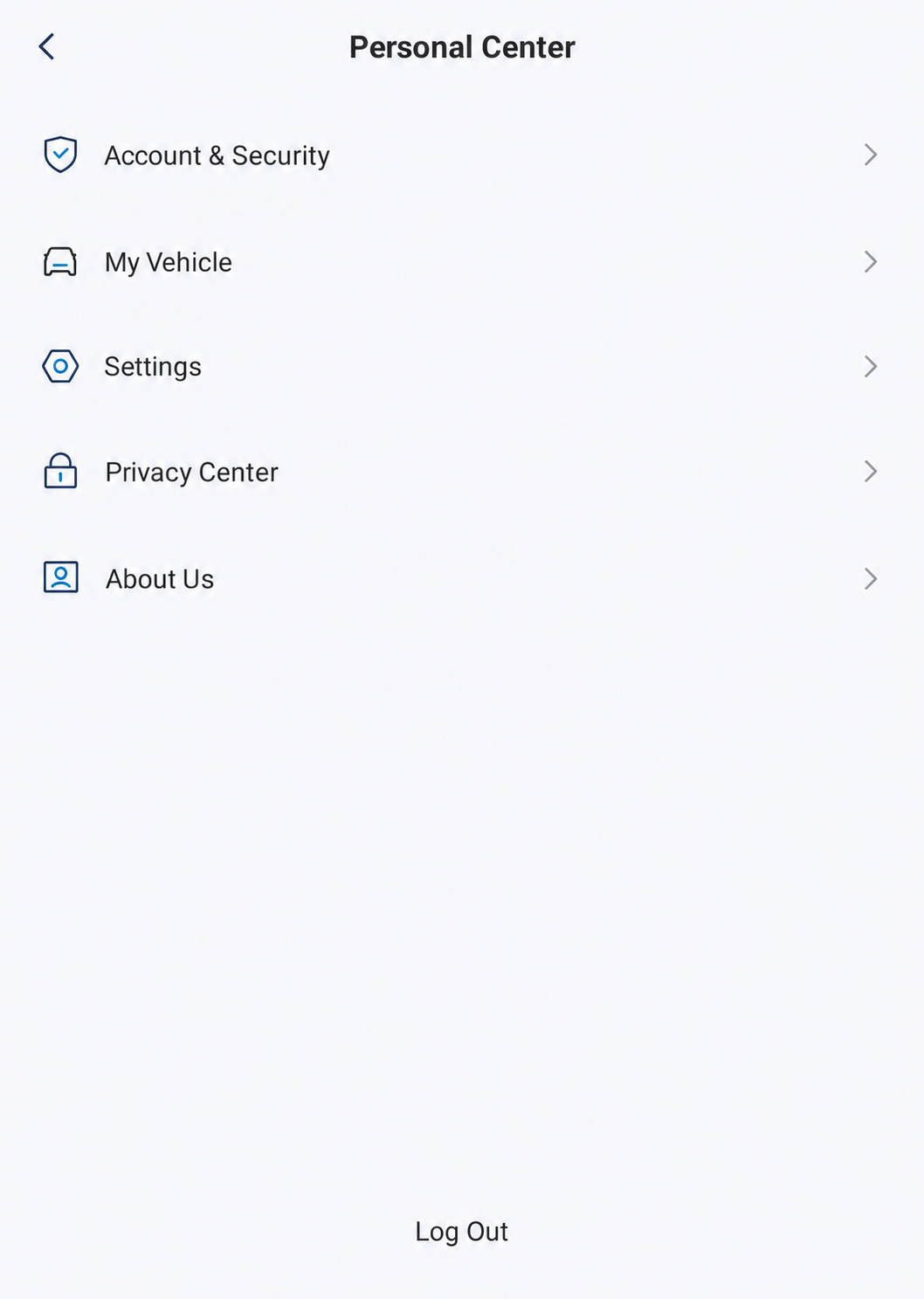
Personal Center leads to Account & Security, Settings and About Us. This menu shows account navigation; check your account details privately.
AI-Edited Reference · Android V1.12.0 · Australia · Shared E07 Recipient · Reviewed 10 October 2026. Screens and available controls may differ by account and app version.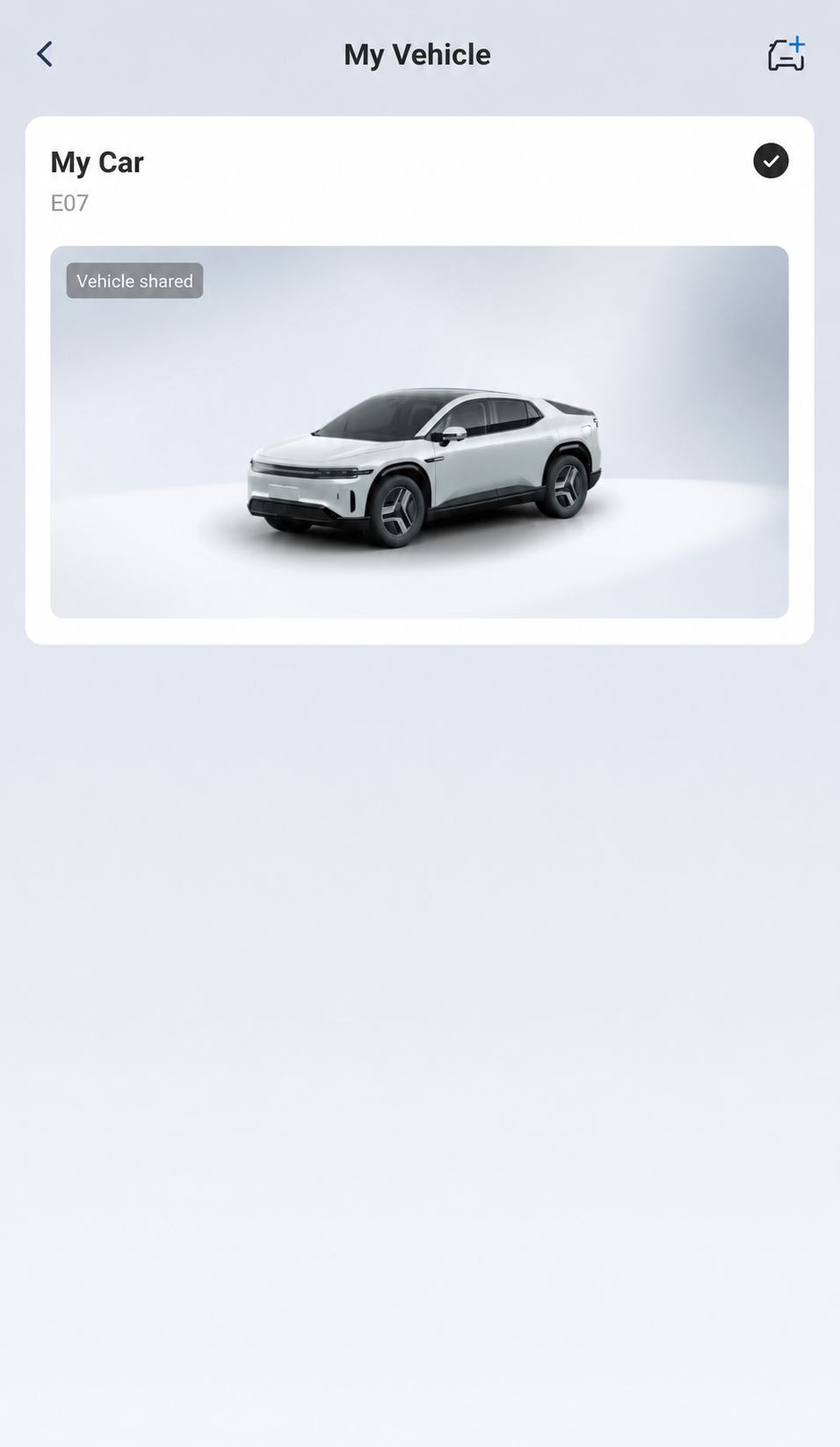
On My Car, tap My Vehicle to see the selection mark and Vehicle Shared badge. A listed vehicle does not by itself confirm current connectivity or starting authority.
AI-Edited Reference · Android V1.12.0 · Australia · Shared E07 Recipient · Reviewed 10 October 2026. Screens and available controls may differ by account and app version.If range remains missing, record the time, selected vehicle, account role and exact displayed symptom for support. Account selection, access/binding, network/service availability and stale/loading data are possible explanations; do not assume one cause.
Battery or Charging Status Will Not Refresh
Compare the app with the centre-screen battery percentage and actual charging state, and inspect any update time the app actually shows. A range number, battery percentage or signal-bars glyph alone does not establish fresh data or a live connection. The signal-bars and Bluetooth glyphs are provisionally matched to control modes. Treat freshness as unconfirmed when the screen supplies no reliable update time.
- Check Phone Internet. Open an ordinary webpage. If using unreliable Wi-Fi, try mobile data where available.
- Check the Account and Selected Vehicle. Confirm the expected car appears and your in-car profile is signed in.
- Close and Reopen the App Once. Note whether the update time changes; avoid sending repeated remote commands while waiting.
- Record Vehicle Connectivity Messages. Poor reception is a possible cause, but an old reading alone does not prove a vehicle modem fault.
- Check Versions. Open Personal Center, choose About Us, then read APP Version. Record the phone operating system and vehicle software separately. APP Version identifies the phone app; an arrow beside it does not prove an update is available. Follow the official process for an offered update.
If status remains stale, verify important charging and locking decisions at the vehicle. Do not assume that an old screen confirms a remote command succeeded.
Remote Command Fails but Status Works
Write down the exact function: remote climate, a Bluetooth key operation, a window command or another control. These can have different connectivity and permission requirements. A visible status screen does not establish fresh data or that every remote feature is available. The signal-bars and Bluetooth glyphs are provisionally matched to control modes; check the app’s connection messages and the actual vehicle result.
Open Personal Center, choose Settings, then open Permissions. Check the purpose and state for the particular feature. Bluetooth and Location support Bluetooth-key control/starting; Camera supports Scan Login and Authorisation. Check phone Bluetooth and the configured nearby key connection for key functions. Internet access alone does not prove Bluetooth-key authorisation, and Bluetooth alone does not prove remote service data is current. See Internet and Bluetooth Checks.
DEEPAL’s Connected Services page, checked 10 October 2026, states that the initial subscription lasts two years and that voice and vehicle-control functions have a 1 GB monthly data allowance. It says affected services are disabled when that allowance is reached until the next calendar month. Check Official Connected Services Terms and ask support to confirm whether subscription or allowance conditions apply to your symptom; a failed command is not itself evidence that your allowance is exhausted.
Retry once after correcting a clear issue, with the vehicle safely parked and the area around moving parts clear. Confirm the outcome at the car. For a window command, check the actual window position; Sent or a similar acknowledgement alone does not prove the window moved or reached the requested state. Use your normal key if app access is unreliable.
Before Reinstalling or Removing a Vehicle
Capture the error text, versions and time first. Confirm you can sign back into the intended account and have a working normal key. Reinstalling the phone app does not necessarily resolve dealer binding, an in-car guest profile or a service-side failure.
Do not unbind the vehicle, create replacement accounts or remove other users simply as a diagnostic experiment. Ask support which action is appropriate, especially with shared ownership or a used vehicle.
Send Support a Useful Report
Use the selling dealer or DEEPAL Australia's official contact page. Provide vehicle identity through that private channel only.
- Symptom and first observed date/time, including your timezone.
- Whether the vehicle appears in the app and whether the car shows Guest.
- Phone model, operating system, app version and vehicle software version.
- Exact error text and whether status refresh or only one command fails.
- Checks already attempted and what changed after each one.
- A redacted screenshot if useful; keep QR codes, VINs, locations and contact details out of community posts.
If another person's account retains access, flag the ownership/access issue explicitly. Ask support to confirm the appropriate transfer process rather than sharing login credentials.
E07 Owner’s Manual — p. 68 (PDF p. 79). App controls: E07 Owner’s Manual — pp. 69–70 (PDF pp. 80–81).
App references: Android V1.12.0, Australia, shared E07 recipient account, 10 October 2026. These illustrations do not establish fresh vehicle status, diagnose missing range or verify mode switching, vehicle commands or phone-key setup and starting.
Official App Downloads and Service ConditionsDEEPAL Customer Care