App controls can differ by version, region, account role and phone permissions. Check the options shown for your E07.
Internet connectivity supports remote app commands. A Bluetooth phone key uses a nearby authorised connection and can replace the physical key for starting. These are different requirements; the physical key remains another driving option.
Which Connection Do You Need?
| Task | Internet Remote Control | Bluetooth Phone Key |
|---|---|---|
| Connection | Working internet/connected services, the intended vehicle linked or shared to the account, and authority for the requested operation. | A configured/authorised phone key, phone Bluetooth enabled, app Bluetooth and Location permissions, and a nearby connection to the vehicle. |
| Manual-Documented Controls | Lock, Window, Back Door, lights/horn, Rear Dome, Boot and Partition Glass, depending on configuration. | Lock, Window, lights/horn, Sunroof and Back Door on these manual pages. They do not establish Bluetooth Boot or Partition Glass operations. |
| Start the Vehicle | Remote unlocking alone unlocks doors; it cannot start the vehicle. | After the authorised phone key connects to the vehicle, the manual says it can replace the physical key. With the phone key in the car, press the brake to start. |
Back Door and Boot are separate E07 manual controls. Do not use generic marketing wording to merge them or assume the same control list in both modes.
Use Internet Control for a Remote Task
- Check Account and Vehicle. Select the intended E07 in My Car. If it is shared, check continued owner-granted access.
- Check Connectivity. Confirm phone internet and read any vehicle connectivity/error/status information actually shown.
- Identify Internet Mode. The signal-bars and Bluetooth glyphs beside Vehicle Control are provisionally matched to the manual’s two modes. Their colour or presence does not confirm a live connection or recent data. Check any update time and connection message the app provides; a stored range value does not establish its update time.
- Use the Requested Control and Check the Result. Match the intended operation to the actual app control. A displayed button or sent command is not proof of completion. Check the actual vehicle state: for a window command, inspect the window position rather than relying on an acknowledgement.
Check Bluetooth-Key and Camera Permissions
Open Personal Center, choose Settings, then tap Permissions. The app explains the purposes below; check the current indicators on your own phone.
- Bluetooth: controlling and starting the vehicle using the Bluetooth Key.
- Location: required by the app when using a Bluetooth Key.
- Camera: Scan Login and Authorisation functions. This is distinct from Bluetooth-key permission.
If You Do Not Grant a Permission
If Bluetooth or Location remains ungranted, the Bluetooth-key prerequisites described by the reviewed app are not met. Use your Physical Smart Key for access and starting while checking the phone-key setup; it does not require the phone’s Bluetooth or Location permissions. Camera permission supports Scan Login and Authorisation. It is separate from those Bluetooth-key prerequisites, and granting it alone does not authorise a phone key.
Phone permissions, the app’s Privacy Center Reporting Choices and the vehicle’s connected-service consent prompts are separate checks. Review the purpose of each feature you choose to use. A phone permission indicator does not establish which internet status or remote-control functions remain available after declining vehicle-service consent.
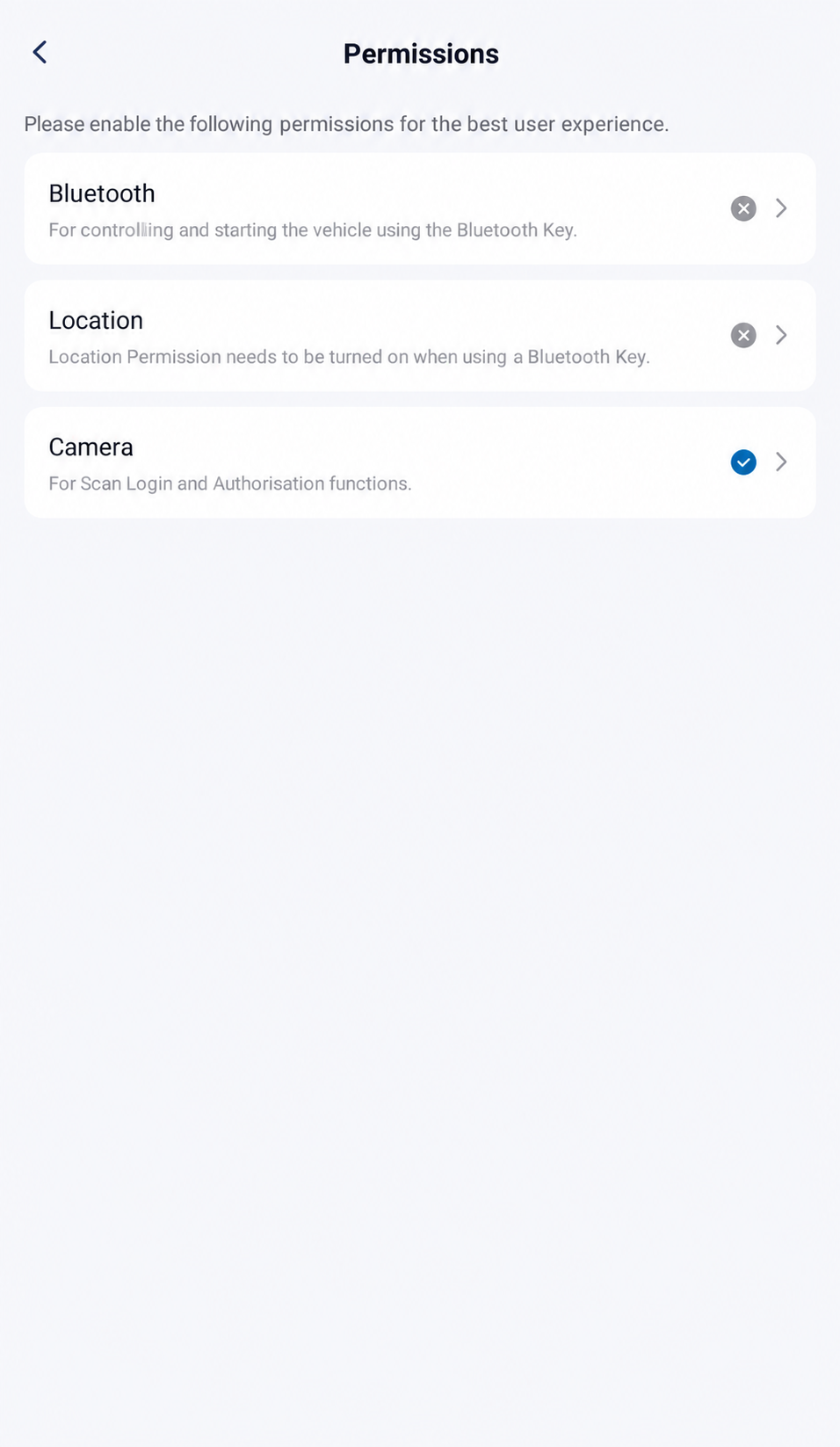
The illustration shows Bluetooth and Location ungranted, with Camera granted. Check the current permission state on your own phone.
AI-Edited Reference · Android V1.12.0 · Australia · Shared E07 Recipient · Reviewed 10 October 2026. Screens and available controls may differ by account and app version.The page does not specify background or precise-location requirements. Permission declarations or a checked indicator are not proof of vehicle connection, account authority or working key hardware.
Prepare the Bluetooth Phone-Key Path
- Confirm Key Authority. Follow the current app’s configured-key/authorisation procedure for the intended vehicle. Login or shared status alone does not establish starting rights.
- Check Permissions and Phone Bluetooth. Enable the required Bluetooth/Location permissions when you choose to use this feature and turn phone Bluetooth on.
- Connect near the Vehicle. Use Bluetooth car-control mode and establish the nearby key connection as directed by your app.
- Verify Starting Access with a Backup Key Available. Only after the authorised phone key is connected should it be treated as the physical-key replacement described by the manual. Keep the phone key in the car and press the brake to start.
Phone-key setup and starting have not been verified here. Follow your app’s current authorisation flow, keep your physical key available and confirm access beside the vehicle before relying on the phone key. Do not assume every account or key setup step works offline.
If Range or a Command Is Missing
Missing km/range can trigger connectivity checks, but it is not a unique diagnosis. Check the intended account, selected vehicle, binding/shared access and network/service state using Missing Range Troubleshooting. A Bluetooth connection does not prove remote data is fresh; a visible range value or signal-bars glyph does not prove when information updated or that an internet command can complete.
DEEPAL’s Connected Services Terms, checked 10 October 2026, list an initial two-year subscription and a 1 GB allowance per calendar month for voice and vehicle-control functions. A failed command alone does not establish that the allowance is exhausted.
E07 Owner’s Manual — pp. 69–70 (PDF pp. 80–81).
App references: Android V1.12.0, Australia, shared E07 recipient account, 10 October 2026. Controls can differ by account and software. These reference screens do not verify vehicle commands, permission changes, phone-key setup, authority or starting, mode-switch behaviour, or which services remain available after declining consent.