This connects your vehicle to the account you use in the DEEPAL phone app. Bluetooth phone-key setup and signing into the car’s centre screen are separate steps. If the owner has shared their vehicle with you, use Shared Vehicle Access.
Register Your Account
For a new owner account, register with a lowercase email address and give your dealer that same address. Select Australia as the vehicle’s purchase region and use the registration or sign-in method shown by your app. For an existing account, use its recorded email address and check that it matches the dealer’s record. If the account and dealer record differ in spelling or letter case, ask your dealer or DEEPAL support to confirm the intended linked account and advise how to correct the mismatch before creating another account.
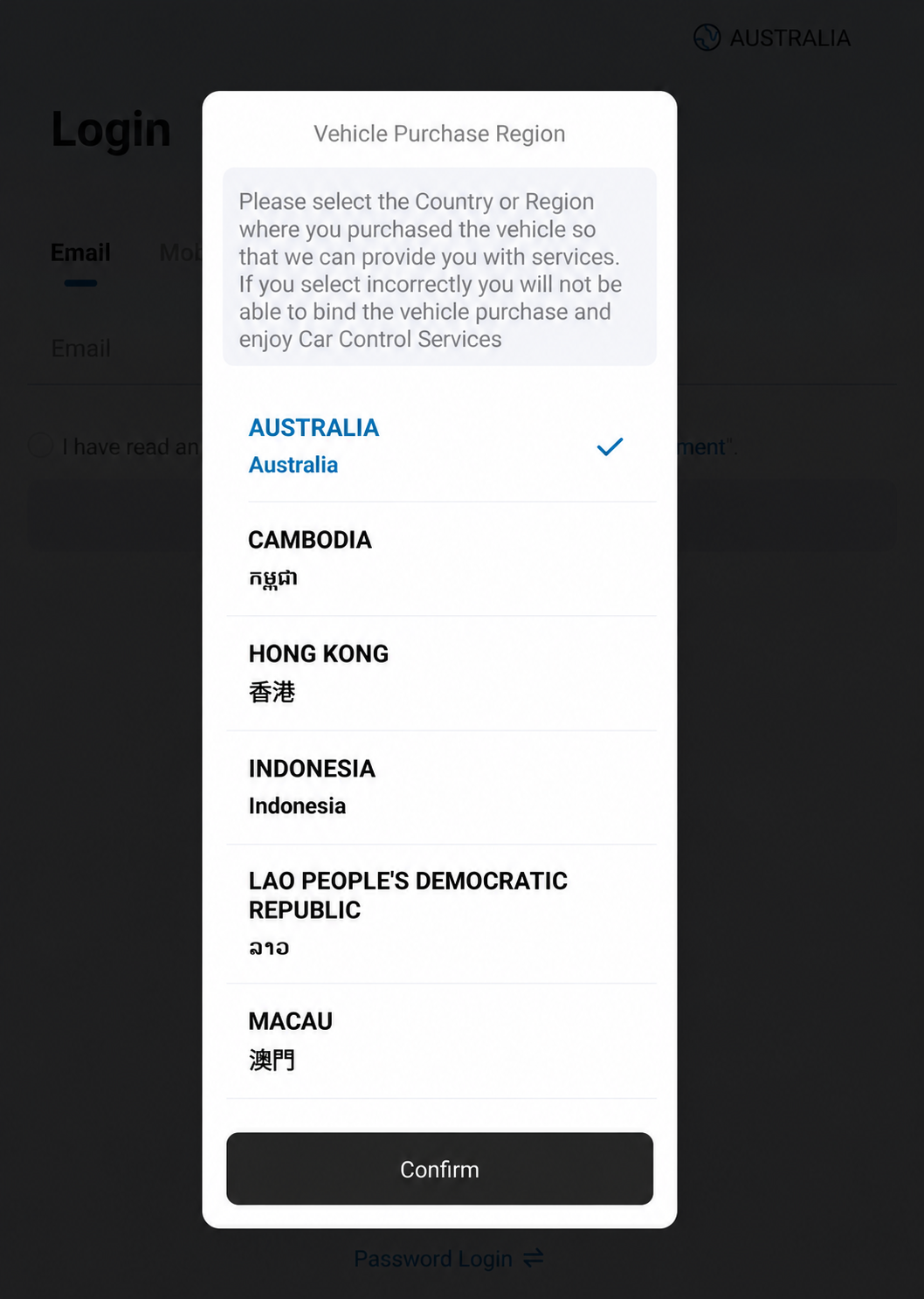
Choose Australia
- On Login, tap the country or region at the top-right.
- Select Australia for an Australian purchase, then tap Confirm.
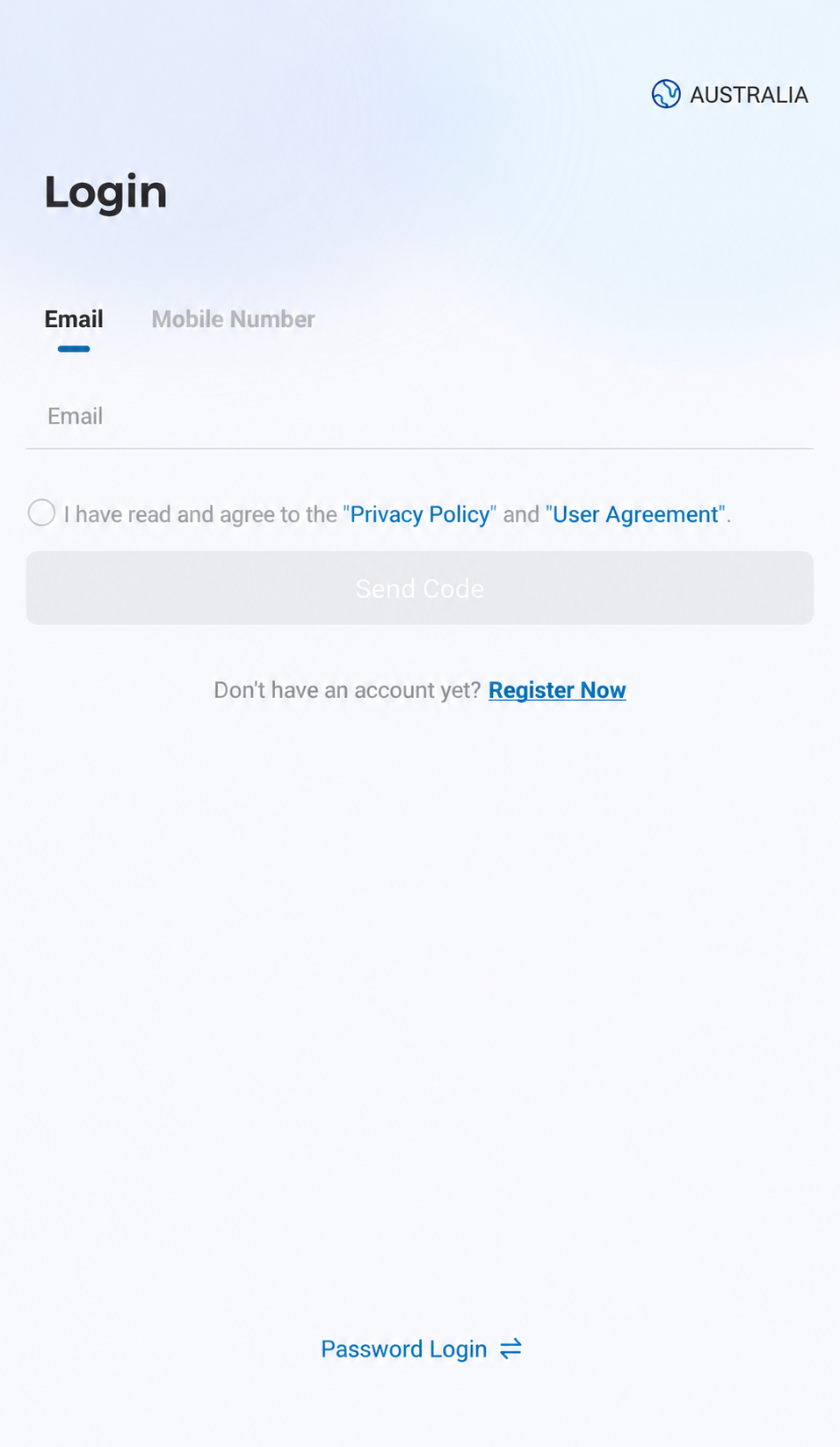
Open Register Now
Tap Register Now below Send Code. Follow the registration prompts and enter your email address in lowercase. If you already have an account, sign in with that account.Allow Two Business Days for the Dealer
The dealer needs to send an email to arrange account binding. Allow up to two business days for this dealer step. If your E07 does not appear or binding is still not working after two business days, contact your dealer to check the account email, VIN and vehicle activation. Compare identifying details privately. For a used E07, confirm the authorised account-transfer process.
Sign in and Bind Your E07
Sign in with the same account after dealer processing. When your owner app offers Bind Vehicle, check the intended vehicle’s details before selecting Confirm Binding or the equivalent Confirm To Bind option shown in the example. Follow the labels your app offers. Shared recipients select the vehicle granted by its owner instead.
Sign in with Your Account Email
- Enter the same email address you registered and gave your dealer.
- Read the agreement choices and select consent if you agree.
- Tap Send Code when it is enabled.
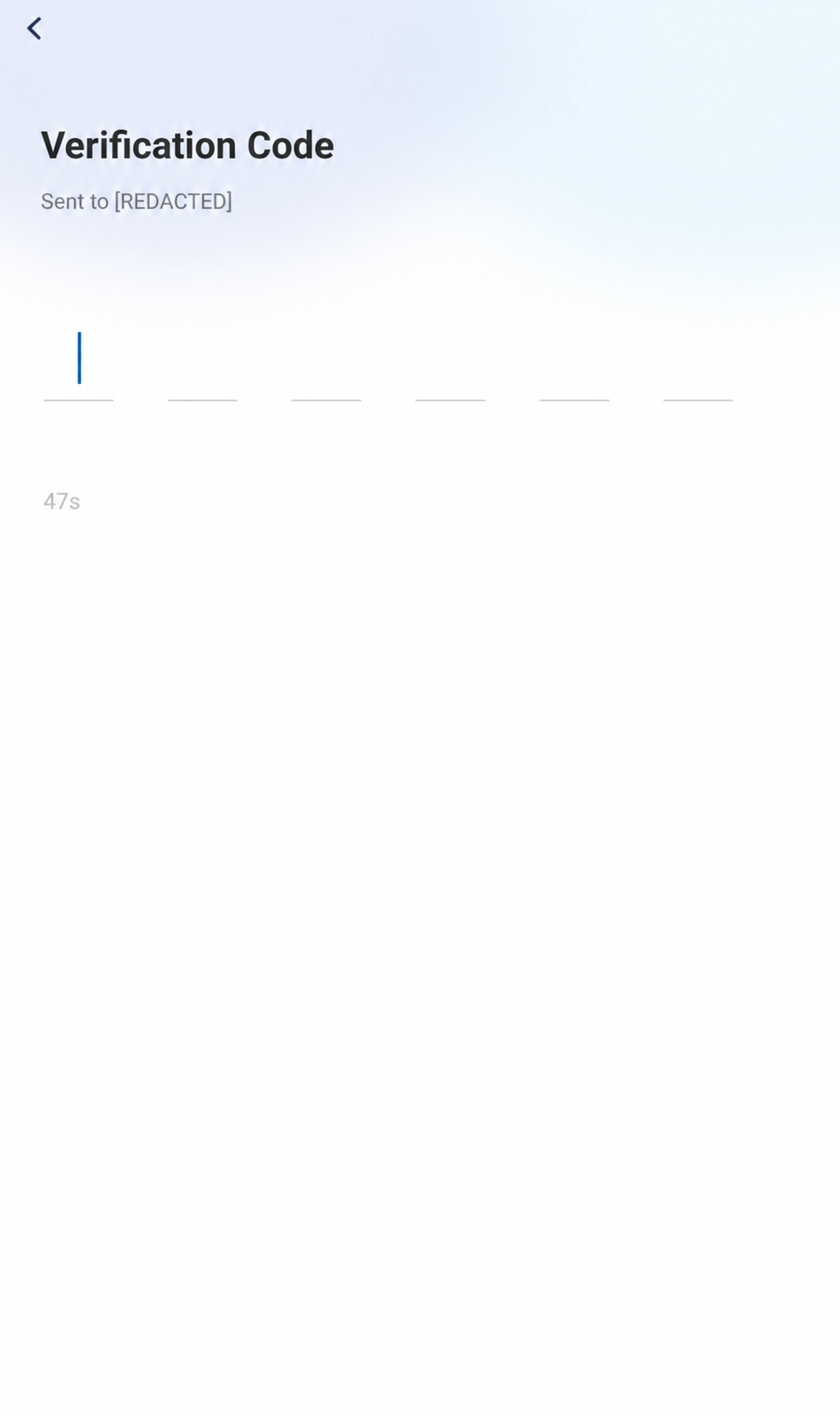
Enter Your Email Code
Enter the code sent to your own email if this screen appears. This sign-in code is separate from the dealer’s account-binding email.Confirm the Vehicle Association
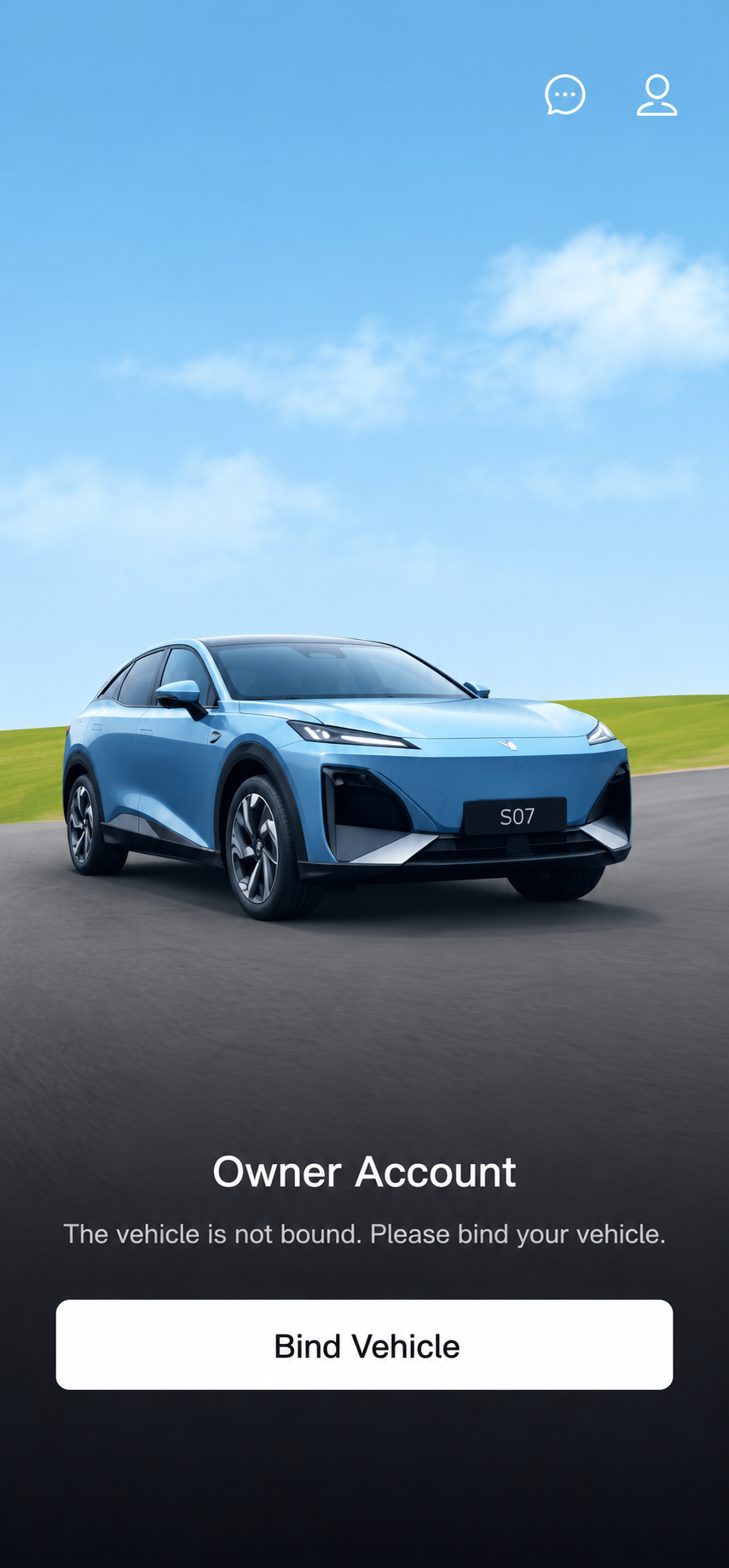
Tap Bind Vehicle
When your owner app offers Bind Vehicle, tap it to find the vehicle associated with your account.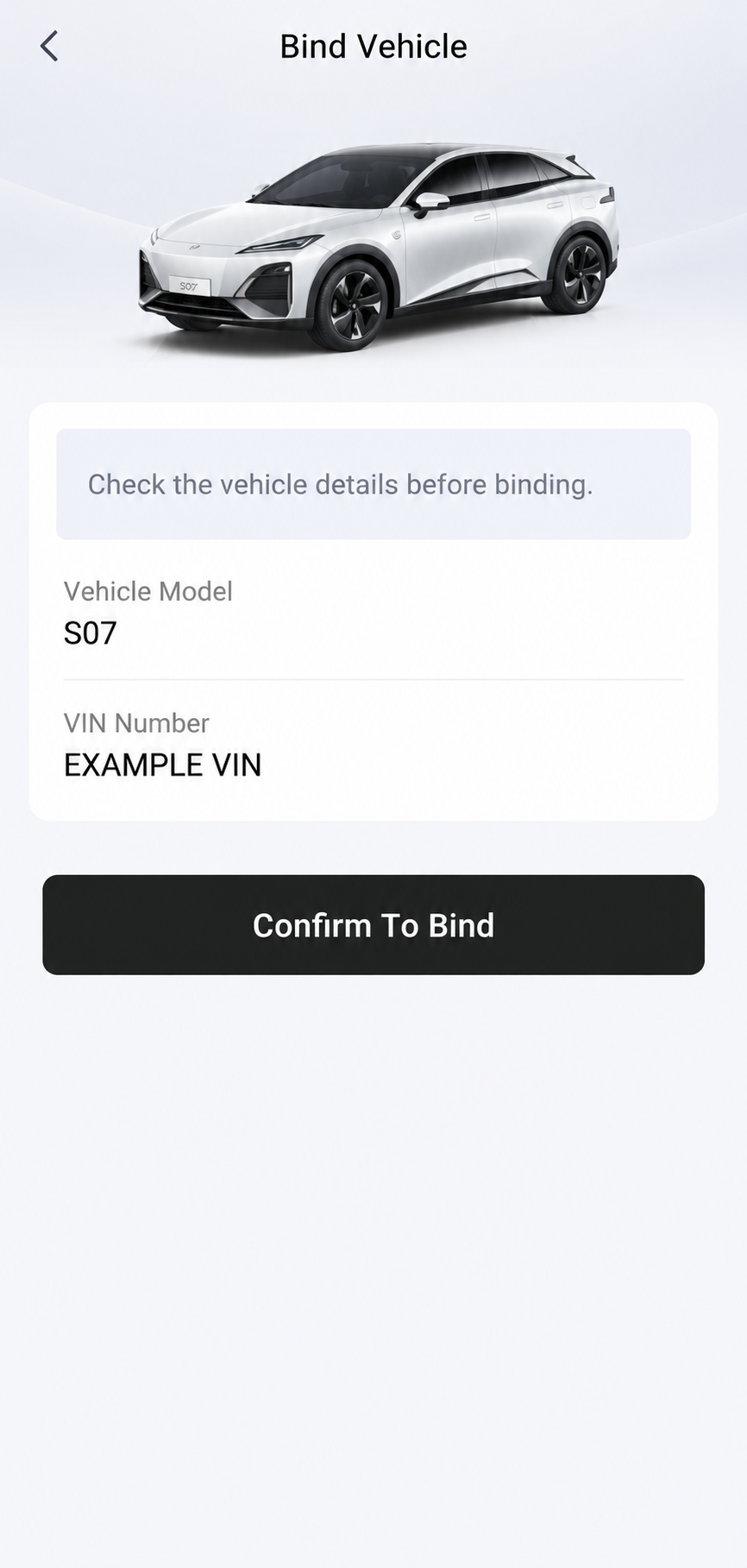
Confirm Your Vehicle
- Check the model and VIN against your own vehicle. S07 and EXAMPLE VIN are placeholders here.
- If the details match and your app shows this option, tap Confirm To Bind.
- Check that your E07 appears in the app afterwards.
Sign into the Car
While parked with your normal key available, open Account and select Log In on the centre screen. The car displays its QR code; scan the car’s code with the DEEPAL app and check that the intended account appears instead of Guest. A shared recipient’s entitlement to this login needs separate confirmation.
Review Connected-Service Permissions
Review the app and car’s privacy prompts and grant only permissions required for the connected features you choose to use. If connection remains unavailable, ask the dealer to check vehicle privacy settings with you. QR login, service consent and Bluetooth-key permissions are separate checks.
Check That Binding Worked
Confirm the intended E07 appears and compare its app status with the car. For an authorised test of a remote control while parked, check the actual vehicle result; a displayed value or sent command alone does not prove completion. Internet remote unlocking cannot start the car; starting needs separate authorised nearby Bluetooth phone-key setup.
E07 Owner’s Manual — p. 68 (PDF p. 79).