Apps to Have before You Travel
Use PlugShare to research charging stops and recent check-ins, then prepare the operator accounts and supported payment methods for your selected sites. The list below is a community starting point; check which apps your route actually needs before leaving.
Scroll Table to See All Columns
| App | Apple | Android |
|---|---|---|
| Site Research and Trip Planning | ||
 PlugShare PlugShare |
App Store | Google Play |
| Charging Operators · Choose for Your Route | ||
 Chargefox Chargefox |
App Store | Google Play |
 Evie Evie |
App Store | Google Play |
 My NRMA My NRMA |
App Store | Google Play |
 AmpChargeAmpol App AmpChargeAmpol App |
App Store | Google Play |
 bp pulse bp pulse |
App Store | Google Play |
 JOLT JOLT |
App Store | Google Play |
 Exploren Exploren |
App Store | Google Play |
The DEEPAL app provides vehicle battery information and controls. It is separate from PlugShare’s route/site research and the operator’s charging session/payment account. See Charging in the DEEPAL App for Battery, Charge Limit and the observed Scheduled Charging switch.
Set up Your E07 In PlugShare
Sign up or sign in to PlugShare.
Open Me, then select Add Vehicle. You can also select Add Vehicle in Filters.


Choose Your E07
Choose the Make and Model
For Make, select Changan. For Model, select Deepal E07, as listed in PlugShare.
Choose Your Year and Trim
Set Year to the matching 2024, 2025 or 2026 option. Set Trim to the matching AWD Performance or RWD option.
Confirm the Vehicle
Check the details, then select Add This Vehicle.

Search Your Route in PlugShare
Use Route Search in the PlugShare app to find charging stops along your journey.

Open Map
Tap Map in the bottom navigation.
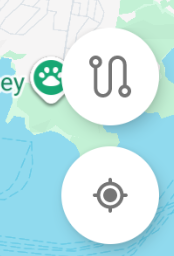
Open Route Search
Tap the Route icon on the lower right of the map, above the location button.
Choose Your Starting Point and Destination
Enter your starting town or address in From and your destination in To. Choose the matching location if suggestions appear.

Select Search
Tap Search to display your route and nearby chargers. Check the starting point and destination.
Open All Filters
Tap All Filters to choose your charging options using the settings below.
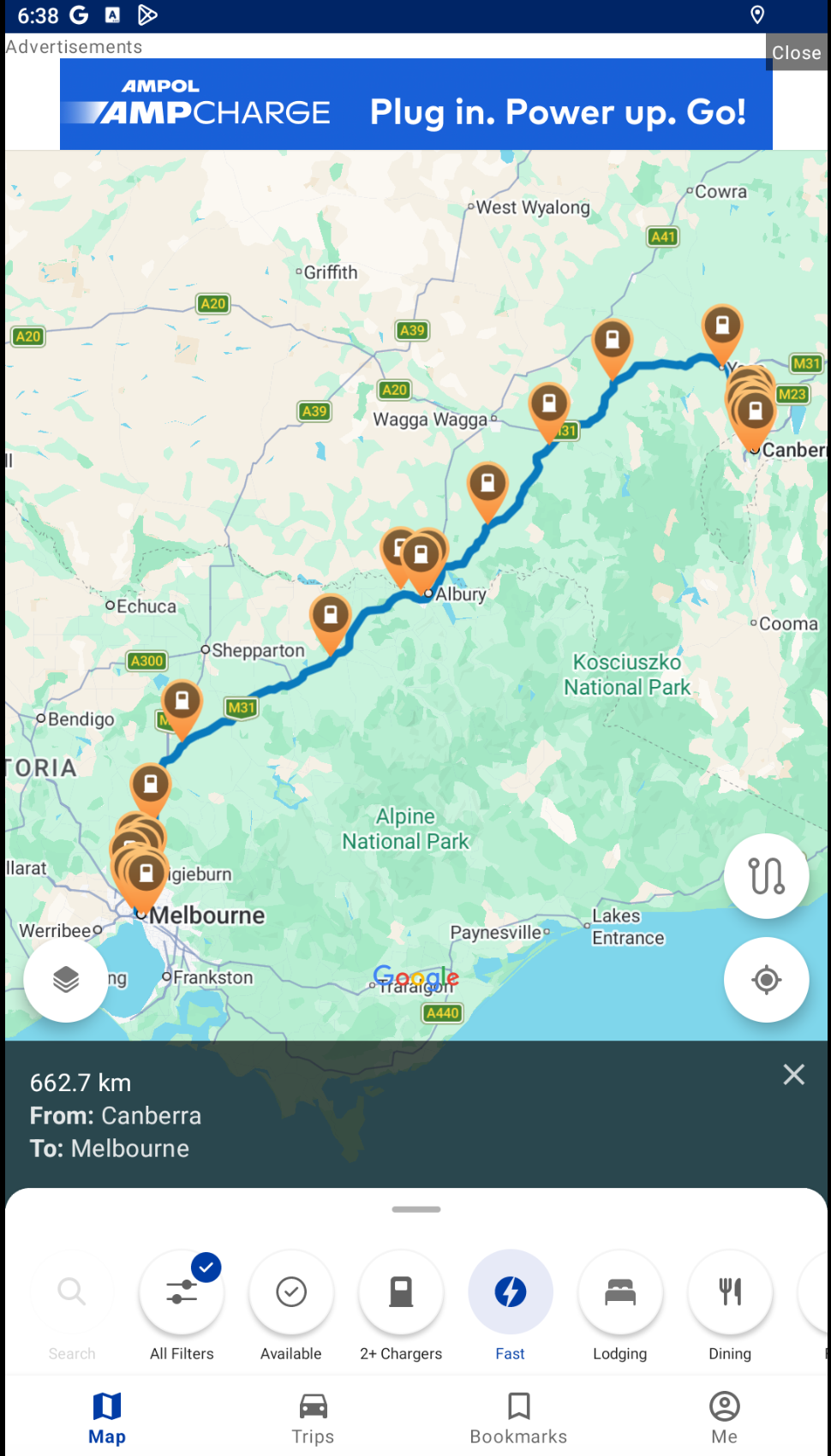
Plan Your Charging Stops
The E07 AWD and RWD have an approximately 90 kWh battery. Starting at 100% and assuming average highway consumption of 22 kWh/100 km, plan for chargers around these distances:
Scroll Table to See All Columns
| Road Distance | Charge Left | Reserve |
|---|---|---|
| About 327 km | 20% | Preferred reserve |
| About 368 km | 10% | Risky: little margin |
| About 389 km | 5% | Very low reserve |
| 400 km | About 2% | Almost no margin |
Filter the Chargers
In All Filters, set the charging power and plug types shown below.
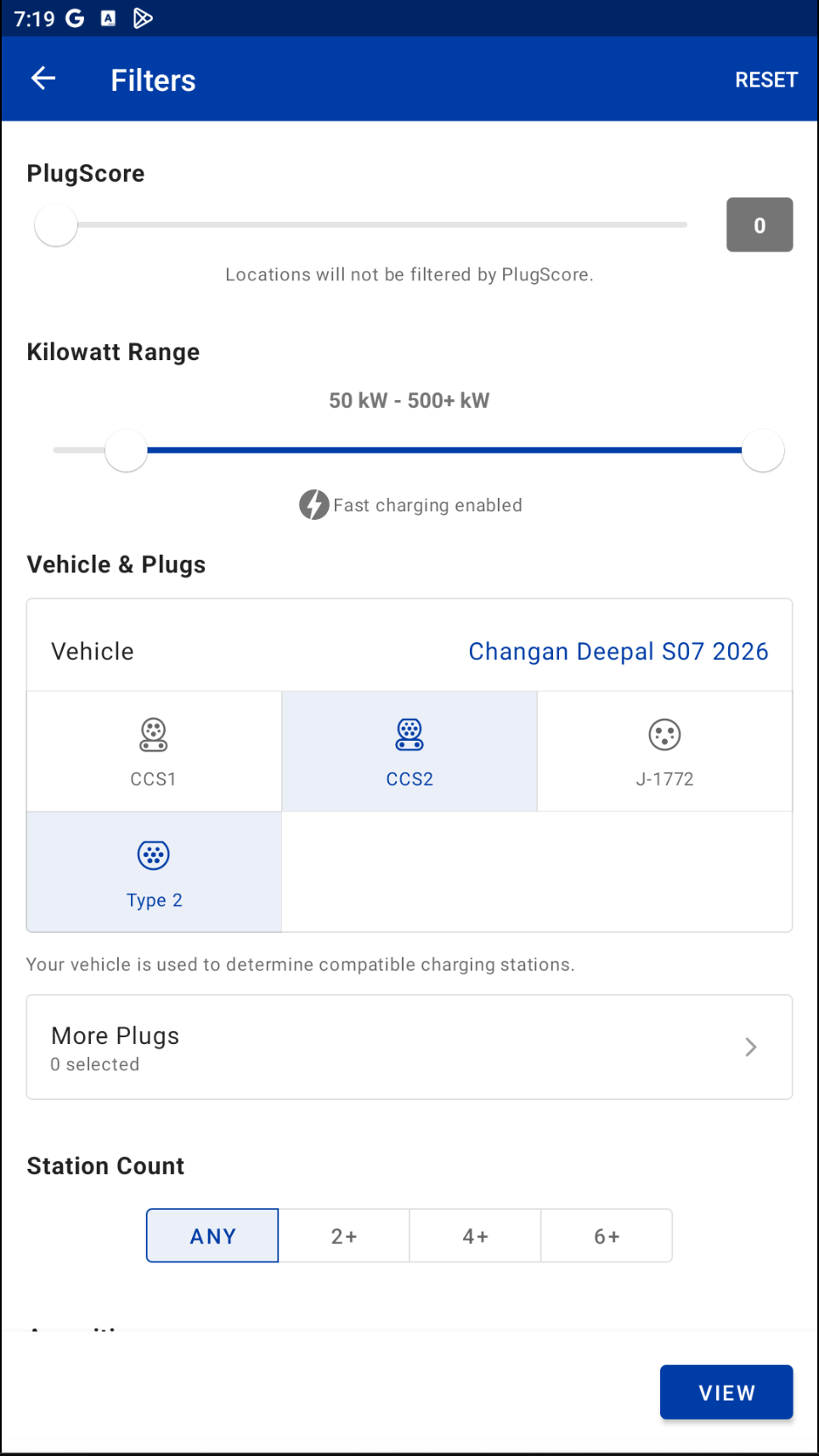
Set Power and Plug Types
Kilowatt Range: 50–500+ kW.
Select CCS2 and Type 2.
For Type 2 AC backups, clear the minimum-power filter.
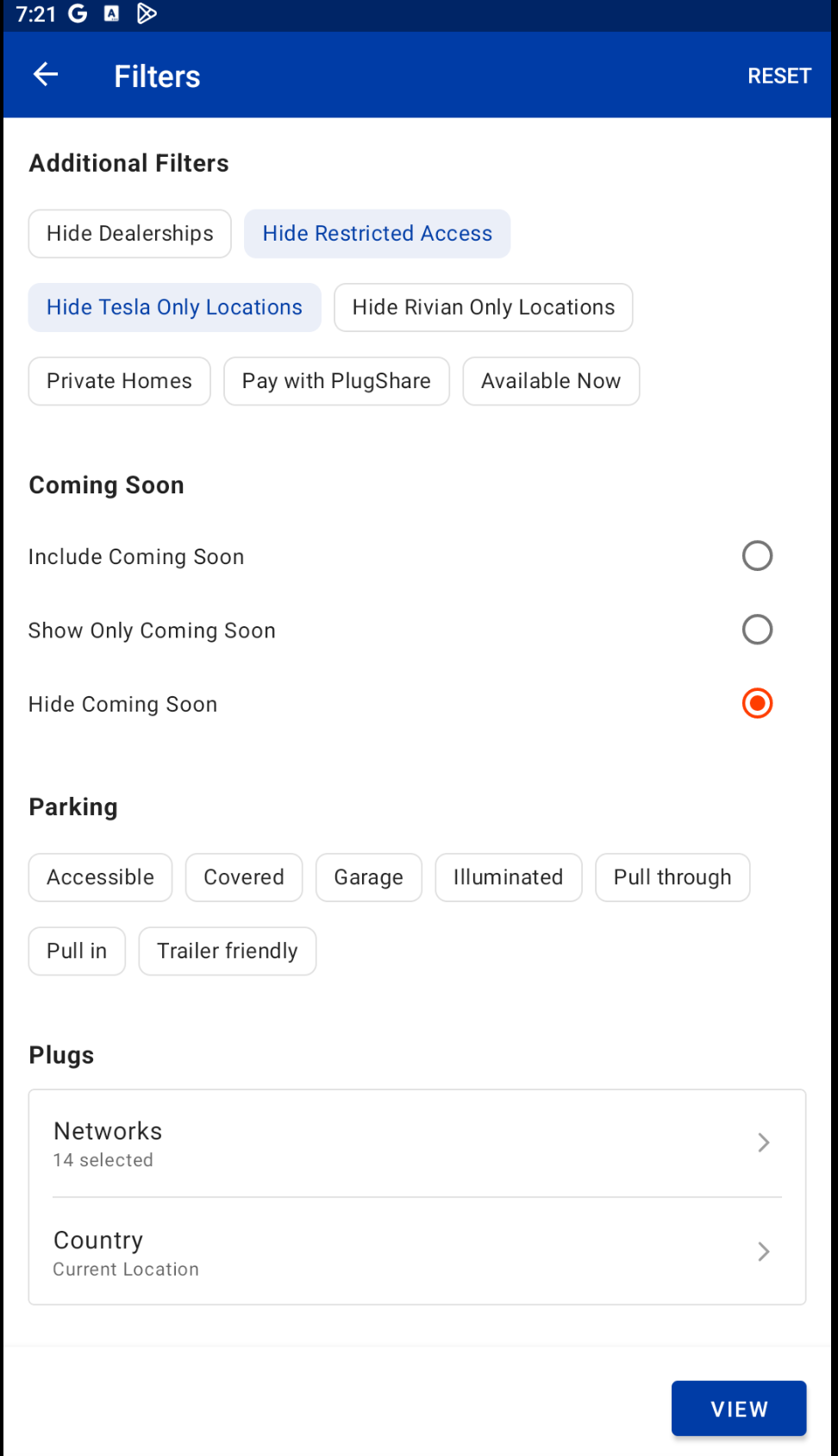
Additional Filters
Select Hide Tesla Only Locations.
Keep Hide Restricted Access and Hide Coming Soon selected. Leave Available Now off when planning ahead.
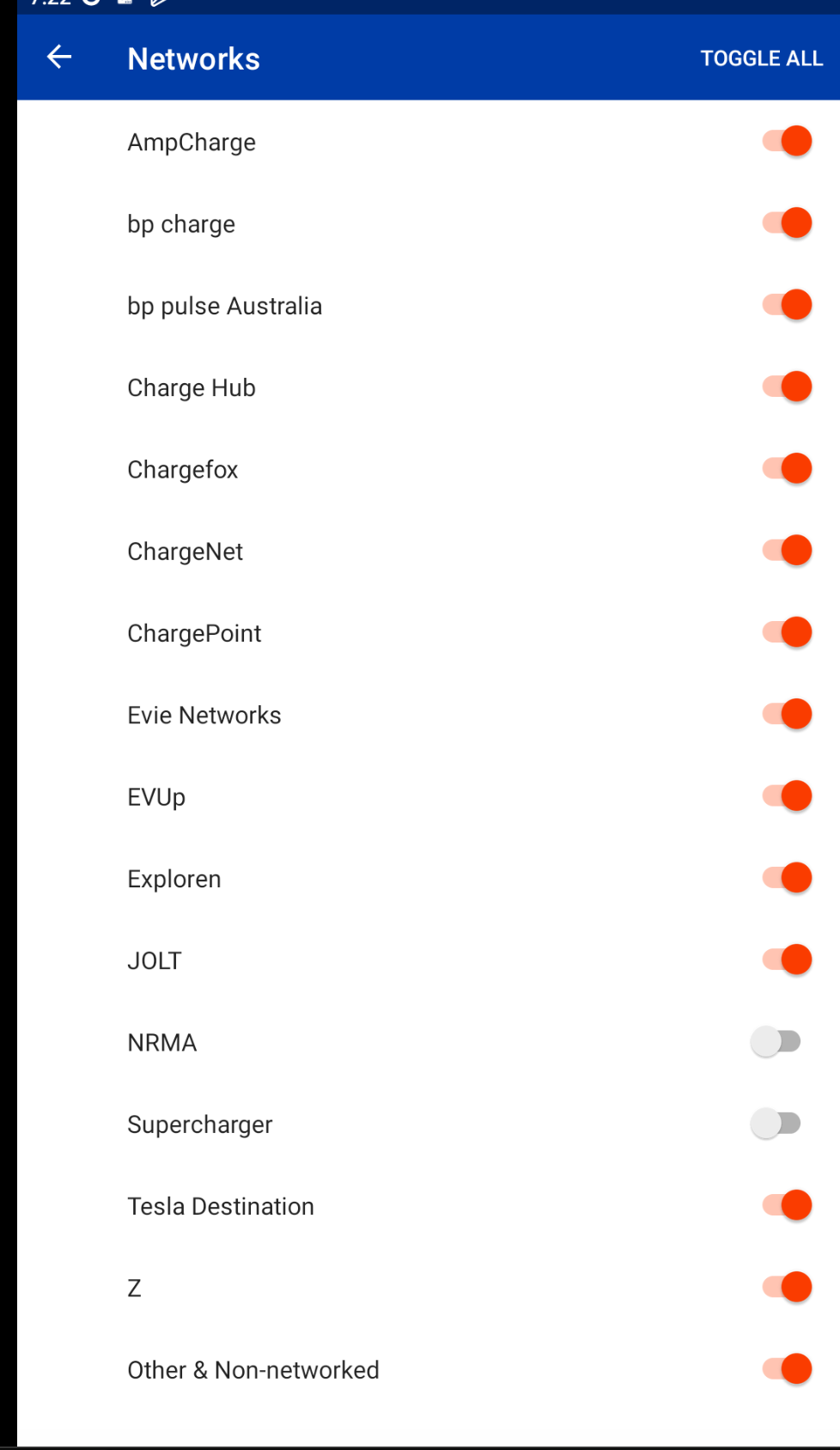
Choose Networks
Scroll down and tap Networks.
Turn off NRMA and Supercharger for this search.
Tesla Destination is separate and remains selected in this example. These network exclusions are example search settings, not a claim that every charger on an excluded network is incompatible.
Select View
Go back to Filters and tap View to see the results.
Check Each Proposed Charging Stop
Open the site’s Station Details before adding it. Review the individual CCS2 unit, not only the site’s headline rating.
To check how far away a charger is by road, select Directions, set your starting point in the maps app and read the driving distance. Route Search has no documented filter for a distance band from your starting point.
- Read recent check-in comments, especially successful E07 sessions and later fault reports. Another vehicle’s success is useful context, not proof for the E07.
- Inspect photos, charger model and voltage capability at uncertain sites. Two 50 kW units can have different voltage limits; see the RT50 / RTM50 comparison.
- Confirm opening hours, access, correct entrance and travel direction, parking rules, fees and cable arrangement.
- Check the operator’s current app or website for outages and supported payment. Verify several usable bays where possible.
- Check mobile reception and facilities, particularly where a delay would affect an overnight stop or ferry.
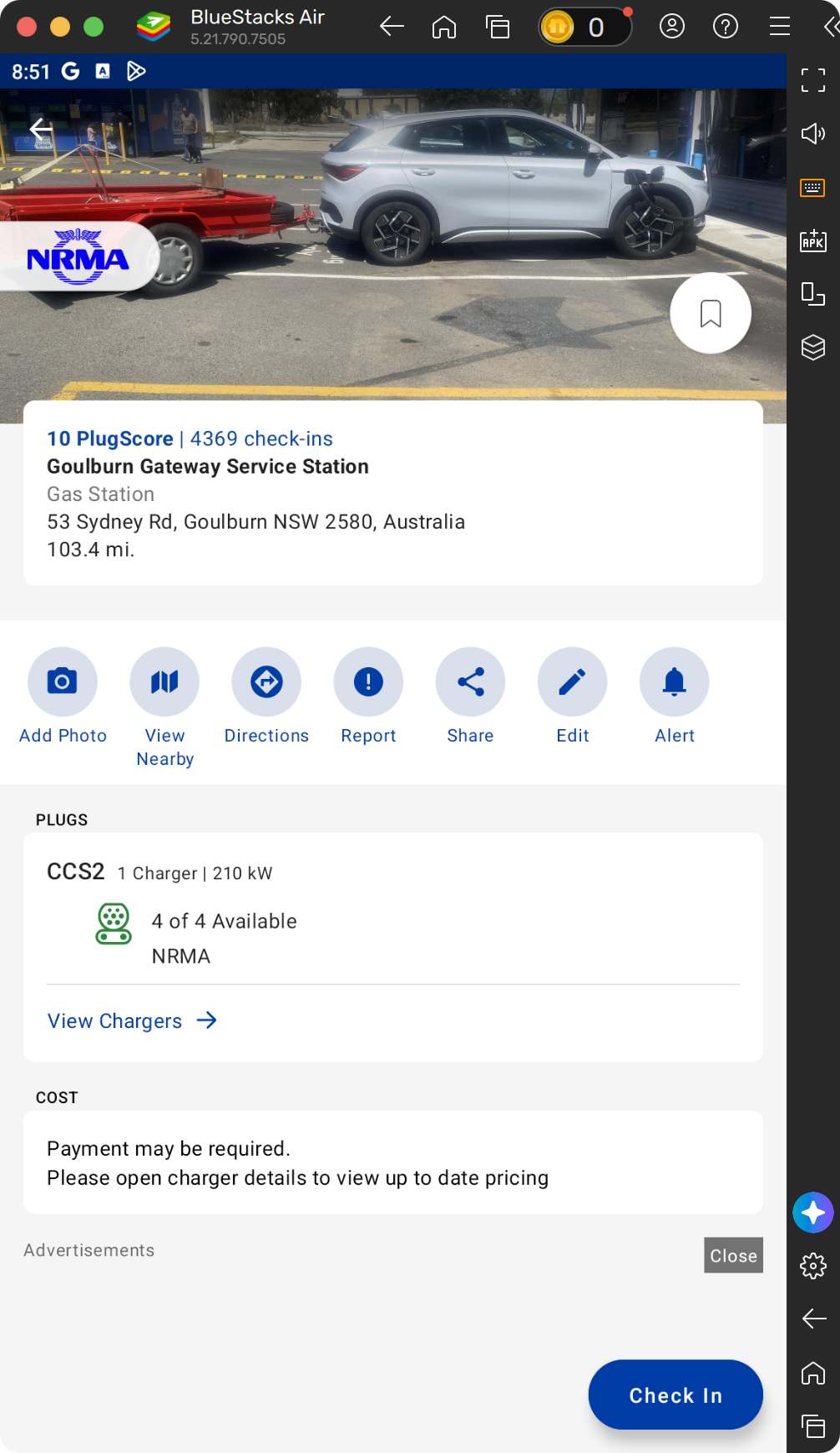
What to Check on the Station Page
- Bookmark after checking.Use this to keep a candidate, then confirm it appears under Bookmarks. Record whether it is your primary or backup.
- Verify the site and address.Read recent check-ins and inspect access and equipment photos. A 10 PlugScore does not prove an E07 can charge here.
- Directions is for navigation.Use it while parked after choosing the next stop. Check the actual entrance and road direction.
- Open View Chargers.Read the individual connectors instead of relying only on the site’s 210 kW headline or availability count.
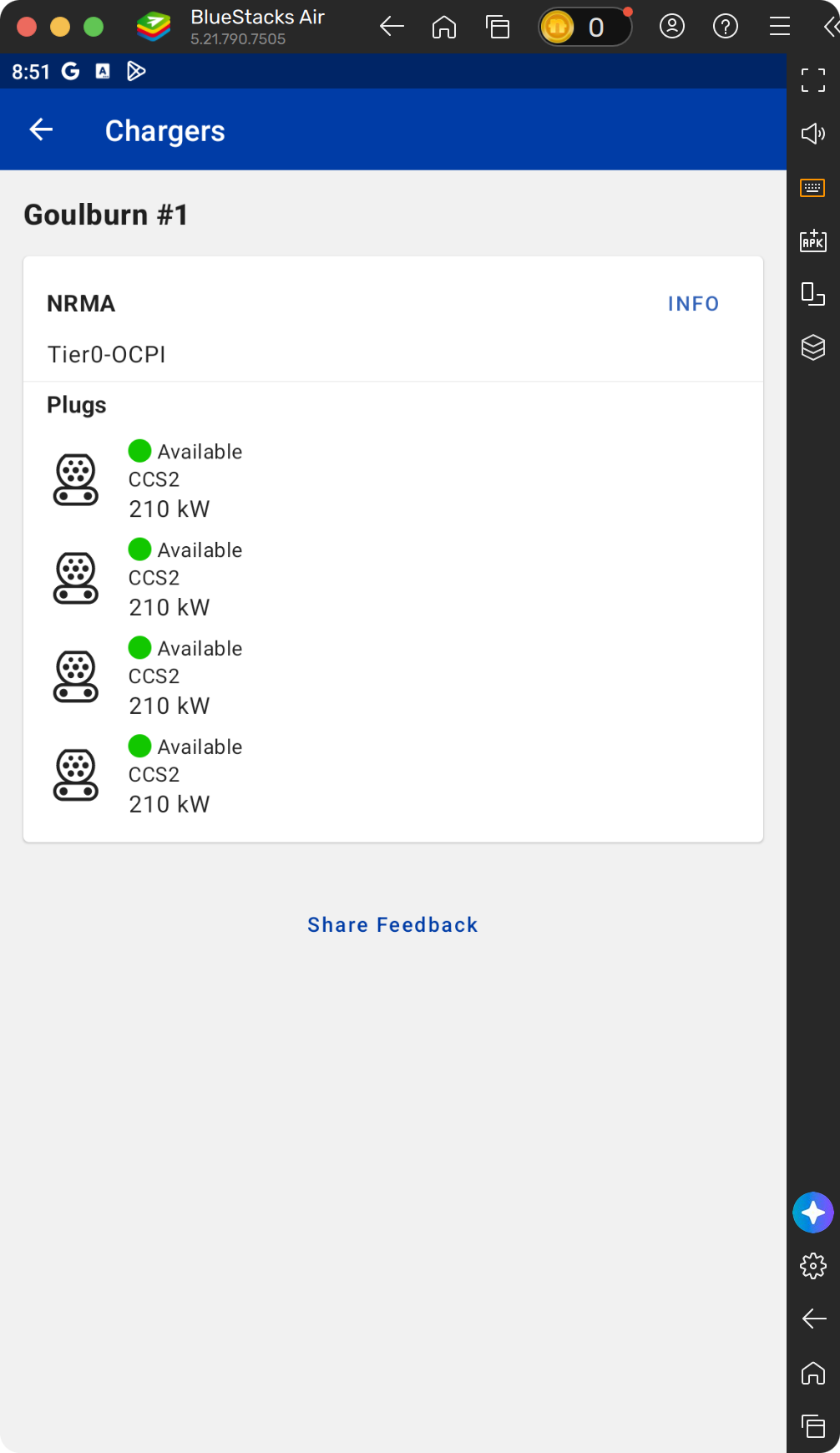
Check below the Headline Rating
- Inspect the supplied details.The Info control identifies further operator details where supplied. Confirm current operation, access and payment in the operator’s app.
- Read each plug’s connector and rating.This example lists four CCS2 plugs at 210 kW. That is not a promise of 210 kW to your E07, proof of voltage compatibility, or a guarantee a plug will be free when you arrive.
Use recent E07 charging reports and the exact hardware alongside this screen. A matching connector, a high rating and a green status each answer only part of the question.
Record when you checked the site. A high PlugScore or old successful report does not replace these checks.
Bookmark Stops and Build the Backup Plan
Repeat the broader filter search for every leg. Pick a checked alternative you could still reach if the primary site fails. Two bays at one site reduce some risks, but are not a separate-site backup for a site-wide outage.
Open each checked station’s details and select Bookmark, then confirm it appears under Bookmarks. Note which chargers are primary stops and which are backups, with their addresses, operators, detours and access hours. Keep backups recorded separately so they do not become compulsory stops, and save an offline copy of the essential details.
For a Type 2 AC fallback, check whether you need your own cable and allow enough time. The E07’s published maximum is 7 kW AC, even at a 22 kW post, and actual power may be lower. The community post’s 22 kW example is a station rating, not the E07’s AC charging rate.
No Reachable Backup?
Revise the leg, leave the previous stop with more charge, or arrange a verified overnight charging option. Confirm accommodation access with the property. Do not treat an unverified charger pin as the solution to a route gap.
Build Your Trip in the Desktop Trip Planner
With your charger shortlist ready, open PlugShare in a desktop browser at least 1200 pixels wide and sign in to the same account. Enter the journey again in Trip Planner, then add the chargers you checked in the app.
Open the Trip Planner
At PlugShare, open the menu, choose Trip Planner, then Plan a New Trip.
Enter the Journey
Enter the start and destination, select Search if needed, then choose the intended route. Check tolls, ferries, road access and the actual accommodation address.
Set a Conservative Range Guide
Under Options, enable Show Range Estimate and select kilometres. For the 100% departure example above, start with about 320 km. Adjust the distance for each leg’s departure charge, expected consumption and backup reserve.
Show Along Route Only controls how far off the route chargers may be, not their distance from your start. Check actual leg distances in the trip list. To adjust the charger filters here, open Plugs, Networks, Amenities, PlugScore, etc.
The range circle is only a guide. PlugShare says it excludes pathing, elevation, road and weather conditions. It is not a live battery or arrival-charge prediction. Review Elevation separately, and shorten legs for hills, speed, wind, rain, cold, towing or heavy loads. If you cannot establish a plausible energy margin, shorten the leg or revise the route.
Add Your Charging Stops
Choose Add a stop at the intended position in the trip list, find a primary charger from your shortlist and select Add to trip. Repeat towards the destination. Check the order and road distance of each leg, including any detour to the charger; drag intermediate stops into the right order if needed.
Red leg distances exceed your configured range. Add a nearer stop or change the route. Green only means within the range you entered; it does not validate E07 energy use or guarantee a reserve. Compare the actual road distances with your realistic driving range, and allow for the backup detour before leaving each working charger.
Use Add Wait Times to budget your own charging, queue and rest estimates. This is a time allowance you enter, not an E07 charging-time calculation. Do not assume that the trip’s driving duration includes charging.
Save and Complete the Departure Check
Select Save in the desktop Trip Planner and give the trip a recognisable name. Open it under Trips in the phone app signed into the same account, then verify the endpoints, charging stops and their order. Keep your backup locations in bookmarks and your trip notes. Review the return journey separately because access, hills and energy use can change.
Before using a planned departure charge, select the intended E07 in the DEEPAL app and open Battery. Compare battery percentage and EV Range with the parked vehicle and confirm charging completed as intended. A displayed app value does not establish when it refreshed, and a shared recipient’s visible settings do not establish changing authority. See the illustrated Vehicle Battery Check and Missing Range Troubleshooting.
- The saved trip opens under Trips on the phone, and the backup bookmarks and addresses are ready.
- Every leg has a realistic energy margin, including a reachable backup.
- Operator accounts and payment are ready, and any required charging cable is packed.
- If portable charging is planned, the compatible EVSE is packed and socket suitability, property permission and charging time are confirmed.
- Recent E07 reports and operator status have been checked again near departure.
- Charging, queue and rest time fit the day’s accommodation, ferry or arrival deadline.
A Trip Note to Copy
Use one entry per leg. This is your planning record, not a PlugShare battery calculation.
Scroll Table to See All Columns
| Field | Record before Departure |
|---|---|
| Leg | From / to / actual road distance / planned departure charge / chosen reserve. |
| Primary | Site link and address / operator / CCS2 unit and power / access / latest E07 report / time checked. |
| Backup | Separate site and address / detour / access / cable / energy margin to reach it. |
| Time And Decision | Charging and queue allowance / overnight fallback / when to shorten the leg or change stops. |
Keep the Plan Handy on Your Phone
Before leaving, check that your saved trip and backup bookmarks open in the PlugShare app. Keep a separate offline copy of charger addresses and trip notes for areas with poor reception; a saved trip does not guarantee offline maps or navigation.
Navigate One Stop at a Time
While parked, open your saved plan under Trips and select the next charging stop. Use Directions to open your navigation app, then check the route and charger entrance. If you need an alternative, open your checked backup from Bookmarks.
At each working charger, compare actual consumption and remaining charge with the next leg and backup. Recheck their status and adjust early if conditions have changed. If charging fails, record the site, stall and error, contact the operator and use the planned alternative while it remains reachable.
After the session, leave an accurate check-in with the vehicle, outcome and measured power if available. Report equipment faults to the operator.
Travelling Charger Options
EVSE Is An Example Brand. An EVSE portable charger came with the guide contributor’s E07; other brands are available.
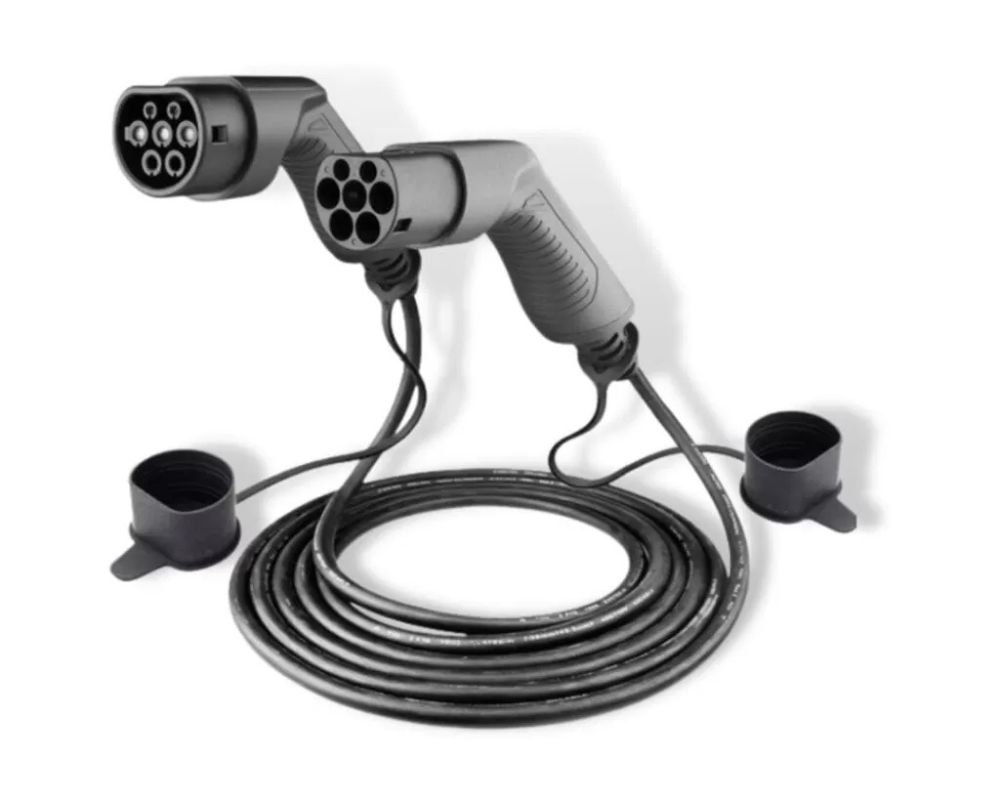
Backup For AC Charging Posts
Type 2-to-Type 2 Cable (Optional Backup)
Connects the E07 to untethered Type 2 AC charging posts at up to 7 kW. A backup when fast chargers aren’t available.
View a Type 2-to-Type 2 Cable Example at EVSE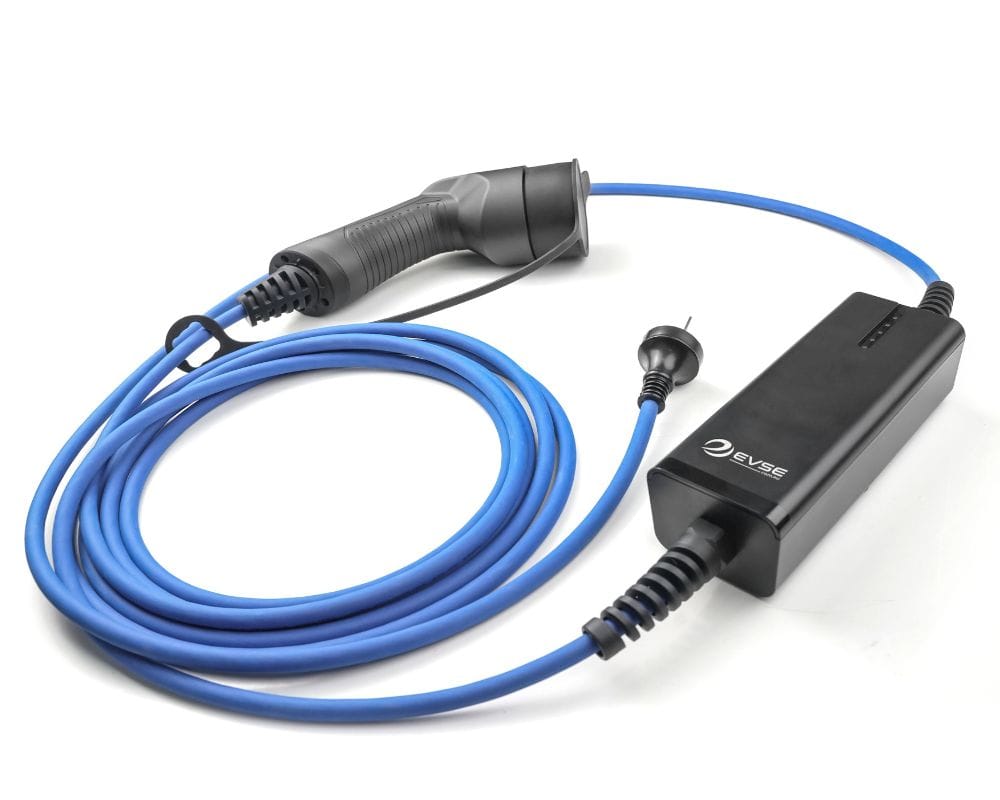
Simple Overnight Backup
Portable Charger · Contributor Example
The guide contributor reported that a portable charger was included with their E07. Check what is included with your own delivery. The pictured 10 A plug charger delivers 8 A, roughly 1.8–1.9 kW before losses. Useful for overnight top-ups or as a backup.
View a 10 A Plug Example at EVSE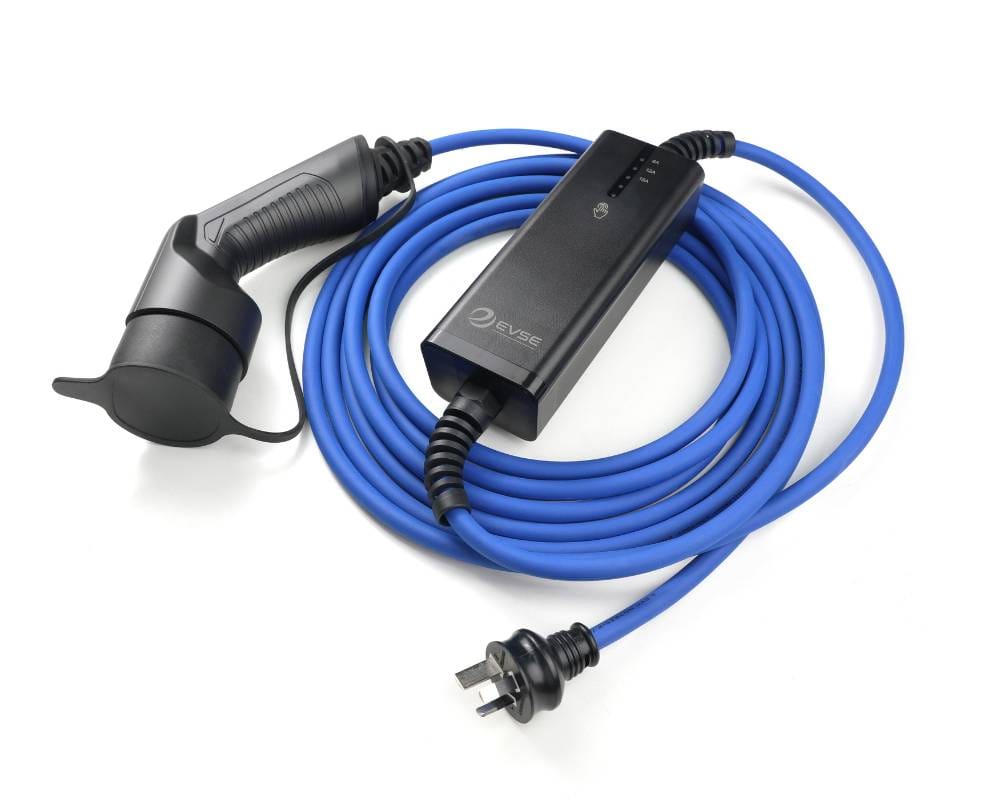
Faster Overnight Charging
15 A Single-Phase Portable Charger (Optional)
Up to 3.5 kW from a 15 A socket for faster overnight charging. Its 15 A plug does not fit a standard 10 A outlet.
View a 15 A Plug Example at EVSE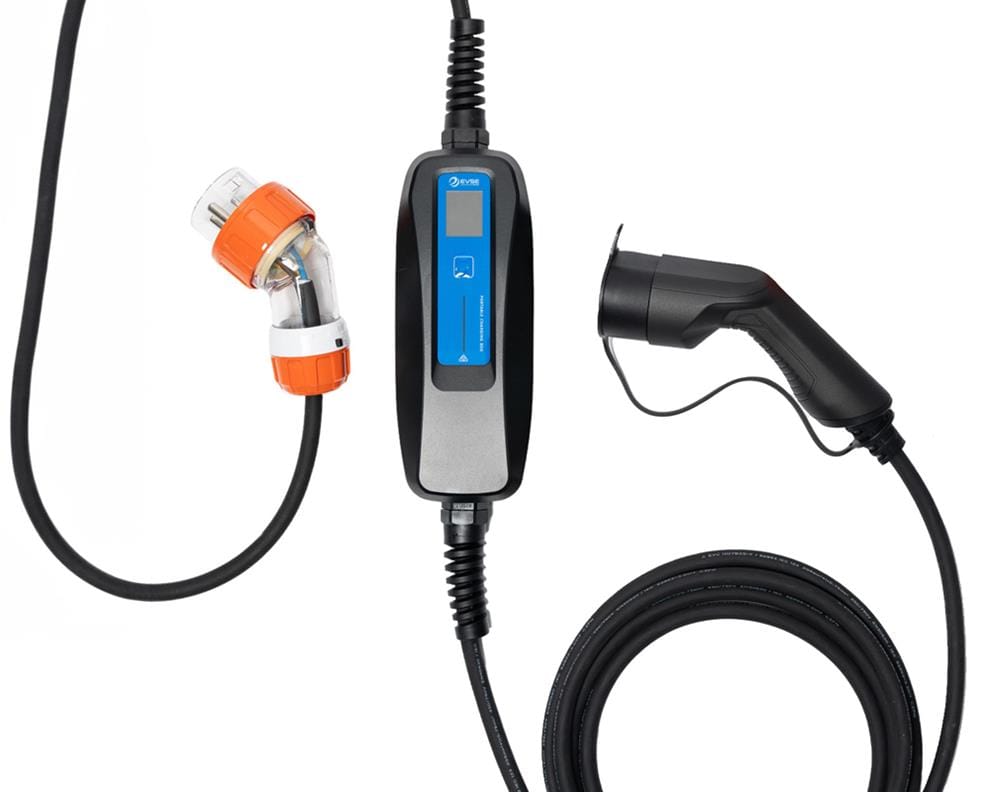
For Confirmed 32 A Access
32 A Single-Phase Portable Charger (Optional)
Up to 7 kW AC on the E07. The pictured charger requires a matching 32 A three-pin industrial socket.
View a 32 A Example at EVSESources and Image Notes
This guide adapts route-planning advice from the Deepal E07 Australia owner community. PlugShare station screenshots are dated 3 October 2026; the additional-filter, network, power-and-plug and Canberra-to-Melbourne route examples are dated 4 October 2026. Network exclusions apply to the example search, not every charger on a network. Ratings and availability are time-sensitive examples, not verified E07 charging sessions or a forecast. Some pictures are cropped and have numbered page overlays; full-size links open unchanged screenshots. The account setup image was edited with AI to obscure the name and email. The underlying maps and imagery remain the property of their respective owners.
PlugShare actions are linked to its official help pages, reviewed on the same date. Those articles carry 2022 publication dates, so labels and feature availability may change. Charger preferences, reserve planning and E07-specific checks are edited community guidance, not manufacturer instructions or a guarantee of compatibility.