App examples: international Android V1.12.0 with Australia selected and a shared E07 recipient account, checked 10 October 2026. Owner controls, phone permissions and available actions can differ.
Open Battery and Read the State
- Select Your E07. Check My Car refers to the intended vehicle, including any Vehicle Shared badge.
- Open Battery. Tap the home Battery card. The page shows battery percentage, EV Range, Charge Limit and Scheduled Charging.
- Compare before Changing. Check the app against the vehicle and note any displayed status or error. A displayed value does not establish when it last refreshed.
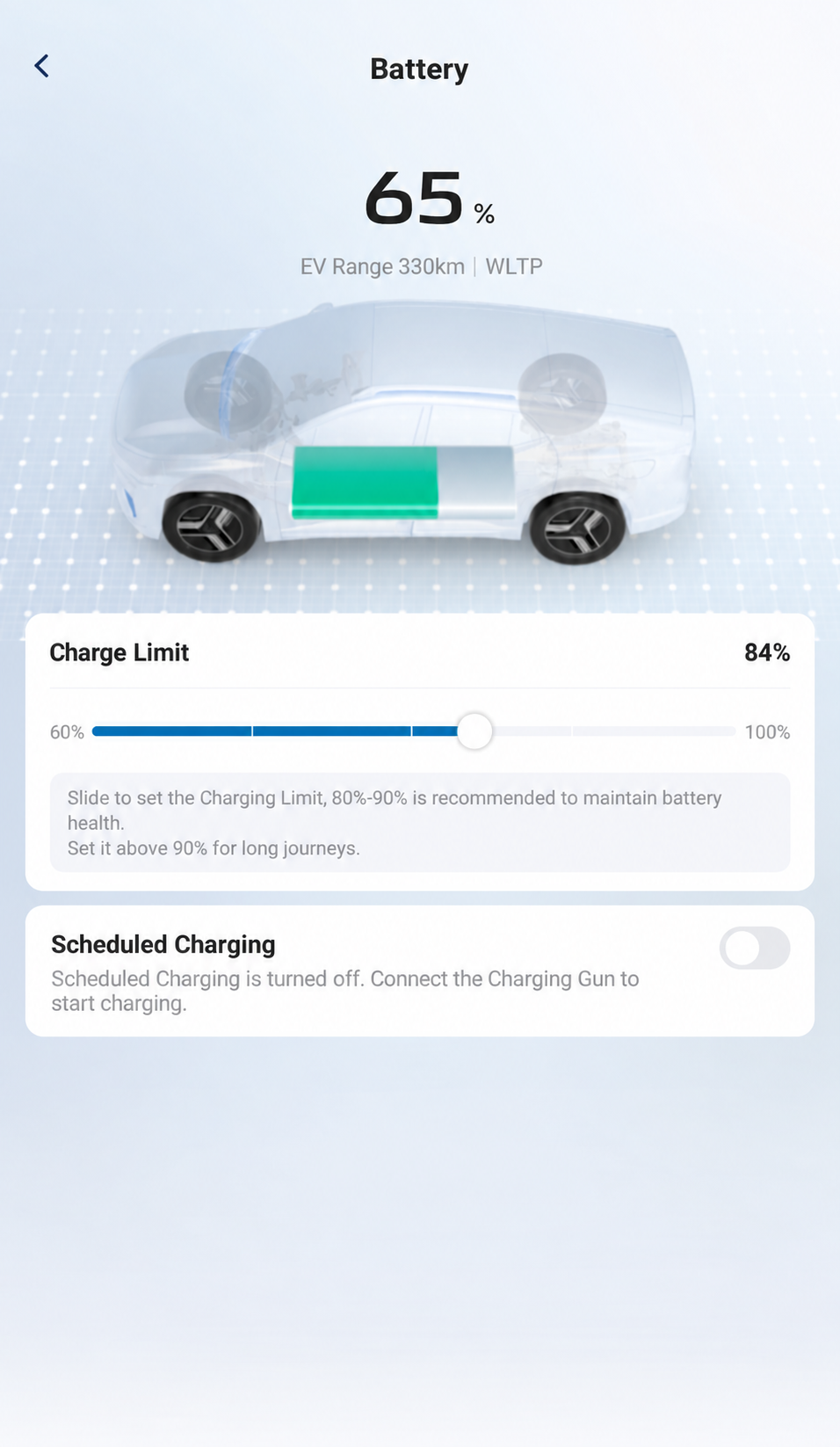
The illustration shows 65%, EV Range 330 km / WLTP, Charge Limit 84% and Scheduled Charging off. These are observations, not target settings for your vehicle.
AI-Edited Reference · Android V1.12.0 · Australia · Shared E07 Recipient · Reviewed 10 October 2026. Screens and available controls may differ by account and app version.Review or Change the Charge Limit
The observed Charge Limit slider spans 60%–100%. Its helper recommends 80%–90% to maintain battery health and above 90% for long journeys; that is app-displayed advice. The observed 84% is not a recommendation for every owner.
- Choose Your Intended Target. Consider your journey and the vehicle’s current battery level. Confirm you have authority to change this vehicle’s charging settings.
- Use the Displayed Slider. On Battery, locate Charge Limit and move its slider to the chosen value if the current app accepts adjustment.
- Inspect Any Actual Apply Step. Slider increments and confirmation controls can differ. Use only the controls actually presented; do not assume a Save button exists.
- Check the Result. Reopen Battery and verify the displayed target. A changed display alone does not prove the next charging session reached that target.
The shared recipient could see the slider, but changing authority and successful application were not established. If the control is unavailable, check account rights with the owner.
Review Scheduled Charging
On My Car, open Battery and find Scheduled Charging. The Australian Android V1.12.0 shared-recipient example shows the switch off, with a helper saying that connecting the charging gun starts charging while scheduling is off. The example does not show the expanded editor or establish editing authority. Use the time/day, repetition and timezone controls your app actually offers, and read any confirmation before applying a change.
- Check the Existing State. Record the switch and any schedule shown before changing it.
- For an Authorised Change, Open the Current Controls. Confirm authority for the selected vehicle before changing anything. If you want a schedule, open Scheduled Charging and inspect the controls your app actually presents. Enabling it changes charging behavior; follow your app’s current sequence and confirmation prompts.
- Verify Fields before Entering Them. Check how your app defines times, days/repetition and timezone, and whether it requires confirmation. Do not copy assumed field names from another interface.
- Verify the Requested Schedule. Reopen Battery and check the intended state/times against the car. Confirm a real charging session starts and delivers the needed charge before relying on departure readiness. A changed app display alone does not prove the vehicle applied or executed a schedule.
The Car’s Schedule Is a Separate Interface
For home AC charging, the manual says to open Energy Centre on the car’s centre screen, then choose Schedule Charging. It describes start/end times and daily repetition. Those are in-car controls; do not assume the app uses the same fields. See Home Charging and Overnight Schedules for the car procedure and coordination with a wallbox schedule.
Plan the Window and Target
A schedule defines when charging is permitted; it does not promise a full battery. Before forecasting a finish level, check the starting battery percentage, intended charge target, available battery energy information, achievable average AC power and time during which both car and charger permit charging. Allow for losses and changing power. If those inputs are missing, the finish level remains uncertain; check a real session before relying on it for departure. See Car and Wallbox Schedule Checks.
If Charging Does Not Start
Compare the vehicle and charger’s actual state. Check whether the target is already reached and whether the vehicle or wallbox is waiting for a schedule. If app range/status is missing or stale, use App Troubleshooting. Check the Connection and Account Requirements before assuming a remote setting was applied.
E07 Owner’s Manual — pp. 69–70 (PDF pp. 80–81). In-car charging schedules: E07 Owner’s Manual — p. 87 (PDF p. 98). Australian Android V1.12.0 Battery reference, checked 10 October 2026. The illustrated slider range and schedule-off state do not verify editing rights or successful charging.